
Why a YouTube Short Over One Minute May Be Blocked by a Music Claim
Check the claim, upload date, and current YouTube Studio restrictions before editing or rescheduling a longer Short.
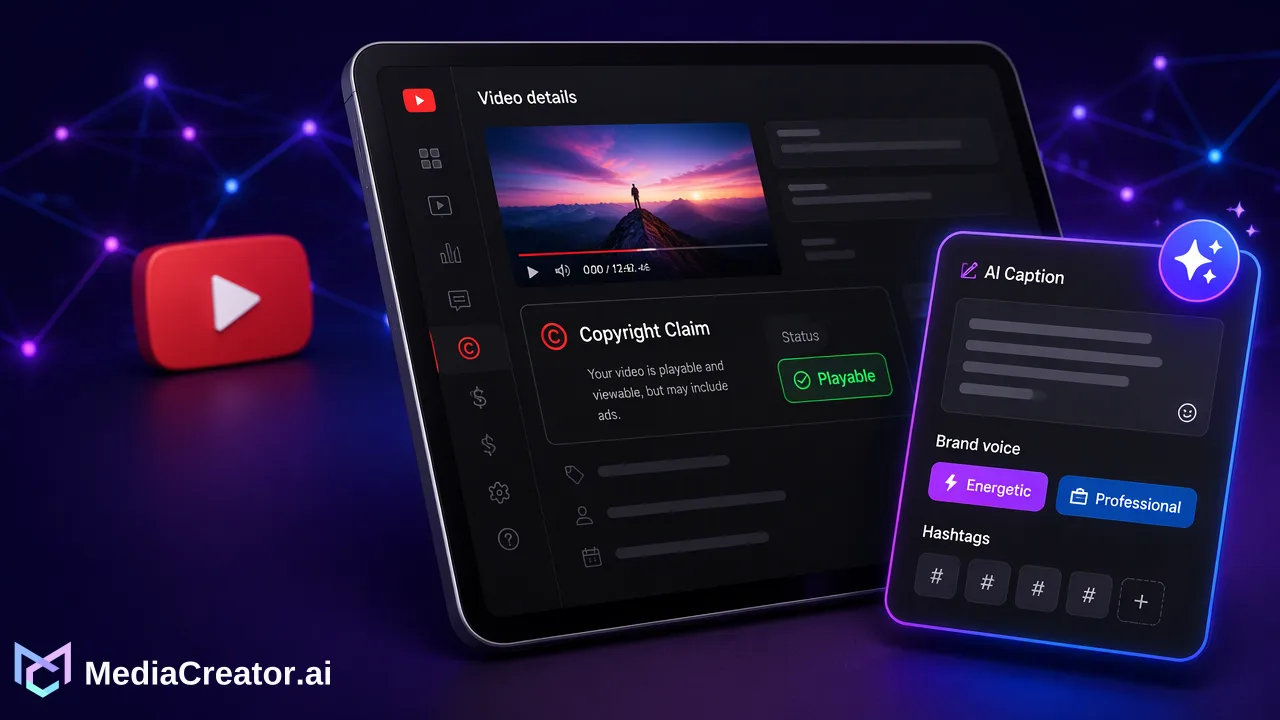
A longer Short with a music claim needs a Studio-level diagnosis because YouTube guidance has changed and a claim does not always mean a current block.
A YouTube Shorts copyright claim over one minute can affect a video, but an active claim does not always mean a newly uploaded Short is automatically blocked. YouTube says that since September 24, 2026, new Shorts longer than one minute with a claim may remain playable, while some older help text still describes automatic blocking. Check the individual video’s current restriction, claim details, and upload date in YouTube Studio before changing the audio or scheduling a replacement.
Why the one-minute claim rule needs a current check
YouTube categorizes eligible vertical videos between one and three minutes as Shorts. Its copyright claims guidance says that, starting September 24, 2026, new Shorts longer than one minute with active claims are no longer automatically blocked and may remain playable. Its Shorts creation guidance repeats that qualification. Yet another three-minute Shorts help page still states an absolute block rule. Those pages should not be treated as a substitute for the restriction shown on the actual upload.
The practical distinction is between a claim, a viewing restriction, and a copyright removal request. A Content ID claim identifies matched material and may apply a rights holder’s policy; it is not, by itself, a copyright strike. A blocked video requires a response to the specific restriction shown in Studio. A removal request is a different process with different consequences. When a teammate reports that “the music blocked our Short,” record which of these states Studio actually displays instead of assuming the duration alone explains it.
Upload timing matters when comparing old and new examples. A blocked older Short does not prove that a new upload with the same length will be blocked automatically. Equally, the newer guidance does not promise that every new claimed Short will remain viewable. The claim and restriction on the specific video are the decision point.
Diagnose a YouTube Shorts copyright claim over one minute
Start in YouTube Studio, open Content, and look under the Shorts tab. YouTube’s claim help page documents a Claims filter and a claim details view. Check the video’s current visibility or restriction, the claimed segment, and whether the notice refers to audio, visuals, or another copyrighted element. A music-related search query does not prove that the recorded claim is for music. Keep a note of the upload date and the precise status so the next editor can distinguish a historical block from a present one.
Then compare the claimed timestamps with the final exported file. Was a music bed embedded before upload? Was a short excerpt repeated? Does a claimed segment overlap spoken instructions or a logo animation? These questions tell the editor what can be changed without damaging the explanation. Do not assume a music license for another service or social platform covers an upload to YouTube. Check the license terms for this use and retain the relevant documentation outside the content calendar.
Finally, verify the viewer-facing result rather than relying only on the draft’s scheduled state. A scheduled post can look ready in a calendar while the destination platform later applies a rights restriction. Use the social media scheduler to review the planned YouTube asset and its publishing status, then use YouTube Studio for the copyright decision. MediaCreator does not decide claims or disputes.
Choose a correction that matches the claim
YouTube’s claimed-content editing instructions describe three possible Studio actions: trim the claimed segment, replace a claimed song with Audio Library audio, or erase the song. Availability depends on the video and claim. Preview the result before saving. Trimming can remove narration or context; erasing can also affect other sound in the selected portion; replacing a song may require checking that dialogue remains intelligible. YouTube notes that saved Studio Editor changes cannot be reverted to the original with its former revert feature, so keep a copy of the source file before an irreversible edit.
If the claim appears mistaken and the team has a clear basis for its rights, YouTube provides a dispute route. Follow the claim guidance and make that decision with the person responsible for the rights evidence. A dispute is not an editing shortcut, and it does not guarantee a particular outcome or review time. If the issue is a valid claim and an in-place edit would harm the story, prepare a separately reviewed version with music that the team can substantiate for YouTube use.
A useful correction sheet has four columns: original segment, reason it was claimed, proposed action, and quality check after action. This prevents a production team from removing sound without noticing that the spoken instructions disappeared. It also keeps the rights decision separate from the scheduling decision.
Prepare a replacement without repeating the same mistake
If an in-place YouTube edit is unavailable or unsuitable, open the original project rather than trying to reconstruct it from a compressed posted copy. Replace or remove the questionable track, listen to the entire mix, and confirm that the exported file contains the intended audio. Recheck the duration and the ending: a small edit can leave a title card or voiceover out of sync. Have the person who owns the rights review the revised music choice before the team schedules a replacement.
In MediaCreator, connect the relevant YouTube account through the documented OAuth flow, add the revised file as a new draft, adapt its copy for YouTube, and use the per-platform preview before scheduling. A draft or calendar entry is a preparation state, not a rights clearance. After publishing, review the post-result status and return to YouTube Studio if a new claim appears. Do not delete a blocked original merely to make the calendar look tidy until the team has recorded what happened and what changed.
If the video also goes to TikTok, Instagram, or Facebook, make separate music and format checks for those destinations. MediaCreator can help organize the assets and timing in one workspace, but each platform’s rights rules and publishing controls remain its own. Reusing a file across channels is a production convenience, not proof that one license covers every destination.
A compact decision record for the next upload
Before the next upload, record five facts: the original upload date; whether YouTube identifies the upload as a Short; the exact Studio claim and restriction; the rights evidence or editing choice; and the status after the correction. This is more useful than a generic note saying “copyright issue.” It lets an editor see whether a current block is still present and why the team chose a replacement, in-place edit, or dispute.
Treat the September 2026 guidance as a reason to inspect live status, not as a reason to ignore claims. YouTube’s help pages currently contain conflicting broad language about longer Shorts. The individual notice and current YouTube copyright documentation deserve a fresh check whenever the rule affects a production decision. The safest operational sequence is diagnose, confirm rights, choose the smallest appropriate correction, review the resulting audio, and only then reschedule if a new asset is needed.
FAQ
Can teams assume every claimed Short over one minute is blocked?
No. YouTube says new Shorts uploaded from September 24, 2026 may remain playable despite an active claim. Check the actual video restriction in YouTube Studio; older help text still states a broader block rule.
How can teams tell whether the issue is a claim or a strike?
Open the notice and claim details in YouTube Studio. YouTube distinguishes Content ID claims from copyright removal requests and strikes. Record the exact notice before choosing a response.
How can teams fix claimed music without uploading again?
YouTube Studio may offer trimming, replacing the song, or erasing it. Preview the result and preserve a source copy before saving, because the edit may affect narration and saved Editor changes may not be reversible.
Can teams resolve a YouTube copyright dispute in MediaCreator?
No. MediaCreator can prepare, preview, schedule, and track a revised post. Claim details, editing options, and disputes are handled in YouTube Studio.
Learn More
Choose the product information that fits the next step in your workflow.
Get Started with MediaCreator.ai
Discover the power of AI-driven content creation
Related Articles
Continue learning with these related guides
How to Repurpose One Piece of Content for TikTok, Instagram, Facebook and YouTube
Turn one video or image into TikTok, Instagram, Facebook and YouTube versions: framing, length, covers, per-platform captions, settings and preview checks.
BlogHow to Schedule YouTube Shorts in Advance
Prepare Shorts with strong titles and descriptions, schedule them on a calendar next to other platforms and preview before they go live.
BlogHow to Cross-Post Short Videos to TikTok, Reels and Shorts Without Looking Duplicated
Adapt one vertical video for TikTok, Instagram Reels and YouTube Shorts: clean exports, per-platform captions, previews and a staggered schedule.
Blog