
How to Schedule YouTube Shorts in Advance
Prepare Shorts with strong titles and descriptions, schedule them on a calendar next to other platforms and preview before they go live.
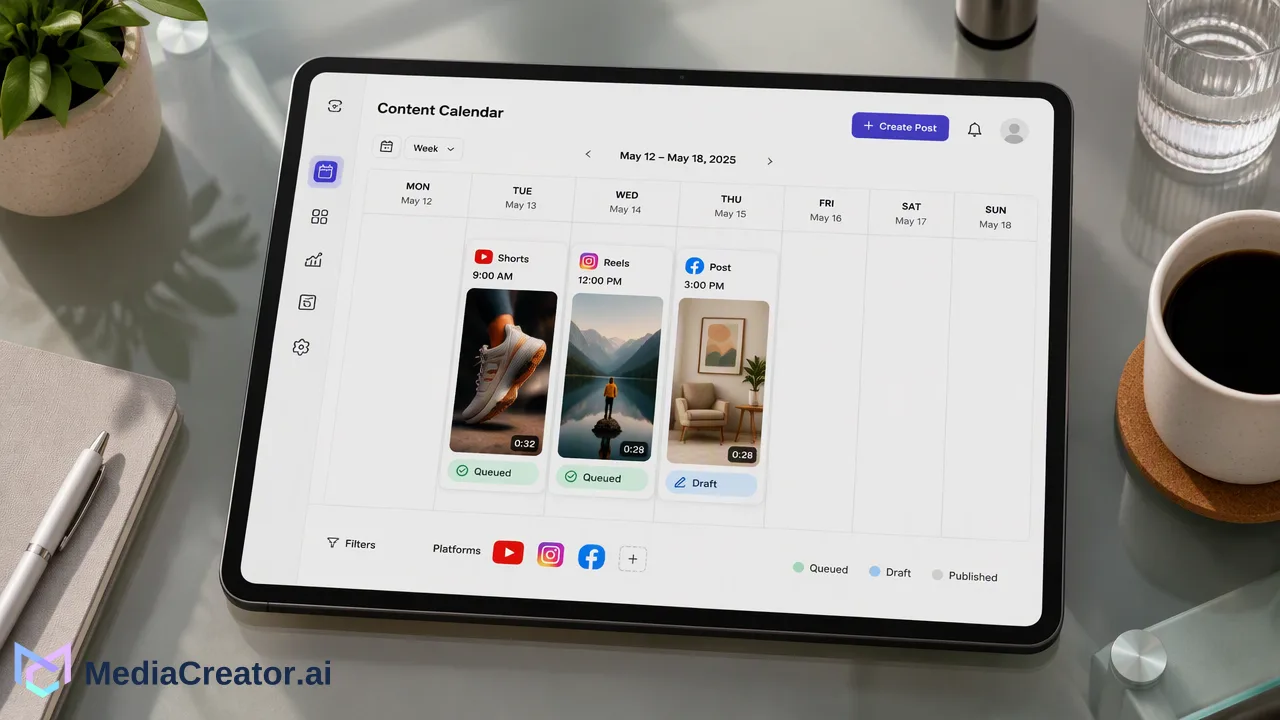
A workflow for preparing, scheduling and previewing YouTube Shorts on a calendar shared with other platforms.
To schedule YouTube Shorts in advance, finish the vertical video, write a title and description that explain it, choose a publish date and time and confirm the post on a calendar. YouTube Studio supports scheduling natively, and YouTube's Help Center explains that a scheduled video stays private until its publish time. A scheduling workspace adds one calendar across YouTube and your other channels, with per-platform previews before anything is queued.
How YouTube handles scheduled videos
YouTube's Help Center describes scheduling as part of the upload flow in YouTube Studio: you set the video to private or scheduled, pick a date, time and time zone, and the video becomes public at that moment. A scheduled video remains private until then, and you can change the time or publish immediately from the Content area.
Two details from that documentation matter for planning. First, the date shown on the public watch page is based on Pacific Time, so it can differ from the date you see in Studio. Second, if a channel has a Community Guidelines strike, a scheduled video does not publish during the penalty period and must be rescheduled afterwards. Check the scheduled items on your calendar if either applies to you.
A Short is a vertical video uploaded to the same channel, so the same scheduling principles apply. What changes is the preparation: very short videos depend on a clear title and description because there is little time to explain anything in the video itself.
Prepare the Short before you schedule it
Treat preparation as a separate step from scheduling. A clean pre-flight check prevents most rescheduling later.
- Video file. Confirm the vertical framing, the audio levels and that text stays inside the visible area. Store the final file in the Media Library so the same asset is available in the composer.
- Title. Lead with the subject people would search or tap on. Keep it readable in a small card and avoid wording that promises more than the video delivers.
- Description. Add one or two lines of context, a link if one is relevant and any hashtags you use consistently. AI-assisted drafting through Quick Caption or Nova can produce a first version, but a person should edit it before it is queued.
- Audience settings. Make sure the audience designation and any other options available for the upload are set correctly for this video.
If you publish a series, write titles and descriptions together so the set reads consistently instead of one by one on the day.
Schedule Shorts on a shared calendar
Connect your YouTube channel through official OAuth 2.0 in the workspace; there is no password sharing and no browser extension. The same dashboard connects TikTok, Instagram and Facebook, so Shorts can be planned next to the posts that go to those channels. The social media scheduler provides month, week and list views.
A simple routine for a weekly batch:
- Upload that week's Shorts to the Media Library.
- Open the composer, select the YouTube channel and attach one video.
- Enter the title and description and set the destination options shown.
- Pick a date and time and place it on the calendar.
- Repeat for the next video, spacing releases so they do not compete with each other.
Plan the rest of the week around them. A calendar that shows a Short on Tuesday, a Reel on Wednesday and a Facebook post on Thursday makes gaps and overlaps visible at a glance. If a video is not final, keep it as a draft rather than a queued post.
Preview before the video goes live
Use the per-platform preview to see how the title and description will look for YouTube before you confirm. Truncated titles, awkward line breaks and missing links are easy to fix at this point and hard to fix after publication.
When the same video also goes to other platforms, do not paste one text everywhere. A useful split is:
| Element | YouTube Shorts | Other short-video platforms |
|---|---|---|
| Main text | Title plus short description | Caption written for that platform |
| Links | Description can carry a relevant link | Depends on what that platform displays |
| Tone | Clear and searchable | Often more casual |
After a post is queued, it moves through draft, queued, published and failed states on the calendar. Look at the calendar after each scheduled time to confirm the result, and rework any failed item. Platform rules decide what connected tools may publish, so rely on the options shown for your channel and on YouTube's current guidance.
Choose publishing times from your own data
Generic best-time charts describe other people's audiences. If your plan includes Analytics, the Timing tab shows when your own posts have performed and the Content tab shows which videos did well. Use those as inputs for tests: try two slots for a few weeks, compare and adjust. Any recommended time is guidance only, and no tool can promise views, engagement or growth.
If you want to extend a successful Short to a second-language audience, AI video translation can help with uploaded videos, and the translated version can be scheduled like any other post after you review it.
FAQ
Can YouTube Shorts be scheduled in advance?
Yes. YouTube Studio lets creators schedule videos for a future date and time, and a scheduling workspace connected to the channel can place Shorts on a calendar alongside posts for other platforms.
What happens to a scheduled Short before its publish time?
According to YouTube's Help Center, a scheduled video stays private until its publish time, when it becomes public automatically.
How can teams keep Short titles and descriptions consistent?
Write titles and descriptions for a whole batch together, review AI-assisted drafts before queuing and use the preview to check how each looks before confirming.
Which platforms can be planned next to YouTube Shorts?
MediaCreator.ai supports TikTok, Instagram, Facebook and YouTube, so Shorts can be scheduled next to posts for the other three on one calendar.
Learn More
Choose the product information that fits the next step in your workflow.
Get Started with MediaCreator.ai
Discover the power of AI-driven content creation
Related Articles
Continue learning with these related guides
How to Schedule TikTok Posts from a Computer
Connect TikTok through OAuth, prepare the video and caption, pick a slot on the calendar and preview before publishing. A step-by-step desktop workflow.
BlogHow to Schedule Instagram Reels Without Posting Manually
Connect an eligible Instagram account, write Reels captions, schedule on a calendar and preview per platform. Includes account-type notes.
BlogHow to Bulk Schedule Social Media Posts for a Month
Plan, batch-draft, adapt and place a month of posts on a visual calendar, with a review step before anything goes live.
Blog