
How to Repurpose One Piece of Content for TikTok, Instagram, Facebook and YouTube
Turn one video or image into TikTok, Instagram, Facebook and YouTube versions: framing, length, covers, per-platform captions, settings and preview checks.
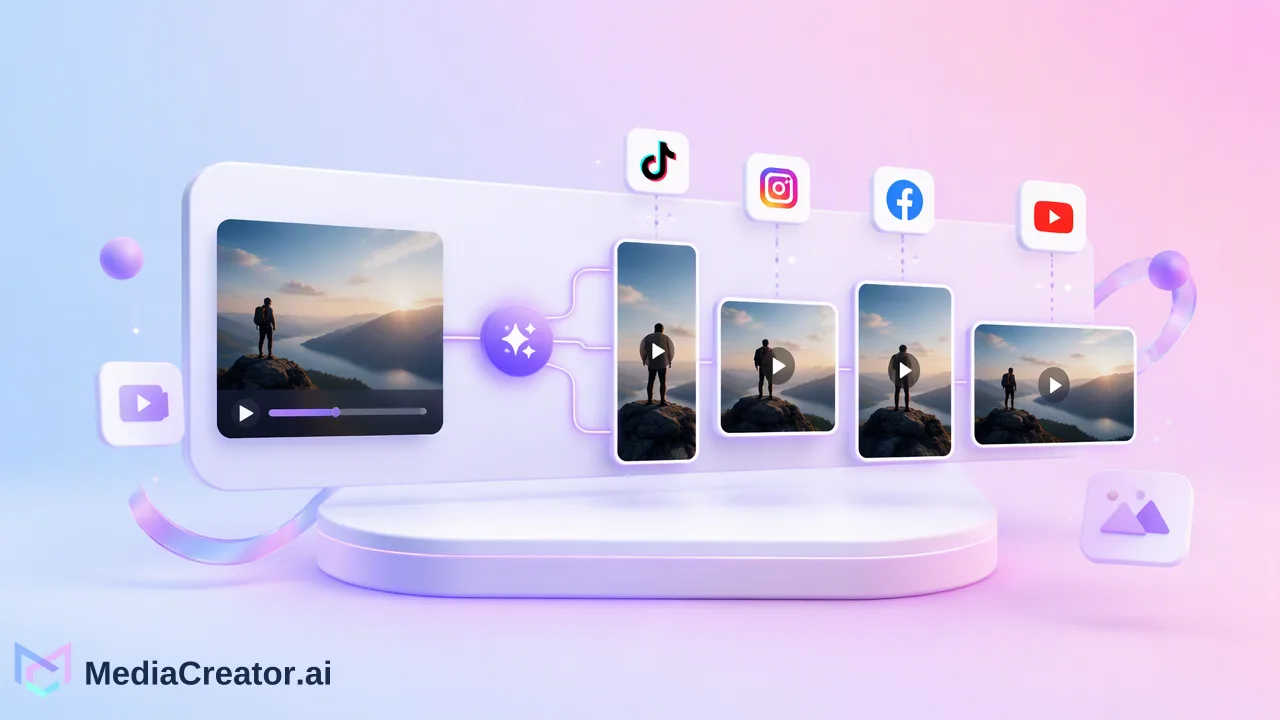
A step-by-step method to repurpose content for social media by adapting one source asset into four platform-ready versions instead of posting identical copies.
To repurpose content for social media, start from one strong source asset, decide which platforms it suits, then change the parts each platform treats differently: framing, length, cover, caption, and post settings. Posting the identical file and text everywhere is cross-posting, not repurposing. A short checklist per platform, followed by a preview of each version before scheduling, turns one asset into four posts that read as native to TikTok, Instagram, Facebook and YouTube.
Repurposing versus cross-posting
Most articles on this topic offer idea lists, such as turning a webinar into clips or a blog post into a carousel. That is useful for finding material, but it skips the step where most repurposed posts fall flat: the adaptation itself.
| Cross-posting | Repurposing | |
|---|---|---|
| File | Same file everywhere | Same source, edited per platform where needed |
| Caption | One caption copied | Rewritten for each audience and caption style |
| Cover and title | Whatever the first frame is | Chosen per platform |
| Settings | Defaults | Checked per platform (privacy, comments, title) |
| Review | Optional | Per-platform preview before scheduling |
The rest of this guide follows one source video through all four platforms.
Step 1: Pick a source asset worth repurposing
Not every post deserves four versions. Good candidates share a few traits:
- Self-contained. The point lands without the context of a longer video or thread.
- Visually clear in a small frame. Faces, products or on-screen text are readable on a phone.
- Evergreen or still timely. A trend clip from last month may not survive a second round.
- Owned or licensed. Music, footage and user-generated content need rights for every platform where they will appear, not only the original one.
If a team has analytics history, the Content tab in MediaCreator.ai Analytics (on paid plans) is a sensible place to shortlist posts that already drew comments or saves on one platform. Treat past performance as a reason to test, not a forecast.
Step 2: Adapt the format for each platform
Format is the part people most often skip. The numbers below come from each platform's own documentation where available; platforms change limits often, so confirm the current figure in the upload screen.
| Platform | Format notes to check |
|---|---|
| TikTok | Vertical video. The TikTok posting API accepts captions up to 2,200 UTF-16 units and lets a cover frame be chosen from the video (TikTok Content Posting API). |
| YouTube | Square or vertical uploads up to three minutes are treated as Shorts; a 16:9 video stays long-form (YouTube Help). Some Shorts Audio Library tracks have shorter usage limits. |
| Reels are vertical; keep important content near the centre because profile grids and feeds may crop the frame. | |
| Page video and Reels can reuse the vertical cut; a square or landscape cut may suit longer explainers in the feed. |
Practical rules that hold across platforms:
- Shoot or export a 9:16 master with a safe area in the middle, so captions and interface buttons do not cover faces or text.
- Make a shorter cut for platforms where a fast hook matters, and keep the full version for YouTube if it runs longer.
- Remove platform marks. Watermarks from another app make the post look recycled.
- Pick a cover per platform. A frame that works as a TikTok cover may crop badly in an Instagram grid.
Step 3: Rewrite the caption for each audience
A caption is the cheapest part to adapt and has the biggest effect on whether a post feels native.
- TikTok: a short hook in the first line, because only the opening is visible before viewers expand the caption.
- Instagram: a first line that works in the feed, then detail and a small set of relevant hashtags.
- Facebook: conversational text; a question or context line often fits better than a hashtag list.
- YouTube Shorts: a clear title that says what the viewer will learn or see, plus a description for context.
In MediaCreator.ai, Quick Caption can draft copy from the uploaded image or video, and opt-in Brand Voice can be selected on supported surfaces so drafts follow saved voice rules. Both are drafting help: read each version, fix facts and tone, and remove anything the brand would not say. The AI content generation features cover Quick Caption and Content Studio, which can also generate supporting images or short clips when a platform version needs a different visual.
Step 4: Adjust settings and preview each version
Open the cross-platform composer, attach the edited media and select the target TikTok, Instagram, Facebook and YouTube accounts. Then work through each platform tab:
- Paste or adapt the caption for that platform.
- Set platform-specific options the composer shows, such as titles, privacy or interaction settings.
- Check the per-platform preview for truncated captions, awkward crops, the wrong cover and the wrong account.
- Fix what the preview shows, then preview again.
A preview is a check, not a promise of identical rendering on every device, but it catches the most common errors before anything goes live.
Step 5: Schedule the versions so they do not collide
Repurposed versions do not need to go out at the same minute. Spreading them across the week gives each one room and lets the team adjust later versions based on early comments.
A simple pattern on the social media scheduler calendar:
| Day | Version |
|---|---|
| Monday | TikTok cut |
| Tuesday | Instagram Reel |
| Wednesday | YouTube Short |
| Thursday | Facebook version |
Use the week or list view to confirm each version sits on the intended account and date, and check the calendar for any post in a failed state after publish times pass.
Repurposing into other languages
A source video can also become a version for viewers in another language. For supported uploaded videos, Video Translation Pro in MediaCreator.ai offers speech translation, dubbing, editable source and translation lines, and subtitle and voice controls. Review the transcript lines before export, write a caption in the target language rather than translating the original word for word, and schedule it for that audience's time zone. More detail is on the AI video translation page.
Common repurposing mistakes
- One caption pasted four times. The hashtags that fit Instagram look out of place on a Facebook Page.
- Landscape video forced into vertical. Heads and products get cut off; re-edit instead of auto-cropping.
- Ignoring music rights. A track cleared on one platform may not be available or licensed on another.
- No record of what was reused. Keep a simple log of source asset, platform and date so the same clip does not reappear too often.
- Skipping the preview. Most truncation and wrong-account errors are visible in the preview.
FAQ
How often can teams repurpose the same piece of content?
There is no fixed rule. Keep a log of where and when each source asset was used, space versions across days or weeks, and refresh the hook, cover or caption when an asset returns to the same platform.
Is it acceptable to post the same video on TikTok, Reels and Shorts?
The same source can appear on all three, but each version works better with its own caption, cover and clean export without another app's watermark. Check each platform's current rules for music and reused content.
How can teams adapt captions faster for each platform?
Draft one core message, then use a caption assistant such as Quick Caption to produce platform-specific drafts. Edit each draft for accuracy and tone before scheduling, since AI copy still needs a human review.
What should be checked before scheduling repurposed posts?
Confirm the account, caption truncation, crop and cover, platform settings and publish time in the per-platform preview and calendar view.
Learn More
Choose the product information that fits the next step in your workflow.
Get Started with MediaCreator.ai
Discover the power of AI-driven content creation
Related Articles
Continue learning with these related guides
All-in-One Social Media Management Tool: Which Features Actually Belong in One Place
Seven jobs worth combining in one social workspace, a test for each during evaluation, and how MediaCreator.ai covers TikTok, Instagram, Facebook and YouTube.
BlogThe Social-First Distribution Framework: How to Repurpose Assets for Maximum Reach
Build an efficient social media content distribution strategy by repurposing core assets into platform-native formats with centralized scheduling.
BlogHow to Optimize Your Facebook Business Page for Professional Social Media Management
Learn how facebook business page optimization helps teams manage brand presence, collaborate securely via OAuth, and streamline cross-platform publishing.
Blog