
YouTube Automatic Dubbing Uses the Wrong Source Language: A Diagnosis Guide
Check the original-language setting, source speech, and YouTube dub controls before replacing a video with a reviewed translation.
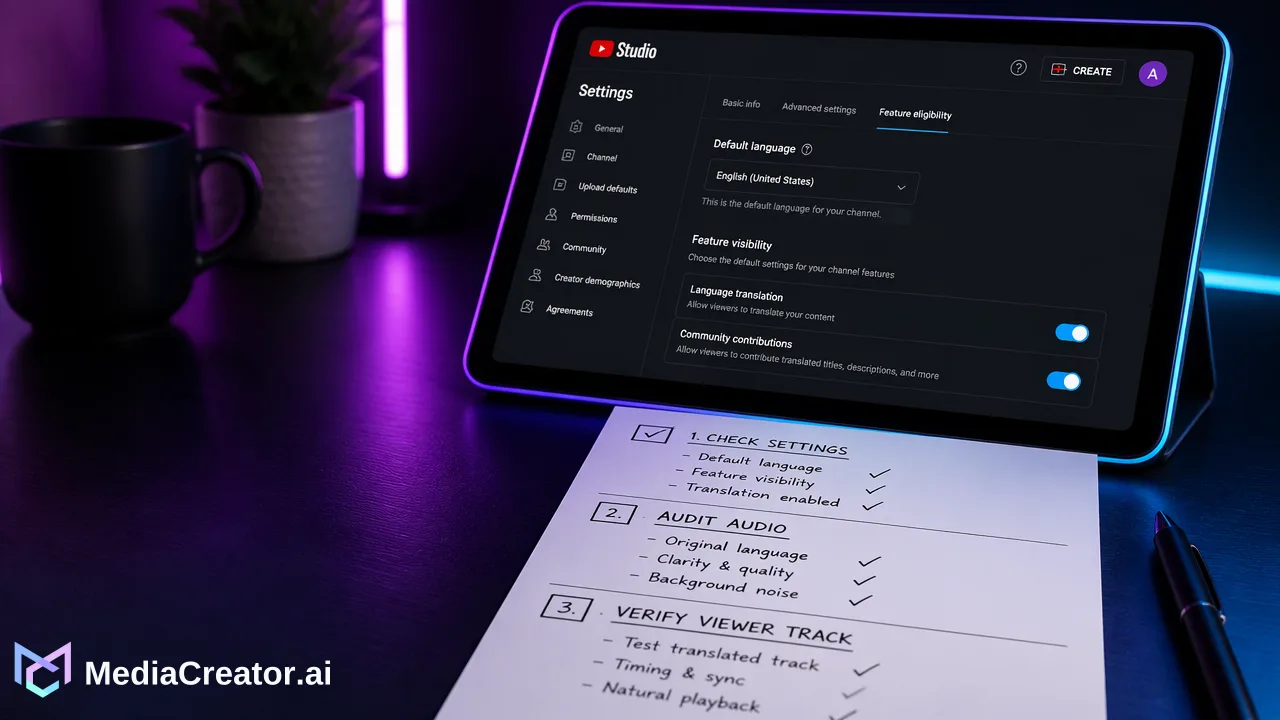
Separate a wrong YouTube original-language setting from source-audio and transcript problems before deciding whether to regenerate or replace a dub.
When YouTube automatic dubbing uses the wrong source language, check the video’s original-language setting in YouTube Studio before replacing the video. YouTube says an incorrect original language can lead to mistranslated automatic dubs and that correcting the setting can cause the dubs to regenerate. If the setting is already right, compare the actual speech and available source text with the dub; a new uploaded asset may be appropriate only after the team has identified what needs changing.
Separate the three problems that sound like a wrong source language
A viewer saying “the dub is in the wrong language” may be describing three different conditions. The original video language might be set incorrectly, so YouTube starts its automatic translation from the wrong language. The original audio might contain unclear speech, rapid delivery, mixed languages, or little speech, leaving the system with a poor source. Or the viewer might simply be hearing a different available audio track than expected. Each requires a different action; replacing the uploaded file before distinguishing them can waste an otherwise usable asset.
Start with a written diagnosis: the language actually spoken in the source clip, the original language recorded for the upload, the target dub the team expected, and the audio track a viewer heard. Listen to the original file, not only the dubbed version. A bilingual reviewer can identify whether the speaker changes language in the middle of a sentence or uses product names that recognition may mistake for ordinary words. Do not infer a source setting from the title, description, or social caption; these are separate pieces of text.
YouTube’s automatic dubbing help names source-language detection, unsupported original languages, speech pacing, and copyright claims among reasons a dub may not be generated. Those reasons do not prove which issue affects a particular video. The video’s language settings and available tracks are the evidence for the case at hand.
Check the YouTube original-language setting first
In YouTube Studio, inspect the original video language on the affected upload and compare it with what the speaker actually says. YouTube advises creators to set the original video or channel language accurately when uploading. Its automatic dubbing guidance says a wrong default language can mistranslate automatic dubs, and that updating the original video language to the correct one can generate the dubs again. Follow the current Studio controls for the specific video, then review the new output when it becomes available.
Do not change the original language merely to force a preferred target dub. If the source speech is in Spanish, labeling it as English is not a repair even if the audience mainly speaks English. Also distinguish the original language of this video from a viewer’s playback preference. The latter can change which audio track a viewer hears without changing the creator’s source recording or the language YouTube uses to generate a dub.
Before making a setting change, record the current value and the observed fault. Afterward, verify the setting saved and review the available language tracks. Do not promise an immediate result or a fixed processing time; the official guidance says the dubs will be regenerated, but the article should not invent timing or status behavior for a given account. The test is whether a reviewer can hear an accurate rendition of the original message in the target language.
Inspect source speech and meaning when the setting is correct
If the language setting matches the video, listen closely to the original. A weak recording, background music over speech, code-switching, rushed sentence, or ambiguous proper noun may still make a generated dub hard to understand. YouTube notes that automatic dubbing can have speech-recognition and quality limitations. Compare the spoken source with any available transcript or captions the team maintains, then identify the first sentence where meaning diverges. A correct language label does not automatically make every source word clear.
Create a brief issue list with the timecode, intended message, what the dub says, and the consequence for viewers. Separate a harmless accent choice from an instruction that changes meaning. For example, a misstated product name may send a viewer to the wrong item, while an awkward but understandable pause might be acceptable. Have someone competent in the target language review the actual audio rather than judging solely from an English back-translation.
YouTube states that automatic dubs themselves cannot be edited. If the original-language correction does not fix the problem, evaluate YouTube’s available controls for reviewing or managing the auto dub and whether the team should prepare its own reviewed language asset. Do not claim MediaCreator can reach into YouTube and edit an automatically generated audio track. That work remains in YouTube’s tools.
Decide whether to keep, manage, or replace the video
Use a simple decision sequence. If the original-language setting is wrong, correct it in YouTube Studio and review the regenerated dub before changing the source video. If the setting is right but the original audio is confusing, a clearer source recording or revised script may be needed. If the source is clear but the target-language message is wrong, review the native dub-management options and consider a separately produced, reviewed translation. The right choice depends on the specific track, rights, and production constraints.
Replacing an uploaded video is a larger decision than correcting metadata. A replacement creates a new asset and requires another check of title, description, thumbnail, language, rights, and schedule. Keep a record of why the original was unsuitable; otherwise the same source file may accidentally be uploaded again. Do not describe deletion or reupload as a universal fix. A team should first use the least disruptive valid control that YouTube currently offers.
If a replacement is chosen, MediaCreator’s AI video translation can support a reviewed uploaded-video workflow using editable source and translation lines where enabled. Correct the source text, inspect translated wording, listen to dubbing, and approve the final export before it becomes a social post. This is a new reviewed media asset; it does not modify YouTube’s existing auto-generated track.
Prepare the reviewed replacement for publishing
For a replacement asset, start from the approved source file and preserve its original-language label in the editorial record. Review pronunciation of names and technical terms, the translation of actions and qualifiers, and the beginning and end of each sentence. A short clip can be particularly sensitive to timing: a translated phrase may continue after the visual demonstration has ended. The human reviewer should watch the whole video, not just read text lines in isolation.
Then prepare the final video as a draft for the supported YouTube account in MediaCreator. The social media scheduler can organize the post, adapt copy for the destination, show a preview, and place it on the visual calendar. Confirm that the selected file is the newly approved language version and that the post copy does not accidentally describe an older edit. Scheduling is a production step, not evidence that YouTube’s automatic dub was fixed or that YouTube will choose a particular viewer audio track.
After publication, review the video in YouTube Studio and, where relevant, test the available audio tracks as a viewer. Record whether the original and target-language versions convey the intended message. If another problem appears, retain the timecode and track name so the next revision targets the actual issue rather than repeating the entire translation process without a diagnosis.
A reusable language-check worksheet
For each affected video, keep six entries: source spoken language; Studio original-language setting; target language; exact sentence and timecode of the error; action taken; and the final reviewer’s finding. This worksheet is an editorial tool, not a claim about a MediaCreator or YouTube screen. It makes it clear whether the problem was metadata, recording quality, translation, or playback selection.
The distinction matters for future uploads. A wrong setting suggests checking the language at upload time. A recurring misheard product term suggests improving the original recording and the team glossary. A viewer-track issue suggests explaining how to select the desired track, not replacing the creative. A failed translated instruction suggests requiring a bilingual review before scheduling. Each remedy follows from observed evidence, not from a generic assumption that all automatic dubbing errors have one cause.
FAQ
How can teams check whether YouTube used the wrong original language?
Compare the actual source speech with the video’s original-language setting in YouTube Studio. If the setting is wrong, correct it and review the regenerated dub as YouTube advises.
Can teams edit an automatic YouTube dub word by word?
YouTube says its automatic dubs cannot be edited. Teams can inspect available native controls and, where appropriate, prepare a separately reviewed translated asset.
Could viewer audio selection be mistaken for a source-language error?
Yes. Check which track the viewer is playing and compare it with the original recording and the creator’s video-language setting before replacing anything.
What should teams review before scheduling a replacement?
Check source and translated wording, critical names, spoken meaning, visual timing, and the exact final export. Then preview the prepared YouTube post and verify the result after publishing.
Learn More
Choose the product information that fits the next step in your workflow.
Get Started with MediaCreator.ai
Discover the power of AI-driven content creation
Related Articles
Continue learning with these related guides
How to Manage YouTube Comments Without Opening YouTube Studio Every Day
Learn how to manage YouTube comments from a unified social inbox using OAuth 2.0, streamline team replies, and manage platform permission limits.
BlogHow to Translate YouTube Videos for Viewers in Other Languages
Subtitles, translated titles, dubbed audio tracks or a localized upload: how creators translate YouTube videos, review the output and schedule it.
BlogHow to Fix AI Video Dubbing Pronunciation for Names and Product Terms
A practical review process for names, product terms, and translated lines in AI-dubbed social videos before scheduling.
Blog