
How to Translate YouTube Videos for Viewers in Other Languages
Subtitles, translated titles, dubbed audio tracks or a localized upload: how creators translate YouTube videos, review the output and schedule it.
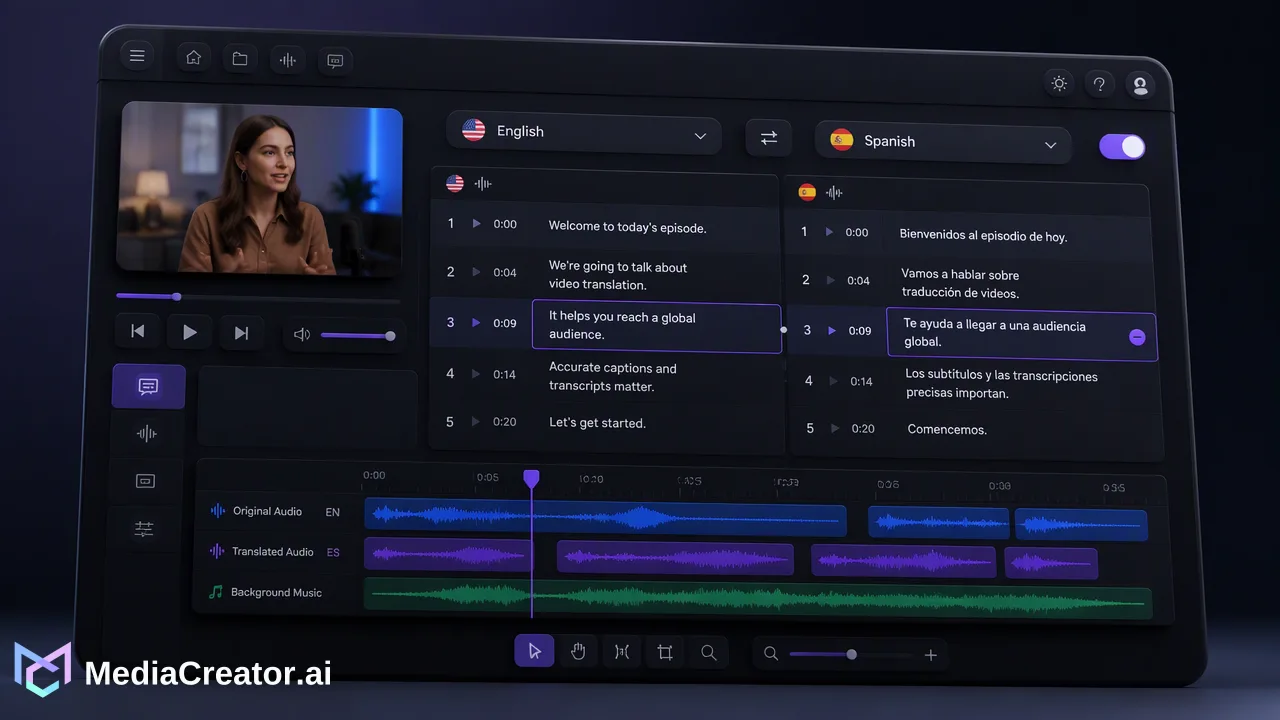
A creator-side workflow for localizing an existing YouTube video: choosing the right translation format, reviewing AI output and publishing the localized version on a schedule.
To translate YouTube videos you own, decide first what the viewer should experience: translated subtitles, a translated title and description, a dubbed audio track on the same video, or a separate localized upload. YouTube Studio handles subtitles, metadata translations and extra audio tracks for eligible channels. When you want a dubbed, subtitled version you can review line by line and publish as its own post, an AI video translation tool lets you translate the speech, edit the result and schedule the finished file.
Four ways to translate YouTube videos, and when each fits
Most results for this search explain how viewers can turn on auto-translated captions. That helps a viewer, but it does not help a creator who wants a second-language audience to find and finish the video. From the creator side there are four options:
| Option | What the viewer gets | Where it is done | Best for |
|---|---|---|---|
| Translated subtitles | Original audio, captions in their language | YouTube Studio, Subtitles | Talking-head videos where the original voice matters |
| Translated title and description | Discoverability in their language | YouTube Studio, title and description translations | Every localized video; helps search in that language |
| Dubbed audio track on the same video | The same video with a selectable audio language | YouTube Studio, multi-language audio on eligible channels | Keeping views and comments on one video |
| Separate localized upload | A dubbed, subtitled video in its own right | Your editing or translation tool, then a new upload | A second-language channel, Shorts, or cross-posting to other platforms |
The options combine well. A localized upload should still get a translated title and description, and a video with a dubbed track still benefits from accurate subtitles.
What YouTube's built-in tools cover
YouTube's help center describes automatic dubbing for eligible creators, with a setting to publish dubs manually after review. The same page lists limits worth knowing before relying on it: language pairs depend on the original language, dubs cannot be edited, and proper nouns, idioms, jargon, fast speech or background noise can produce errors. If the video's original language is set incorrectly, the dubs may be mistranslated.
For dubs you produce yourself, the multi-language audio page explains that you add a language in YouTube Studio and upload an audio-only file of roughly the same length as the video. YouTube also notes that translated titles and descriptions can help the video appear in search for viewers using those languages.
The gap is control. When a brand name is mistranslated or a joke does not land, an uneditable dub leaves you with two choices: accept it or replace it. That is where a translation workflow with editable lines becomes useful.
Translating a YouTube video with AI video translation
The creator in this scenario has a ten-minute tutorial in English and wants a Spanish version. The workflow in MediaCreator.ai's AI video translation starts from the original export, not a downloaded copy of the published video.
- Upload the source file. Use your own edited master so audio quality is as clean as possible. Video Translation Pro works on supported uploaded videos.
- Translate the speech. Video Translation Pro handles speech translation and dubbing, and shows the source lines next to the translated lines.
- Edit the lines. Correct product names, terms of art and any phrase that reads too literally. Editable source and translation lines matter most here, because a fix in the transcript is a fix in the output.
- Set subtitles and voice. Use the subtitle and voice controls to decide whether the localized version carries burned-in subtitles, a dubbed voice or both.
- Check what the app shows before starting. Where a step uses AI credits, the cost displayed in the app is the figure that applies.
If a frame has on-screen text in the original language, AI Editing's Quick Edit includes smart erase for removing it from supported uploaded video. Some other AI Editing cards may show as Coming soon; follow the live button state rather than assuming every visible card is available.
Review the translated video before it goes live
AI translation speeds up the first draft; it does not replace a check by someone who reads the target language. A practical review pass covers:
- Meaning. Does each instruction still say what the original said? Steps in tutorials are where small translation errors cause the most confusion.
- Names and terms. Brand, product and feature names usually stay in their original form.
- Timing. Dubbed speech can run longer than the original. Watch for lines that overrun a cut or overlap the next speaker.
- Tone. A casual creator voice translated too formally sounds like a different person.
If no reviewer is available for a language, start with fewer languages. YouTube's own guidance suggests focusing on one or two languages first.
Publish the localized version on a schedule
If you chose a separate localized upload, treat it like any other post. Put the finished file in the Media Library, write the title and description in the target language, and schedule it to the YouTube account that serves that audience. The social media scheduler shows it on the same calendar as the original, which makes it easy to space the two releases and to cut a vertical clip of the translated version for Shorts or other platforms.
Choose the publish time for the audience's time zone, not yours. If your plan includes Analytics, compare how the localized upload performs over several weeks before deciding whether to localize more of the back catalogue. Results vary by topic and language, so treat early numbers as signals to test further rather than conclusions.
FAQ
How can creators translate YouTube videos without losing the original audio?
Add translated subtitles in YouTube Studio and keep the original audio track. If the channel is eligible, a dubbed track can be added as an extra audio language so viewers choose between the original and the translation in the player.
Is a separate localized upload better than a dubbed audio track?
It depends on the goal. A dubbed track keeps views and comments on one video. A separate upload suits a dedicated second-language channel and gives full control over the edited, subtitled version and its title, description and publish time.
How can teams check AI-translated videos without a native speaker on staff?
Limit the first round to one language, ask a trusted bilingual reviewer to read the edited translation lines, and keep a glossary of names and terms that should not be translated. Expand to more languages once the review routine works.
Learn More
Choose the product information that fits the next step in your workflow.
Get Started with MediaCreator.ai
Discover the power of AI-driven content creation
Related Articles
Continue learning with these related guides
How to Schedule YouTube Shorts in Advance
Prepare Shorts with strong titles and descriptions, schedule them on a calendar next to other platforms and preview before they go live.
BlogHow to Cross-Post Short Videos to TikTok, Reels and Shorts Without Looking Duplicated
Adapt one vertical video for TikTok, Instagram Reels and YouTube Shorts: clean exports, per-platform captions, previews and a staggered schedule.
BlogBuilding a Unified Social Media Measurement Framework: From Data to Business Impact
Build a unified social media measurement framework to connect cross-channel analytics with business impact, marketing KPIs, and measurable ROI.
Blog