
Why Can’t I Schedule TikTok Posts? Common Causes and Fixes
Find the account, timing, draft and status issues behind missing TikTok scheduling, then verify the result in a calendar.
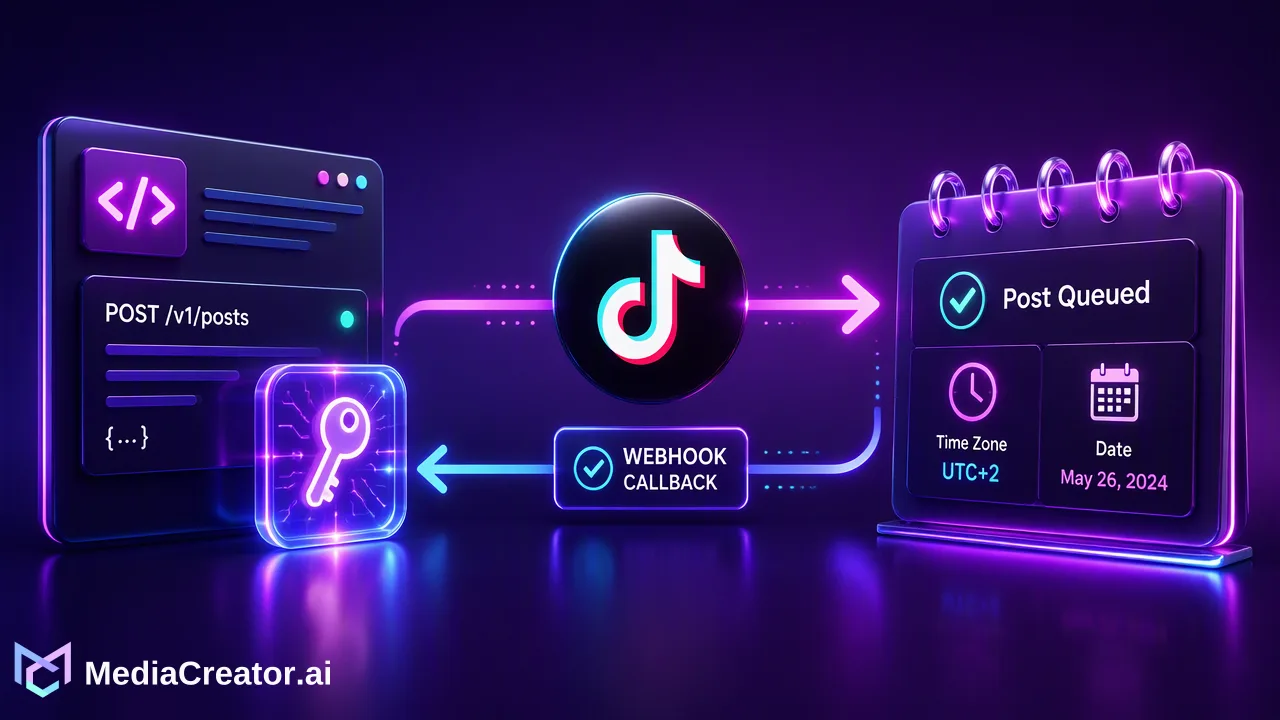
Find the account, timing, draft and status issues behind missing TikTok scheduling, then verify the result in a calendar.
If TikTok scheduling is missing or a scheduled post does not appear, first identify which scheduling surface you are using, which account is signed in and whether the post was actually submitted. TikTok’s native tools and third-party calendars can have different screens and eligibility rules. A useful fix starts with the exact error or state, not with repeatedly uploading the same video.
Identify the TikTok scheduling path first
A creator may schedule through TikTok's own desktop or Studio tools or through a connected social media workspace. These paths should not be mixed when diagnosing a missing post. TikTok's Studio help describes creation and management tools and notes that some features vary by region and eligibility. TikTok's Video Scheduler announcement describes a desktop scheduling flow for Creator and Business accounts and a schedule window for that particular tool. Check the current screen rather than treating an older announcement as a universal rule for every TikTok surface.
Write down the account handle, the screen or tool used, the intended local date and time, and whether you saw a final confirmation. If the Schedule control is absent, diagnose feature availability and account context. If it is present but submission fails, inspect the message and post settings. If the post was accepted but is not live, inspect its state before creating another copy. Those are distinct problems with distinct next steps.
When the Schedule option is missing
First verify that you are signed in to the intended TikTok account, not a personal or client account left active in another browser session. Look for the scheduling option in the current desktop upload or TikTok Studio interface. A mobile editing screen, a saved draft and a desktop upload screen are not interchangeable. Check whether the relevant feature is available to that account in its region and whether TikTok currently asks for a particular account type or eligibility condition. The official help is the source for those changing conditions.
Update the app or reload the current web interface if the control is unexpectedly absent, then test with a simple eligible post. This is a diagnostic step, not a guarantee that a software update will unlock scheduling. If the platform displays a restriction or warning on the account, resolve it through TikTok's account tools. Do not use another person's login or a simulated browser identity to bypass an account restriction.
If a third-party scheduler lacks the option, check that the intended account is connected and authorized in that workspace. A connection can require renewed permission, and the publisher may present different posting options for different destinations. Compare the workspace's current guidance with TikTok's current native requirements.
When a date or time is rejected
Read the date, time and time zone displayed at submission. A scheduling window documented for one TikTok tool should not be assumed to apply to every connected scheduler or every post type. If the selected date falls outside the range shown in the current interface, move it to an allowed date or keep the post as a draft and schedule it later. If the time appears shifted, compare the account or workspace time zone with the campaign brief.
Do not interpret a saved draft as a queued post. TikTok's native scheduler announcement says scheduled videos appear alongside drafts in the profile view, but the actual scheduled state still needs confirmation. In a workspace, find the post on the calendar and confirm that it has moved from draft to queued or publishing. A reminder on a personal calendar is not the same thing as a submitted platform post.
Before submitting again, check for a duplicate at the intended time. A first attempt may have been accepted even if the user did not notice the confirmation. Repeated submission is a common way to produce two near-identical posts.
When a queued post never appears live
Check the state of the original scheduled item and the native TikTok profile. If the workspace shows failed, read the available failure information and investigate the connection, media and platform settings. If it shows queued, confirm the scheduled time in the right zone and wait until that time has passed before treating it as late. If it shows published, open the live destination to verify what viewers can see. Do not infer success solely from a draft being absent.
TikTok's native workflow may hold a scheduled item in a place that looks similar to drafts. The same official announcement notes that editing a scheduled video's video, caption or time may require deleting and scheduling a replacement in that described flow. Check the live interface before making a change, and preserve a copy of the approved asset and caption so a replacement is accurate.
For a time-sensitive post, set an internal check shortly after the planned time. Assign one person to inspect the status and one clear response: either confirm the live URL, correct an actual failure, or alert the campaign owner that the post has not appeared. Avoid promising a fixed publication time to other teams until the result is visible.
Use a desktop calendar to make the state visible
MediaCreator.ai connects TikTok through official OAuth 2.0 and offers a cross-platform composer and a visual social media calendar. Draft the video post, adapt its TikTok caption and settings, inspect the platform preview, and choose the intended time. After submitting, confirm its calendar state. Draft, queued or publishing, published and failed are meaningfully different; teach the team what action each state calls for.
A practical handoff note should contain the post title, target handle, approved asset version, local scheduled time and reviewer. Keep it next to the calendar item rather than relying on memory. If a failure occurs, this information lets the next operator diagnose the existing item without rebuilding the campaign blindly.
A connected calendar helps teams that also publish to Instagram, Facebook or YouTube, but those channels need their own previews and platform checks. TikTok's current rules still govern the TikTok destination. The workspace provides an organized workflow; it does not override eligibility, permissions or platform decisions.
A short diagnostic sequence
Use this order when someone reports “I cannot schedule TikTok.” One: name the exact tool and account. Two: determine whether the option is missing, submission failed or a queued item is not live. Three: inspect the current official TikTok help and the message on the screen. Four: verify the date, time zone and account authorization. Five: inspect the original item for a confirmed state before trying again. Six: if a new attempt is required, use the approved media and caption and check for duplicates afterward.
This sequence is deliberately narrower than an all-purpose “clear cache” checklist. It preserves the difference between access, eligibility, scheduling and publication. It also creates evidence for support if the current interface behaves differently from the documentation.
FAQ
How can teams tell a TikTok draft from a scheduled post?
Look for the platform or workspace’s confirmed scheduled or queued state and the selected date. A saved draft or a calendar reminder alone is not proof of submission.
What should teams do when TikTok’s Schedule control is absent?
Verify the current account and scheduling surface, then check TikTok’s current feature availability and eligibility guidance. Read any restriction shown by the platform before changing tools.
How should operators respond when a scheduled TikTok post fails?
Inspect the original item and failure information, confirm the connection and settings, then create a corrected attempt only after checking for duplicates. Verify the live result afterward.
Learn More
Choose the product information that fits the next step in your workflow.
Get Started with MediaCreator.ai
Discover the power of AI-driven content creation
Related Articles
Continue learning with these related guides
How to Schedule TikTok Posts from a Computer
Connect TikTok through OAuth, prepare the video and caption, pick a slot on the calendar and preview before publishing. A step-by-step desktop workflow.
BlogHow to Schedule Facebook Posts in Advance and Preview Them First
Connect a Facebook Page, draft, preview and place posts on a calendar, then confirm each one actually went live. Includes checks and common mistakes.
BlogHow to Bulk Schedule Social Media Posts for a Month
Plan, batch-draft, adapt and place a month of posts on a visual calendar, with a review step before anything goes live.
Blog