
How to Schedule Facebook Posts in Advance and Preview Them First
Connect a Facebook Page, draft, preview and place posts on a calendar, then confirm each one actually went live. Includes checks and common mistakes.
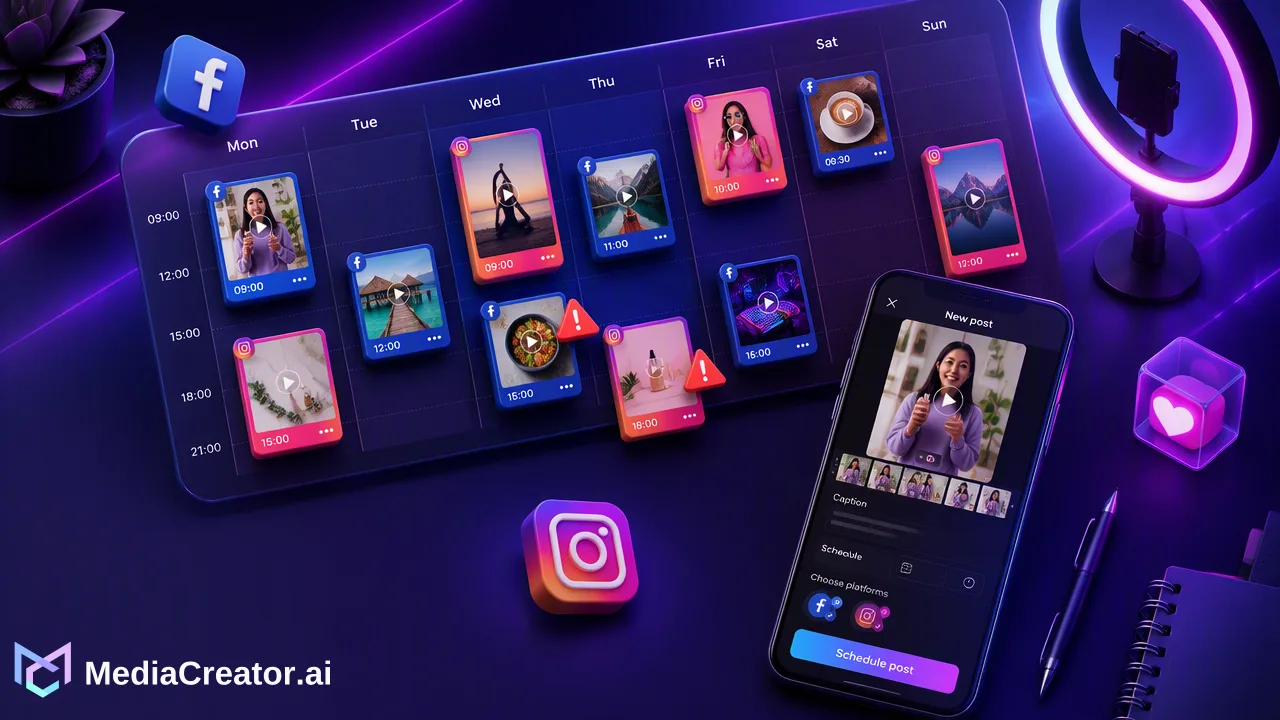
A step-by-step workflow for scheduling Facebook Page posts ahead of time, previewing them, and confirming they published, with the same flow extending to Instagram, TikTok and YouTube.
To schedule Facebook posts in advance, connect the Facebook Page you manage, draft the post, preview how it will appear, choose a date and time on a calendar, and then check that the post moved to a published state once that time passed. Meta's own tools can schedule posts for a single Page, while a cross-platform scheduler keeps Facebook next to Instagram, TikTok and YouTube on one calendar. The step most guides skip is the last one: a scheduled post is only finished when someone has confirmed it went live as intended.
Before you schedule Facebook posts in advance
Most how-to pages jump straight to the schedule button. A few minutes of setup avoids the problems that usually appear later, such as posts on the wrong Page or at the wrong hour.
| Check | Why it matters |
|---|---|
| You have a Page role that can create content | Scheduling applies to Facebook Pages, and the person connecting the Page needs permission to post on it. Meta's Pages API documentation lists content-creation tasks among the requirements for publishing. |
| You know which Pages are in scope | Agencies and brands often manage several Pages with similar names and logos. |
| The time zone is agreed | A post scheduled for 9:00 must mean 9:00 for the audience you are targeting, not for whoever happens to be scheduling. |
| Media is final | Images and videos approved before scheduling avoid last-minute swaps that skip review. |
| A reviewer is named | Even a small team benefits from one second pair of eyes before a post enters the queue. |
If the Page is managed for a client, ask the client or a Page admin to approve the connection themselves rather than sending a password.
Native Facebook scheduling or a cross-platform scheduler
Facebook offers built-in scheduling for Pages through Meta's tools, documented in Meta's help article on scheduling and managing posts for a Page. That is a reasonable choice when Facebook, and possibly Instagram, are the only channels involved.
A cross-platform scheduler becomes useful when the same campaign also runs on TikTok or YouTube, or when several people share one calendar.
| Situation | Native Meta tools | Cross-platform scheduler such as MediaCreator.ai |
|---|---|---|
| One Facebook Page, occasional posts | Usually enough | Optional |
| Facebook plus Instagram | Supported in Meta's tools | Supported, with per-platform previews |
| Facebook plus TikTok or YouTube | Separate apps needed | One calendar for TikTok, Instagram, Facebook and YouTube |
| Several clients or brands | Switching between Pages | Several connected accounts in one dashboard |
| Replies after publishing | Handled per platform | Social Inbox for supported comments, DMs and @mentions on paid plans |
The rest of this guide uses the MediaCreator.ai social media scheduler as the worked example, but the checks apply to any tool.
Step-by-step: schedule a Facebook Page post with MediaCreator.ai
1. Connect the Facebook Page through OAuth
Open the account connection screen in the web app and choose Facebook. You are sent to Facebook's own sign-in and permission screen, where the Page admin approves access through official OAuth 2.0. No Facebook password is shared with the tool and no browser extension is installed. Each connected account counts toward one combined account cap across all four platforms, so plan which Pages actually need to be connected.
2. Create a draft
Start a new post in the composer and select the Facebook Page as a target. Add media from the Media Library or upload it. If a caption is not written yet, Quick Caption can draft one from an uploaded image or video, and Brand Voice can be selected if your team has set one up. Treat any AI draft as a starting point: read it, correct facts and adjust tone before moving on.
3. Adapt the copy for Facebook
Facebook readers often see only the first lines before the post collapses, so put the main point and any link context first. If the same post also targets Instagram or TikTok, adapt the copy per platform instead of pasting one caption everywhere.
4. Preview the post
Open the per-platform preview and read the Facebook version as a follower would. Check the opening lines, the image crop, the link, and above all the Page name shown on the preview.
5. Choose the date and time on the calendar
Pick the slot and save the post as scheduled. The calendar offers month, week and list views; the week view is the easiest place to spot two posts colliding on the same Page.
6. Confirm the result after the scheduled time
Each post moves through states such as draft, queued or publishing, published and failed. After the time passes, confirm the post shows as published and open it on Facebook once. If it shows as failed, check the post and the connected account, fix the cause and reschedule rather than assuming the slot was covered.
Facebook-specific checks worth adding to your routine
Generic scheduling advice rarely covers the details that make a Facebook post look careless. Add these to the preview step:
- The opening line stands alone. If a reader saw only the first sentence, would they know what the post is about?
- Link posts have context. Say why the link is worth clicking instead of pasting a bare URL.
- Visuals survive the crop. Text placed near the edge of an image is the first thing to get cut in a feed.
- Mentions and tags are intentional. Recheck spelling of any tagged Page names.
- Dated language is avoided. Words like "today" or "this morning" can be wrong if a post is moved later in the week.
- Time-sensitive posts have an owner. Someone should check them again shortly before they go out, in case circumstances change.
Planning a week of Facebook posts in one sitting
Scheduling in advance pays off most when posts are prepared in batches. A simple weekly rhythm:
- Plan the slots. Decide how many posts per Page this week and leave at least one open slot for timely news.
- Draft in one session. Write all captions together so tone stays consistent; AI-assisted drafting through AI content generation can speed up first versions, which still need human review.
- Review in list view. Read the week top to bottom in the list view to catch repeated openings or two promotional posts in a row.
- Check timing against your own data. On paid plans, the Analytics Timing tab can show when your own audience has been active. Treat it as guidance for testing slots, not a promise of results.
- Close the loop. At the end of the week, confirm every post published and note any that failed or needed edits.
This rhythm keeps the calendar honest: what is on it is what will actually go out.
Common mistakes when scheduling Facebook posts ahead of time
| Mistake | How it shows up | Prevention |
|---|---|---|
| Wrong Page selected | A client's post appears on another brand's Page | Check the Page name in the preview, not just the target list |
| Time zone confusion | Posts go out at night for the audience | Agree one audience time zone per Page |
| Stale scheduled content | A cheerful post goes out during a crisis | Review the next 48 hours of the queue daily |
| Failed post goes unnoticed | The calendar slot is empty on Facebook | Check published and failed states after each slot |
| Changed Page permissions | Posting stops after an admin change | Reconnect the account through OAuth when access changes |
| Copy pasted from another platform | Hashtag-heavy text that reads awkwardly on Facebook | Adapt copy per platform before previewing |
Extending the same flow to Instagram, TikTok and YouTube
Once Facebook scheduling works, adding other supported accounts uses the same steps: connect each account through OAuth, select it as an extra target in the composer, adapt the copy and settings for that platform, and preview each version separately. A vertical video that suits TikTok or YouTube Shorts may need a different cover or caption for the Facebook version.
Keeping every platform on one calendar makes gaps and overlaps visible across channels, and the published or failed state of each version can be checked in one place.
FAQ
How far ahead can teams schedule Facebook posts in advance?
The scheduling window depends on the tool. Meta's Pages API documentation states that posts scheduled through its API must be set between 10 minutes and 30 days ahead, and Meta's own planner has its own limits. Check the calendar of the tool you use and keep long-range posts under review.
Can a scheduled Facebook post be edited after it is queued?
Scheduled posts stay visible on the MediaCreator.ai calendar until their slot, so the team can review them in the week or list view before they go out. Whenever copy or media changes, run the per-platform preview again before the post publishes.
How can teams avoid posting to the wrong Facebook Page?
Use clear naming for connected accounts, read the Page name on the preview before scheduling, and have a second person review posts for client or brand Pages. The week view also helps spot posts landing on an unexpected Page.
Does scheduling Facebook posts in advance affect reach?
No scheduling tool can promise reach or engagement. Scheduling mainly helps consistency and review; results depend on the content, the audience and Facebook's own distribution.
Learn More
Choose the product information that fits the next step in your workflow.
Get Started with MediaCreator.ai
Discover the power of AI-driven content creation
Related Articles
Continue learning with these related guides
How to Create Social Media Images with an AI Image Generator and Schedule Them
Generate social media images in Content Studio from a prompt or reference image, choose a resolution, save to the Media Library and schedule.
BlogHow to Preview Social Media Posts Before Publishing on Each Platform
Why each platform needs its own preview, what to look for on TikTok, Instagram, Facebook and YouTube, and how to fit previews into scheduling.
BlogHow to Schedule TikTok Posts from a Computer
Connect TikTok through OAuth, prepare the video and caption, pick a slot on the calendar and preview before publishing. A step-by-step desktop workflow.
Blog