
How to Bulk Schedule Social Media Posts for a Month
Plan, batch-draft, adapt and place a month of posts on a visual calendar, with a review step before anything goes live.
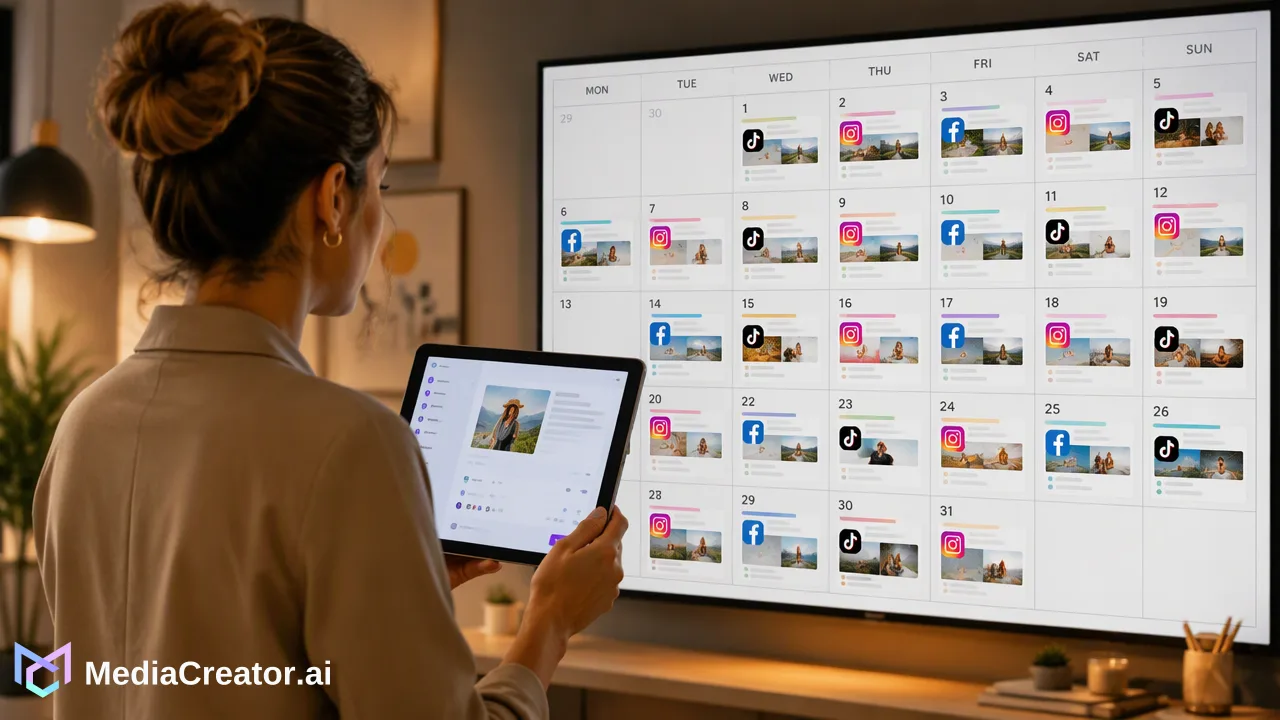
A step-by-step method to bulk schedule social media posts for a month using batching, per-platform adaptation and a calendar review.
To bulk schedule social media posts for a month, plan the themes first, draft all captions in one sitting, prepare the media, adapt each post to its platform and then place everything on a calendar for a final review. Doing the steps in that order, rather than finishing one post at a time, is what makes a month take hours instead of days.
Step 1: Plan the month before writing anything
List the post types you want, such as educational tips, product highlights, behind-the-scenes and posts that invite replies. Decide roughly how many of each per week and for which platform. Leave a few open slots for news, launches or anything reactive.
Check your plan against the monthly post cap of your plan so the calendar fits.
Step 2: Draft in batches
Write all captions first, before design and scheduling. Switching between writing, media and scheduling for every post is where time disappears. Seeing 20 captions together also shows repeated openings you would not notice one by one.
AI can help with first drafts. Quick Caption adapts copy from an uploaded image or video, and AI content generation tools assist drafting. Treat every output as a draft to edit.
Step 3: Prepare and upload the media
Gather images, videos and audio, and upload them to the Media Library so each post can pull from one place. Name files so they match your plan. Check storage against your plan's limit before a large upload.
Step 4: Adapt each post per platform
The same asset rarely suits every network. Adjust copy, hashtags, links and settings for each destination.
| Check | Why it matters |
|---|---|
| Caption length and opening line | Platforms truncate and display text differently |
| Hashtags and links | Behaviour differs by platform |
| Video format | Vertical short video suits TikTok, Reels and Shorts |
| Title (YouTube) | YouTube needs its own title and description |
Use the per-platform previews in the composer to confirm how each will look.
Step 5: Place posts on the calendar
Open the social media scheduler and use the month, week or list views to assign dates and times. Spread formats so the same type does not land three days in a row, and keep platform posts of one idea a day or so apart.
If you are unsure about timing, use your own account analytics on paid plans as a guide. Timing recommendations are guidance, not guaranteed results.
Step 6: Review before anything goes live
Do a final pass in calendar view. Look for gaps, repeated posts, wrong accounts and anything time-sensitive that may be out of date by the publish date. AI-assisted copy must be reviewed by a person before it is published.
After the month starts, check the calendar for failed states and fix them promptly. Keep a weekly ten-minute check to swap out anything that no longer fits.
Common mistakes
- Scheduling a full month and not looking at it again.
- Using identical copy on every platform.
- Filling every slot, leaving no room for timely posts.
- Forgetting replies: scheduled posts still need engagement, which a unified social inbox can help keep on top of.
FAQ
How can teams bulk schedule posts across several platforms?
Connect TikTok, Instagram, Facebook and YouTube accounts, draft in batches, adapt per platform and place posts on one shared calendar.
How far ahead should a month of posts be scheduled?
Scheduling a month ahead works for evergreen content; keep open slots and review weekly for anything timely.
Should AI be used to write a month of captions?
AI can speed up first drafts, but each caption should be reviewed and edited before it is published.
What happens when a scheduled post fails?
Failed posts appear as a state on the calendar so they can be corrected and rescheduled.
Learn More
Choose the product information that fits the next step in your workflow.
Get Started with MediaCreator.ai
Discover the power of AI-driven content creation
Related Articles
Continue learning with these related guides
Scheduled Publishing: Automate Your Social Posts
Learn how to optimize your content strategy through automated social media publishing, ensuring you reach your target audience at the perfect moment.
BlogAI Social Media Content Creator: Turning One Idea into Platform-Ready Posts
How a solo creator can use an AI social media content creator to turn one idea into TikTok, Instagram, Facebook and YouTube drafts, then review and schedule.
BlogHow to Build a Strategic Link-in-Bio Page for Social Media Channels
Discover how a structured link-in-bio strategy helps teams organize destinations, maintain brand consistency, and evaluate traffic from social profiles.
Blog