
Dubbing or Subtitles for Short Social Videos? Test the Viewer’s Task
Use a product demonstration to decide whether viewers need translated text, dubbed speech, or both, then test the result on a phone.
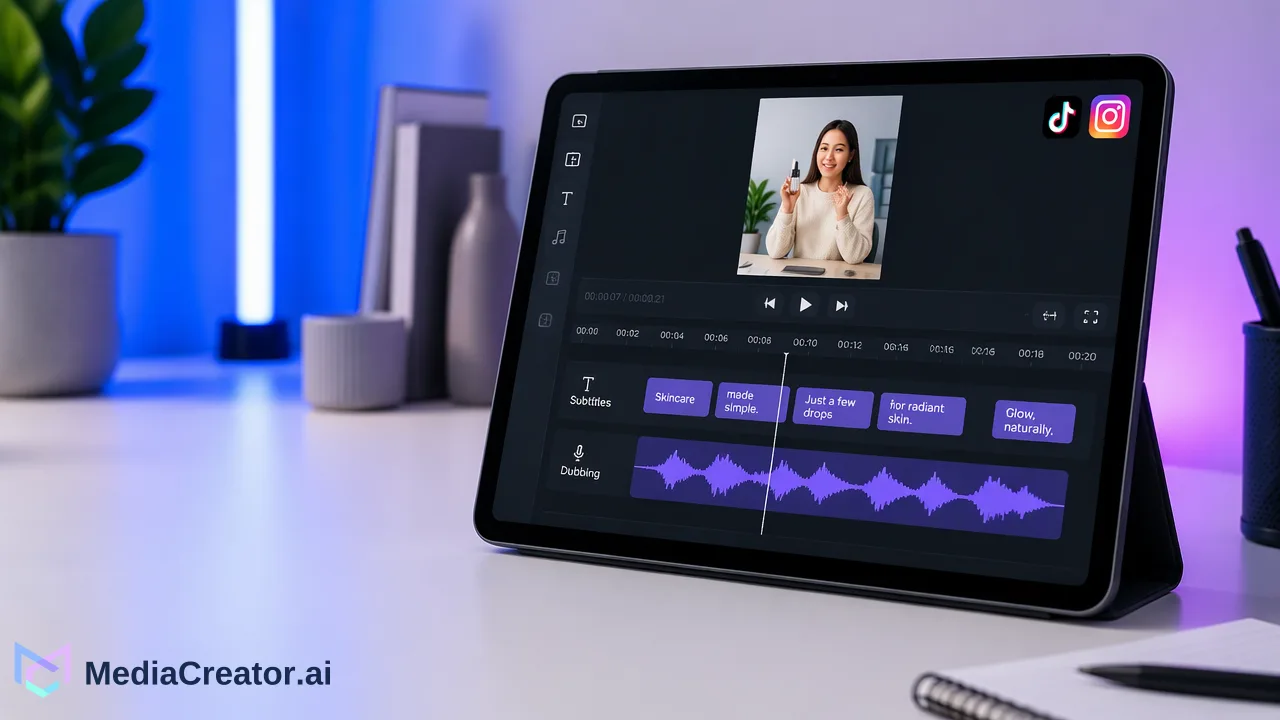
Choose the localization layer that lets viewers follow the action and understand the claim.
For a short product demonstration, translated subtitles preserve the original voice and let viewers read the meaning with sound off; dubbing carries spoken instructions for people listening while watching. Both can help when the demonstration has important speech and must also work muted. The decision depends on how much viewers must read while tracking the action, not on a generic rule that one format is better.
Map the information before choosing a format
Take an illustrative 25-second demonstration of a product feature. Write a two-column brief: what the camera shows and what the narrator says at each moment. If a button label and the relevant action are visible, a viewer may understand part of the process without voice. If the narration explains a safety condition or why a step matters, that meaning must reach the target-language audience somehow. Mark names, prices and claims that require human verification; localization must not alter them.
This inventory separates information from treatment. A translated subtitle can carry the spoken explanation while keeping the original soundtrack. A dubbed voice can free the eye to follow a fast moving action, but it changes the audible speaker. Two layers together give a muted viewer text and a sound-on viewer speech, provided they agree. The MediaCreator video translation page documents enabled translation, dubbing and line-review capabilities, not a guarantee that every destination supports separate native audio tracks.
Test reading load on a phone with sound off
Play the sample at its intended feed size, mute it and avoid pausing on the first pass. Can a viewer read the translated line before the screen changes? Can they still find the demonstrated button or product detail? A long translated sentence may cover the very area it explains. Instead of shrinking text until it is unreadable, shorten the wording without losing the instruction, split the line at a natural pause, or hold the shot longer. Have a target-language reviewer check the meaning rather than relying on a fluent-looking draft.
Subtitles are especially useful when viewers may browse without audio and the original voice is part of the demonstration’s credibility. They are less useful if the screen already contains several labels and the viewer must inspect a small gesture. In that case, a dub may reduce competing visual demands, while a short on-screen label can preserve the crucial action. The format choice is therefore a production decision tied to this clip’s visual density.
Listen with sound on and inspect the speaker
Run the same clip with sound. If the narration is the primary instruction and the camera action is rapid, a target-language dub may let the viewer follow both. Listen for pronunciation of product terms, pace and whether a translated phrase begins before its visual referent appears. Review the source and translation line by line; a technically accurate sentence can still be too long for the scene. MediaCreator’s enabled Video Translation Pro workflow provides editable lines, timing, speakers, subtitle styling and voice assignment before rendering, so those are review points rather than automatic guarantees.
A visible speaker changes the judgment. A replacement voice can be heard as that person’s speech, so avoid implying that the speaker actually recorded words they did not. Check consent and rights for any voice or likeness involved and review the final clip in context. MediaCreator’s documented voice assignment is not evidence of voice cloning or of a native platform audio-track feature. If the original delivery matters, subtitles may be the more faithful presentation even when they take more visual space.
Use a two-treatment release test
Prepare two controlled versions from the same approved source: A with reviewed translated subtitles and original audio, and B with reviewed dubbing plus concise subtitles where muted viewing requires them. Keep the core claim, opening shot, platform, account and intended audience as consistent as practical. Before release, inspect each on a phone in sound-off and sound-on conditions. Ask a target-language reviewer to state the action, the claim and any uncertainty after one viewing. Fix misunderstanding before publishing.
After release, compare the measures the platform actually makes available, such as watch behavior or feedback, but do not claim a format caused a difference from one small trial. Note other changes such as posting time and audience mix. Use the result to decide which treatment to iterate for the next clip, and retain the original approved source for corrections.
If your demonstration fails the muted-reading test, try a shorter reviewed line; if the sound-on instruction is still hard to follow, test a reviewed dub. The MediaCreator video translation workflow is a starting point for checking line timing, voice and subtitle controls on an enabled task before rendering the two treatments.
Learn More
Choose the product information that fits the next step in your workflow.
Get Started with MediaCreator.ai
Discover the power of AI-driven content creation
Related Articles
Continue learning with these related guides
Using an AI Video Generator for Short Social Videos: From Prompt to Scheduled Post
A step-by-step workflow for making short clips with an AI video generator for social media, reviewing them, adding captions and scheduling the post.
BlogHow to Fix AI Video Dubbing Pronunciation for Names and Product Terms
A practical review process for names, product terms, and translated lines in AI-dubbed social videos before scheduling.
BlogHow to Cross-Post Short Videos to TikTok, Reels and Shorts Without Looking Duplicated
Adapt one vertical video for TikTok, Instagram Reels and YouTube Shorts: clean exports, per-platform captions, previews and a staggered schedule.
Blog