
Using an AI Video Generator for Short Social Videos: From Prompt to Scheduled Post
A step-by-step workflow for making short clips with an AI video generator for social media, reviewing them, adding captions and scheduling the post.
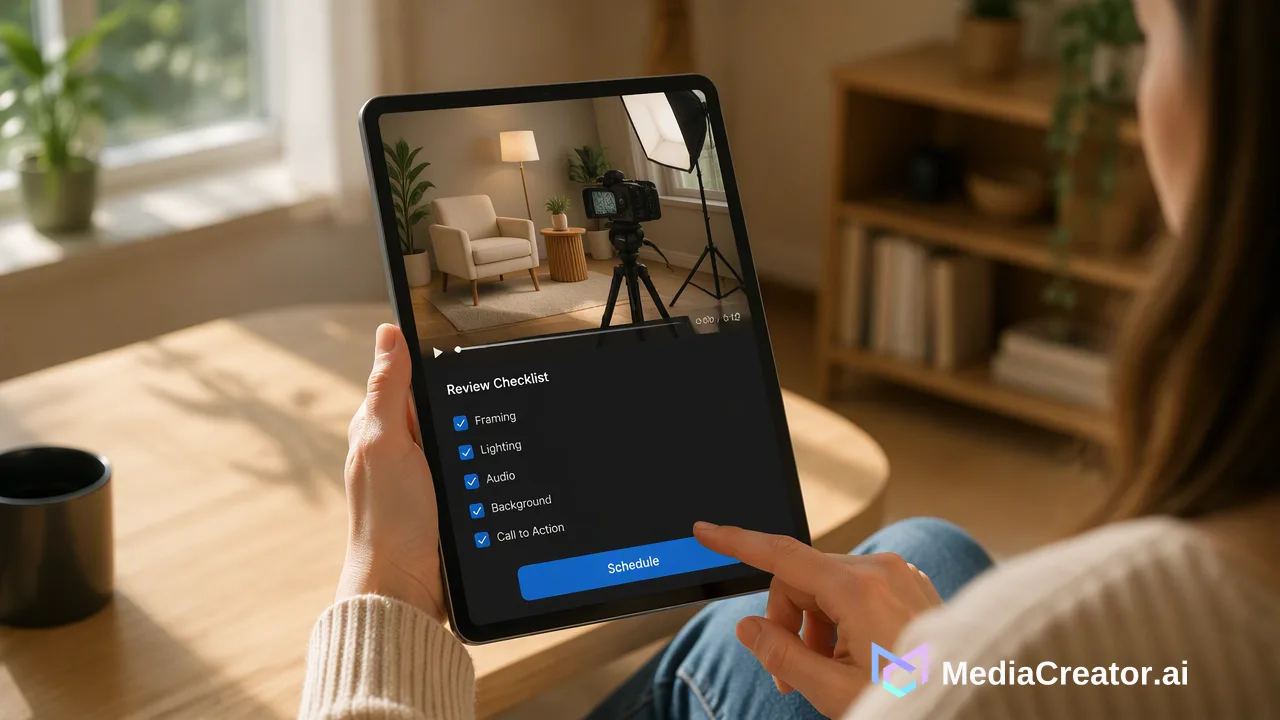
A practical prompt-to-schedule workflow for short AI-generated social videos, with review checks and platform-specific caption steps.
An AI video generator for social media turns a text prompt, a reference image or a first and last frame into a short clip that a person then reviews, captions and schedules. In MediaCreator.ai, Content Studio handles the generation and the composer and calendar handle the post. The clip is a draft, not a finished post: every generation should be watched in full, checked against the target platform's format, and approved before it is scheduled.
What an AI video generator for social media actually produces
Most short-form teams do not need a cinematic film. They need a five to ten second clip that works as a hook, a product-style visual, a looping background or a visual for a quote. An AI video generator is useful for that kind of asset because it removes the need for stock footage searches or a shoot when the idea is simple.
Generation in Content Studio is asynchronous. A request is submitted, the job runs in the background and the finished clip appears when it is ready, so the same session can be used to draft captions or queue other posts while waiting. Which models are available, what each clip costs and which input modes appear all come from the live interface, so the in-app estimate shown before generating is the number to trust rather than any figure quoted in an article.
Treat the output as raw material. Generated video can contain odd motion, distorted hands or text, or details that do not match the brief. That is why the workflow below puts a review step before anything is attached to a post.
Choose the right generation mode
Content Studio supports several ways to start a video, where the live interface offers them. Pick the mode by what already exists in the project.
| Starting point | Best for | What to supply |
|---|---|---|
| Text prompt | New concepts with no source asset | Subject, action, setting, camera movement, mood |
| Reference image | Animating an existing graphic or product shot | The image plus a short motion description |
| First and last frame | Controlled transitions between two known states | Two frames and a description of the movement between them |
| Source video | Modifying or extending footage already owned | An uploaded clip and the change wanted |
A first and last frame approach is helpful when a post needs a predictable start and end, for example a before and after reveal, because the two images anchor the result. A plain text prompt is faster but leaves more to chance, so expect to generate more than once.
Write a prompt that gives a usable short clip
Short clips reward specific, single-idea prompts. A reliable structure has four parts.
- Subject. One clear subject, for example a ceramic mug on a wooden desk.
- Action. One simple movement, such as steam rising or a slow camera push-in.
- Setting and light. Morning window light, a clean studio backdrop, an outdoor street at dusk.
- Framing. Vertical framing for TikTok, Instagram Reels and YouTube Shorts.
Avoid asking for readable on-screen text, many characters or complicated physical interactions inside one short clip. Add the words and logos later through the editing tools or the caption instead. If the first result is close but not right, change one element of the prompt at a time so it is clear which edit caused which difference.
Review the clip before it goes near the calendar
A short review checklist catches most problems before they become public.
- Watch it at full length and with sound on if audio is present. Problems often appear in the last second.
- Check faces, hands, products and any text. Distortion in these areas is the most visible.
- Confirm the brief was met. The clip should match the idea that was planned, not just look impressive.
- Check that nothing implies something untrue. A generated product clip should not show features the product lacks.
- Confirm rights and brand fit. Any reference image or source video used must be something the team has the right to use.
Save approved clips in the Media Library with a clear name, and discard the rest. Keeping images, videos and audio in one library makes it simple to reuse a clip on another date or another account later.
Format the clip for each platform
Vertical video with a 9:16 aspect ratio is the common format for TikTok, Instagram Reels and YouTube Shorts. For YouTube, the official help page on three-minute YouTube Shorts states that a video must be square or vertical to be classified as a Short, and that the length limit for new uploads is up to three minutes. Platform rules change, so check the current help page for each network before a campaign.
Facebook accepts several formats, so the choice depends on where the clip should appear. Whatever the destination, the composer's per-platform previews are the place to confirm that the crop looks right and that captions are not hidden behind interface elements. A preview is a check of what the post will roughly look like, not a promise about every device.
Add a caption and adapt it per platform
A good clip still needs a caption written for the viewer. Quick Caption can draft copy from the uploaded image or video, and an opt-in Brand Voice can be selected where the interface supports it, so the draft starts closer to the account's tone. Nothing is published on the strength of an AI draft alone; the text needs a human read before scheduling.
Platform adaptation is mostly editing:
- TikTok: short, conversational, one idea, with a hook in the first line.
- Instagram Reels: a little more context, hashtags used sparingly.
- YouTube Shorts: a clear title-style first line that describes the clip.
- Facebook: a line that makes sense for people who did not arrive through a hashtag.
The cross-platform composer lets the main copy be written once and then changed for each target, which is faster than copying text between apps.
Schedule the post and confirm the result
Once the clip and caption are approved, attach the clip from the Media Library, choose the connected accounts and pick a date and time. The social media scheduler puts the post on the month, week or list calendar, where draft, queued, published and failed states are visible at a glance.
After the scheduled time, open the calendar and confirm the state changed to published for every target. If a platform reports a failure, fix the cause and reschedule rather than assuming it will retry. For more on the drafting side, the AI content generation page describes how Content Studio, Quick Caption and Nova fit together.
One caution on expectations: a generated video does not guarantee views, engagement or growth. Its value is speed and consistency in producing assets, which leaves more time for the parts that depend on judgment, such as the idea, the review and the reply to comments.
Common mistakes with AI video for social posts
| Mistake | Better habit |
|---|---|
| Accepting the first generation | Generate a few options and compare them |
| Putting text inside the prompt | Add text through the caption or an edit |
| Skipping the full playback | Watch the whole clip, including the final second |
| Ignoring the cost estimate | Check the in-app estimate before each job |
| Posting identical copy everywhere | Adapt tone and length per platform |
| Scheduling without a preview | Check each platform preview before confirming |
A repeatable routine of prompt, review, caption, preview and schedule keeps the process fast without letting quality slip.
FAQ
What is the best way to start with an AI video generator for social media?
Begin with a single short clip built from one subject and one movement, in vertical framing. Review the result, adjust one element of the prompt at a time and only then move on to longer or more complex ideas.
How can teams review a generated video before scheduling it?
Watch the full clip, check faces, hands, products and any text, confirm it matches the brief, and verify the rights to any reference material. Save only approved clips to the Media Library.
Does the cost of each generation stay the same?
No. Available models, input modes and credit costs come from the live Content Studio catalog, so the estimate displayed in the app before generating is the figure to rely on.
Can generated clips go straight to TikTok, Reels or YouTube Shorts?
Clips can be attached to a scheduled post for connected TikTok, Instagram, Facebook and YouTube accounts, but a person still adds or approves the caption, checks the per-platform preview and confirms the schedule.
Learn More
Choose the product information that fits the next step in your workflow.
Get Started with MediaCreator.ai
Discover the power of AI-driven content creation
Related Articles
Continue learning with these related guides
AI Social Media Post Generator: Drafting a Post from Idea to Scheduled Draft
Use Nova, Quick Caption and Content Studio to draft one post from idea to reviewed, scheduled draft, with human review at each step.
BlogA Social Media Publishing Workflow: From Draft to Scheduled Post on Four Platforms
A repeatable six-step publishing routine for TikTok, Instagram, Facebook and YouTube, with per-platform adaptation checks and a post-publish status review.
BlogHow to Cross-Post Short Videos to TikTok, Reels and Shorts Without Looking Duplicated
Adapt one vertical video for TikTok, Instagram Reels and YouTube Shorts: clean exports, per-platform captions, previews and a staggered schedule.
Blog