
How to Schedule Instagram Reels Without Posting Manually
Connect an eligible Instagram account, write Reels captions, schedule on a calendar and preview per platform. Includes account-type notes.
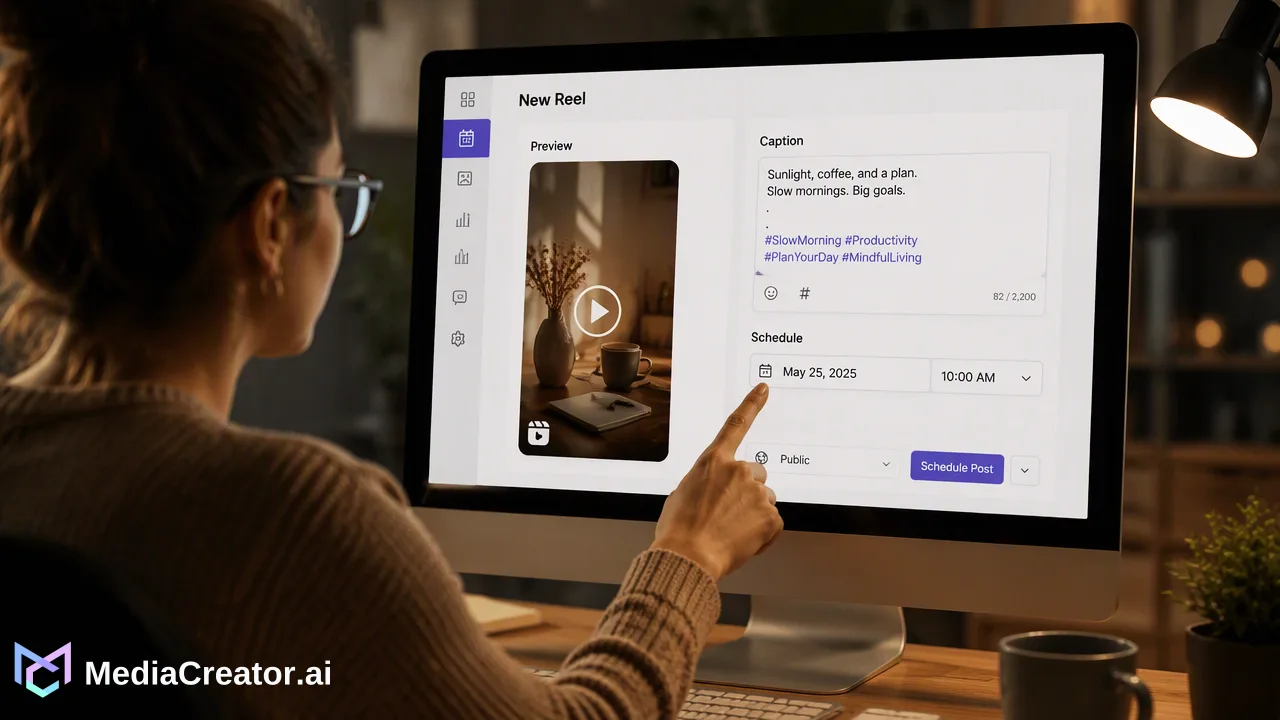
How to connect an eligible Instagram account, schedule Reels on a calendar and preview before they publish.
To schedule Instagram Reels without posting manually, switch to an eligible professional account, connect it to a scheduling workspace through official OAuth, upload the Reel, write the caption, pick a date and time and preview it before queuing. Instagram decides which account types can use connected tools, so check your account type first. Once connected, Reels can be planned on a calendar next to TikTok, Facebook and YouTube posts.
Check your Instagram account type first
Instagram offers personal and professional accounts, and professional accounts come in Business and Creator types. Instagram's Help Center explains how to switch an account to professional from the profile settings under account type and tools. Access to scheduling and publishing tools is tied to the account type, so confirm yours before building a schedule.
Practical checks:
- Open your profile settings and look at the current account type.
- If it is personal and you want scheduled publishing, switch to a professional type as described in Instagram's guidance. Choose Creator or Business based on how you use the account.
- Confirm you can sign in to the account, since the connection uses an approval flow on Instagram.
- Keep in mind that Instagram, not the scheduling tool, sets requirements for connected accounts and may change them. Follow the current rules shown to you when you connect.
Connect the account through OAuth
In MediaCreator.ai, connect Instagram through official OAuth 2.0. You approve the requested permissions on Instagram and return to the workspace. Your Instagram password is not shared with the tool, and no browser extension is required.
The workspace supports TikTok, Instagram, Facebook and YouTube, and the connected-account allowance is a combined total across all four. If you manage several brands, count each profile against that total before you start. The pricing page lists the allowance for each plan.
If Instagram stops accepting the connection later, reauthorize from the account settings in the workspace and check that the account is still eligible.
Prepare the Reel and write the caption
Upload the finished vertical video to the Media Library. Before scheduling, watch it once as a viewer would: the first seconds, the audio, any on-screen text and the ending.
For the caption:
- Start with the line that makes someone keep watching.
- Add one or two sentences of context.
- Add hashtags and mentions you would use manually, and check the spelling.
- Keep the call to action modest and specific.
Quick Caption can draft copy from the uploaded video, and Brand Voice, when you have chosen to turn it on for the post, can steer the tone toward your account's style. These are drafting aids. A person should read and edit the result before the Reel is queued, because AI-assisted text does not know what your audience expects.
One thing to plan for: features that depend on Instagram's in-app tools, such as selecting from an in-app audio library, may not be available through connected tools. If a Reel depends on that, check the options offered in the composer or add audio before you upload.
Schedule on the calendar and preview
Select the Instagram account in the composer, attach the Reel, enter the caption and choose a date and time. The calendar then shows it in the month, week or list view with your other posts.
Before confirming:
- Use the per-platform preview to see how the caption and media will appear.
- Check that the time matches the audience you want to reach.
- Make sure the Reel does not land within minutes of a similar post to the same account.
- Save unfinished Reels as drafts so they are not mistaken for scheduled ones.
To pick a time, use your own data rather than a generic chart. On plans that include Analytics, the Timing tab shows when your posts performed. Treat that as a starting point for a test over several weeks, and avoid expecting any time slot to guarantee reach.
Monitor results after scheduling
Posts move through draft, queued, published and failed states. After each scheduled slot, check the calendar to confirm the Reel published. If one failed, read the reason, correct the issue and reschedule.
Once the Reel is live, replies matter. The unified social inbox brings available comments, direct messages and mentions from eligible connected accounts into one place. Exactly what appears depends on Instagram, the account type and the permissions you granted, so do not assume every interaction type will be shown.
| Stage | What to do |
|---|---|
| Before scheduling | Confirm account type, caption and preview |
| At the scheduled time | Confirm on the calendar that the post published |
| After publishing | Reply to comments and messages that appear in the inbox |
| Weekly | Review analytics and adjust the next week's slots |
FAQ
Do Instagram Reels need a professional account to be scheduled?
Instagram sets the account requirements for connected tools, and its Help Center explains how to switch to a professional account. Check your account type before connecting and follow the options Instagram shows during approval.
How can teams keep Reels captions consistent across several creators?
Use an opt-in Brand Voice for supported posts, keep a list of approved caption examples and have every AI-assisted draft reviewed before it is queued.
Can a Reel be previewed before it is scheduled?
Yes. The composer provides a per-platform preview so caption length and media framing can be checked before the Reel is queued.
What can be planned alongside Reels on the same calendar?
TikTok, Facebook and YouTube posts can be planned on the same calendar because MediaCreator.ai connects those four platforms in one dashboard.
Learn More
Choose the product information that fits the next step in your workflow.
Get Started with MediaCreator.ai
Discover the power of AI-driven content creation
Related Articles
Continue learning with these related guides
How to Integrate Boosted Reels into Your Social Media Publishing Workflow
Integrate boosted Instagram Reels into your social publishing workflow. Balance organic planning, eligibility, brand voice, and analytics.
BlogHow to Schedule TikTok Posts from a Computer
Connect TikTok through OAuth, prepare the video and caption, pick a slot on the calendar and preview before publishing. A step-by-step desktop workflow.
BlogHow to Schedule YouTube Shorts in Advance
Prepare Shorts with strong titles and descriptions, schedule them on a calendar next to other platforms and preview before they go live.
Blog