
How to Preview Social Media Posts Before Publishing on Each Platform
Why each platform needs its own preview, what to look for on TikTok, Instagram, Facebook and YouTube, and how to fit previews into scheduling.
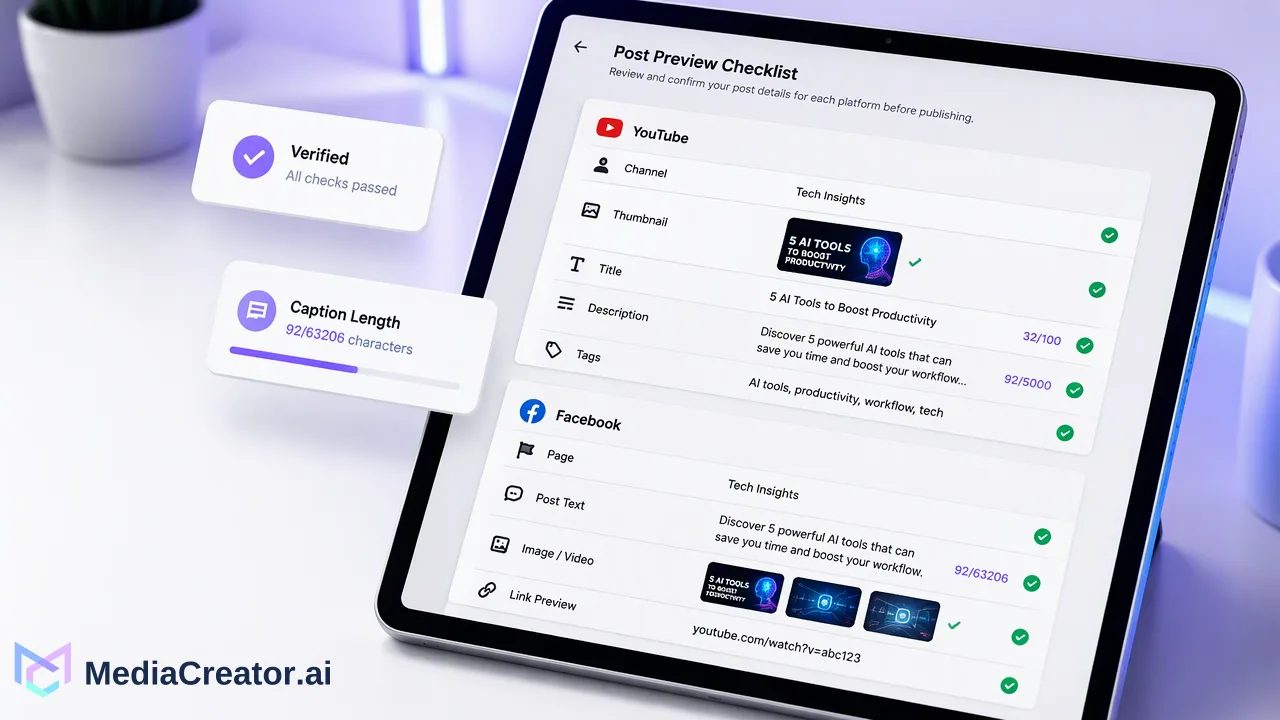
A practical guide to previewing social posts per platform before they are scheduled, with a checklist for TikTok, Instagram, Facebook and YouTube and the limits of any preview.
To preview social media posts before publishing, open a separate preview for every platform the post targets and read each one as a follower would: the account name, the visible part of the caption, the crop of the image or video, and the platform-specific settings. Previews catch the most common errors, such as truncated captions, bad crops and the wrong account, before anything is live. They are a check rather than a perfect copy of each app, so the final step is still a quick look at the published post.
What a pre-publish preview actually catches
Most articles on this topic stop at proofreading. In day-to-day social operations, the errors that slip through are usually structural rather than spelling mistakes:
| Problem | Where it usually happens | What to look for in the preview |
|---|---|---|
| Wrong account | Teams and agencies with similar profile names | The account name and avatar on the preview |
| Truncated caption | Feeds that collapse long text | Whether the first visible lines carry the point |
| Bad crop | Vertical video reused in a feed, wide images in a square frame | Faces, text and logos inside the frame |
| Wrong cover or thumbnail | Short video on TikTok, Reels or Shorts | The frame that represents the video in a grid |
| Copy written for another platform | One caption pasted to every network | Hashtag density, tone and links that suit the platform |
| Missing context for a link | Facebook link posts | A sentence explaining why to click |
A preview turns these from post-publication fixes into pre-publication edits, which is cheaper and less visible to your audience.
Why each platform needs its own preview
One draft rarely looks the same everywhere. Each platform makes different choices about format and text:
- TikTok is built around vertical video, and the creator controls settings such as who can view the post. TikTok's Content Posting API documentation even requires apps to read the creator's current posting options before each direct post, which shows how account-specific those settings are.
- Instagram supports single images, videos, Reels, Stories and carousels, as listed in Meta's Instagram content publishing documentation. The same file can look different in a feed and in a Reel.
- Facebook collapses longer text and shows link context, so the first lines carry most of the weight.
- YouTube separates a title from the description, and Shorts are made from vertical video according to YouTube Help.
Because of these differences, a single generic preview is not enough. Each target needs its own check.
How to preview social media posts before publishing in MediaCreator.ai
MediaCreator.ai connects TikTok, Instagram, Facebook and YouTube accounts through official OAuth and lets teams compose once, adapt per platform and preview each version before it is scheduled. A typical flow:
- Select the targets. In the composer, choose the connected accounts the post is meant for. Account names should make the brand or client obvious.
- Write the base draft. Add media from the Media Library or upload it. Quick Caption can propose copy from an uploaded image or video, but every AI draft needs human review before it is scheduled.
- Adapt per platform. Shorten the Facebook opening, adjust hashtags for Instagram and TikTok, and write a proper title for YouTube.
- Open each per-platform preview. Read the TikTok, Instagram, Facebook and YouTube versions one by one, checking the account, caption, crop and cover.
- Fix and preview again. After any change, reopen the preview rather than assuming the edit looks right.
- Schedule or save as a draft. Place the post on the social media scheduler calendar, or leave it as a draft for a reviewer.
- Check the outcome. After the slot passes, confirm the post shows as published, or follow up if it shows as failed.
The same preview step applies when a post or media is created with Nova or Content Studio: Nova asks for on-screen confirmation before credit-spending or content-creating actions, and nothing AI-assisted should skip the preview.
A per-platform preview checklist
Use a short, platform-specific list rather than a generic one. Teams can paste this into their review notes.
TikTok
- The first second of the video makes sense without sound.
- The cover frame is clear and not a blurred transition.
- Caption, hashtags and any mentions read correctly.
- The intended account is selected.
- The crop works for the chosen format (feed post, Reel or carousel).
- The first line of the caption is strong on its own.
- Carousel slides are in the right order.
- Tagged accounts are spelled correctly.
- The opening sentence explains the post.
- Link posts include context.
- Images do not lose text at the edges.
- The Page name matches the brand or client.
YouTube
- The title is specific and fits the video.
- The description covers the key information early.
- Shorts use vertical video.
- The correct channel is selected.
What a preview cannot guarantee
A scheduling tool's preview is a close representation, not the app itself. Platforms change their layouts, devices display text at different widths, and some elements are only rendered by the platform at publish time. The practical response is simple:
- Treat the preview as the main check before scheduling.
- Open the live post once after publishing, especially for new formats or new accounts.
- Keep a short note of any differences you notice, so the team knows what to look for next time.
This keeps expectations realistic without skipping the step that catches most errors.
Building previews into a team review process
For small teams, studios and agencies, previews work best as a fixed stage in the workflow rather than an individual habit:
| Stage | Owner | Preview task |
|---|---|---|
| Draft | Writer or creator | Self-check every per-platform preview |
| Review | Second team member | Check account, caption and crop on each preview |
| Scheduled | Scheduler | Reopen previews for anything edited after review |
| Published | Account owner | Spot-check the live post and the published state |
Afterwards, comments and DMs on the live post can be handled from the unified social inbox on paid plans, where the platform makes those interactions available to the connected account. Spotting a recurring question there is often a sign that the caption needed one more line of context, which is useful feedback for the next preview.
FAQ
How can teams preview Instagram posts before publishing?
Draft the post in a scheduler that offers per-platform previews, choose the correct format, and check the crop, the first caption line and the account name. In MediaCreator.ai, the Instagram preview sits next to the other platform previews in the composer.
Is a scheduler preview identical to what followers see?
Not always. A preview is a close representation, but platforms and devices can render text and media slightly differently. It is worth opening the live post once after publishing.
Should every platform get a separate caption?
Usually yes. Caption length, hashtag habits and how much text is visible before truncation differ by platform, so adapting copy per platform and previewing each version catches most problems.
Do AI-written captions need a preview?
Yes. AI assistance such as Quick Caption speeds up drafting, but the result should be read, edited and previewed like any other copy before it is scheduled.
Learn More
Choose the product information that fits the next step in your workflow.
Get Started with MediaCreator.ai
Discover the power of AI-driven content creation
Related Articles
Continue learning with these related guides
Scheduled Publishing: Automate Your Social Posts
Learn how to optimize your content strategy through automated social media publishing, ensuring you reach your target audience at the perfect moment.
BlogHow to Set Up a Social Media Content Review Workflow Before Publishing
Learn how to build a social media content review workflow across TikTok, Instagram, Facebook, and YouTube with drafting, previews, and calendar controls.
BlogAI Content Creation Platform for Social Media: What to Look For Before You Buy
A buyer checklist for AI social content tools: media generation, captions, brand voice, human review, AI labels and the path to a scheduled post.
Blog