
How to Create Social Media Images with an AI Image Generator and Schedule Them
Generate social media images in Content Studio from a prompt or reference image, choose a resolution, save to the Media Library and schedule.
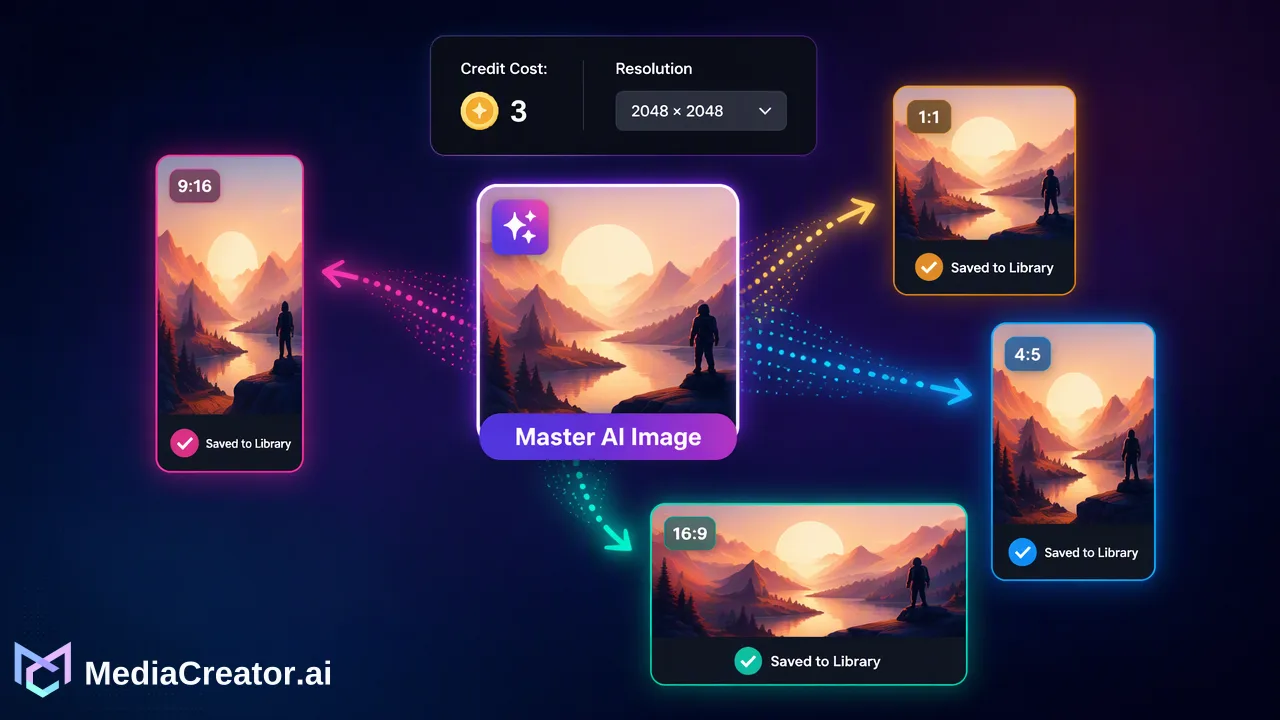
A how-to for generating an image with AI in Content Studio, choosing a suitable resolution, saving it to the Media Library and attaching it to a scheduled post.
To create social media images with an AI image generator, write a specific prompt (or supply a reference image), choose an aspect ratio and resolution that suit the target platform, review the result, save it to your media library and attach it to a post in the composer. In MediaCreator.ai, Content Studio handles generation, the Media Library stores approved images, and the calendar schedules the post for TikTok, Instagram, Facebook or YouTube. The credit cost of each image follows the estimate shown in the app, so check it before you generate.
Plan the image before opening the generator
Good AI images start with a decision about where they will be used. Answer three questions first:
- Which platform and placement? A feed post, a video cover, a vertical story-style image and a YouTube thumbnail do not share the same shape.
- What must the image communicate in a second? One subject and one idea work better than a crowded scene.
- Is any text needed in the image? Generated text inside images is often unreliable, so keep headlines in the caption or add text with your own design tools when exact wording matters.
Write the answers in a note. They become the backbone of your prompt, and they give the reviewer something to check the result against.
Write a prompt that gives the model something to work with
Content Studio accepts text prompts and reference-image workflows. A prompt works best when it covers the same elements a photographer would decide on.
| Element | Example of what to specify |
|---|---|
| Subject | What is in the frame and what it is doing |
| Setting | Where it is and what surrounds it |
| Style | Photographic, flat illustration, 3D render, hand-drawn |
| Lighting and color | Soft daylight, warm tones, muted palette |
| Composition | Close-up, wide, centered, space left for overlay text |
Use a reference image when you need consistency with an existing visual, such as a product shot or a brand look. A reference gives the generator something concrete to follow, which reduces the number of attempts needed. Users do not provide their own Google or OpenAI API keys; generation runs through the app using the models the live catalog has enabled.
Keep prompts honest. Do not generate images that show features your product lacks, fake testimonials or events that did not occur.
Pick the resolution and check the credit estimate
The models available in the live catalog determine which resolution options appear, and the in-app display shows the credit cost before you submit. As a documented snapshot from 2026-09-14, the catalog included Nano Banana 2 and GPT Image 2 with 1K, 2K and 4K tiers, but the live catalog and the displayed estimate are what count, so look at the screen rather than relying on a number from an article.
How to choose a tier:
- Start at the lowest tier that reads well. Use it for exploring prompts, because each attempt costs credits.
- Move up for the final version. Social feeds are viewed on phones, so very high resolution rarely changes how a post looks, but it can matter for crops, thumbnails and images you plan to reuse.
- Match the aspect ratio to the placement. For example, YouTube's help documentation recommends 16:9 thumbnails for videos and 9:16 for Shorts, with a minimum width or height of 640 pixels, in its thumbnail guidance. Other platforms publish their own current specifications, so confirm them before final export.
Credits are spent from monthly credits first, then permanent credits, so a heavy generation day is worth planning against your balance. The pricing page lists plan allowances.
Generate, review and iterate
Submit the request and keep working: generation is asynchronous, so you do not have to wait on the page. When results arrive, review them methodically instead of picking the first good-looking one.
A review list for AI images
- Anatomy and objects. Look closely at hands, small parts, logos and anything with a fixed real-world shape.
- Stray text. Generated lettering is frequently garbled; reject images with unwanted words.
- Brand fit. Colors, mood and style should match your recent posts.
- Claims. The image should not imply a product feature, result or endorsement that does not exist.
- Crop safety. Imagine the image cropped to a square and to a tall vertical; does the subject survive?
If an attempt is close but wrong, change one thing in the prompt at a time. That makes it clear which change produced which effect, and it uses fewer credits than rewriting from scratch.
When realistic synthetic images could mislead viewers, check each platform's labeling rules. Policies vary and change, so read the current policy of the platform you post to.
Save the keeper to the Media Library
Once an image passes review, keep it in the Media Library, where images, videos and audio sit together. Storage depends on plan: Free includes 200 MB, Creator 10 GB, Team 50 GB and Business 200 GB, so tidy out rejected attempts if you generate many variations.
A small naming habit pays off. Include the brand, the topic and the intended placement in your own notes so teammates can find the file later. Reusing an approved image across posts is faster than regenerating, and it keeps your visual identity consistent.
Attach the image to a post and schedule it
Open the composer from the social media scheduler, attach the saved image and select the connected accounts for the post. Then:
- Write or generate the caption. Quick Caption can draft copy from the uploaded image; edit it so it sounds like your account. More on this in the AI content generation tools.
- Adapt per platform. Adjust the copy and settings for each target and look at each preview. A preview is a check, not a guarantee of platform rendering.
- Choose the time. Pick a slot on the calendar, or save as a draft for review.
- Confirm after publishing. Open the published post on the platform and make sure the image displays as expected.
AI-assisted content is a draft until a person approves it. Do not schedule anything you have not looked at in the preview.
Common mistakes with AI images for social posts
- Generating at maximum size every time. It spends credits quickly while you are still testing prompts.
- Ignoring the placement. A beautiful horizontal image becomes a poor vertical cover once cropped.
- Relying on text inside the image. Put important wording in the caption or add it separately.
- Publishing without a second look. Small visual errors are easy to miss when you have looked at the same image for twenty minutes.
- Treating AI as a guarantee. A good image helps a post look polished; it does not promise engagement or growth.
FAQ
How can teams find out what an AI image will cost in credits?
The live model catalog and the cost displayed in the app govern each generation. Teams should read the in-app estimate before submitting, because enabled models and costs can change.
Can an existing image be used as a starting point?
Yes. Content Studio supports text prompts and reference-image workflows, which helps teams keep a consistent look based on an existing product shot or brand visual.
Do teams need their own API keys to generate images?
No. Users do not provide their own Google or OpenAI API keys; generation runs inside the app using the models enabled in the live catalog.
Where do generated images go after approval?
Approved images can be saved to the Media Library, then attached to a post in the composer and scheduled on the calendar for the connected TikTok, Instagram, Facebook or YouTube accounts.
Learn More
Choose the product information that fits the next step in your workflow.
Get Started with MediaCreator.ai
Discover the power of AI-driven content creation
Related Articles
Continue learning with these related guides
How to Schedule TikTok Posts from a Computer
Connect TikTok through OAuth, prepare the video and caption, pick a slot on the calendar and preview before publishing. A step-by-step desktop workflow.
BlogHow to Bulk Schedule Social Media Posts for a Month
Plan, batch-draft, adapt and place a month of posts on a visual calendar, with a review step before anything goes live.
BlogUsing an AI Video Generator for Short Social Videos: From Prompt to Scheduled Post
A step-by-step workflow for making short clips with an AI video generator for social media, reviewing them, adding captions and scheduling the post.
Blog