
All-in-One Social Media Management Tool: Which Features Actually Belong in One Place
Seven jobs worth combining in one social workspace, a test for each during evaluation, and how MediaCreator.ai covers TikTok, Instagram, Facebook and YouTube.
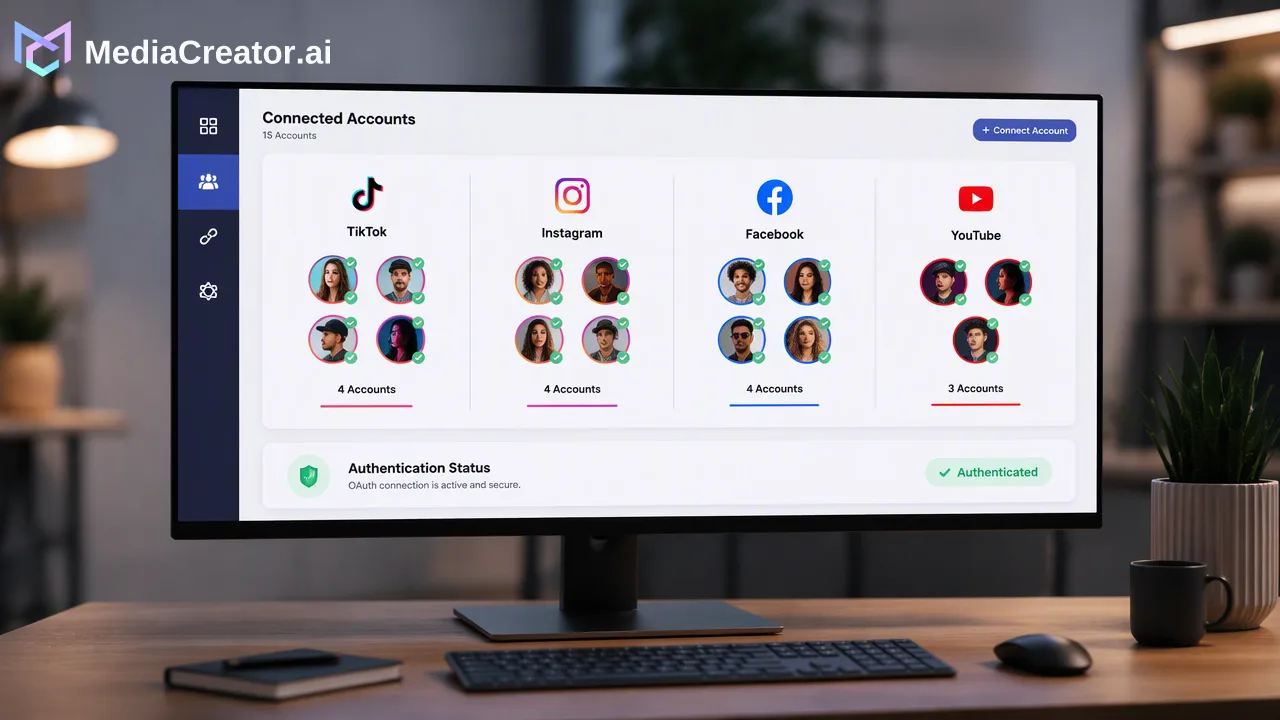
A practical checklist of the seven jobs an all-in-one social media management tool should combine, with a hands-on test for each and a map to MediaCreator.ai.
An all-in-one social media management tool should combine the jobs your team repeats every week: connecting accounts, composing, scheduling on a calendar, replying in an inbox, reading analytics, drafting with AI and storing media. Everything else can live in a separate tool without much cost. The useful way to evaluate one is not a feature grid but a short test of each job with your own accounts, because platform permissions and account types decide much of what actually appears.
The seven jobs an all-in-one social media management tool should combine
Most comparison pages list dozens of features. In practice, a team moves between a small number of jobs many times a day, and the switching cost between those jobs is what an all-in-one tool removes. The table below lists the seven that are worth combining, why they belong together and the question to ask in an evaluation.
| Job | Why it belongs in one place | Evaluation question |
|---|---|---|
| Account connection | Every other job depends on which accounts are connected and with which permissions | Does each account connect through the platform's official sign-in, and what is the account cap? |
| Composer | One draft is the source for every platform version | Can copy and settings be adapted per platform before publishing? |
| Calendar | Scheduling and status checks happen in the same view | Can drafts, scheduled, published and failed posts be told apart at a glance? |
| Inbox | Replies need the post and account context | Which comments, DMs and mentions appear for each account type? |
| Analytics | Results should feed back into the next calendar | Which metrics are available per platform, and on which plan? |
| AI drafting | Drafts should land where they will be reviewed and scheduled | Does AI output stay a draft until a person confirms it? |
| Media library | Assets are reused across posts and platforms | Can images, videos and audio be stored and attached without re-uploading? |
If a tool handles all seven but one of them is weak, the weak job is where your team will start keeping a second tab open, which defeats the purpose. Test each job separately rather than judging the product by its strongest screen.
Account connection: the first test, because it limits everything else
Start every evaluation by connecting the real accounts you manage, not a test profile. Two things matter here.
How accounts connect. A connection should use the platform's official OAuth sign-in, so nobody shares social passwords and no browser extension is involved. In MediaCreator.ai, TikTok, Instagram, Facebook and YouTube accounts connect this way, and several accounts per platform can be connected.
What the connection allows. Platforms expose different capabilities to third-party tools depending on account type. Instagram's developer documentation describes its APIs as built for Instagram professional accounts representing a business or creator, covering publishing, comments, messaging and insights. A personal account will behave differently from a professional one in any management tool, so connect the same account types you run in production.
Also check how the account limit is counted. In MediaCreator.ai, the connected-account cap is one combined total across all four platforms, so an agency with ten Instagram accounts and five YouTube channels should count fifteen, not two separate totals.
Composer and calendar: one draft, several platform versions
The composer and calendar are where an all-in-one tool earns most of its time savings, so give them the longest test.
- Write one post and select targets on two or more platforms.
- Adapt the caption and settings for each target instead of sending identical copy everywhere.
- Open the per-platform preview and look for truncated text, awkward crops and the wrong account name.
- Schedule it, then find it on the calendar in month, week and list views.
- After the scheduled time, confirm whether the post shows as published or failed.
MediaCreator.ai's social media scheduler supports this sequence: drafts, immediate publishing or scheduling, per-platform adaptation and previews, and a calendar that distinguishes draft, queued or publishing, published and failed states. A preview is a check before publishing, not a promise of exactly how each app will render the post, so keep a quick look at the live post in your routine.
A common evaluation mistake is to test only the happy path. Deliberately schedule one post with a caption that is too long for one platform or media in an unusual aspect ratio, and see how clearly the tool shows the problem.
Inbox and analytics: plan gating and platform conditions
Inbox and analytics are the two jobs most affected by things outside the tool's control: the social platform, the account type and the permissions granted during OAuth. YouTube, for example, exposes comment threads on videos and channels through its Data API, while direct-message availability differs by platform.
In MediaCreator.ai, the unified social inbox brings available comments, DMs and @mentions from eligible connected accounts into one view, and Analytics offers Overview, Content, Audience, Timing and Lab tabs. Both sit on the Creator, Team and Business plans; plan details are on the pricing page. Comment and DM history in the inbox covers 30 days on Creator and Team and is unlimited on Business, which matters if your team needs to look back further than a month.
To test these jobs fairly, use a paid workspace with the account types you actually manage and record, per account, which interaction types appear and which metrics are filled in. That record becomes the realistic baseline for your team, rather than the full list on a feature page.
AI drafting and the media library
AI assistance belongs inside an all-in-one tool only if its output lands as a draft in the same composer and calendar, where a person reviews it. Check two things: whether AI actions that create content or spend credits ask for confirmation, and whether generated media is saved somewhere reusable.
In MediaCreator.ai, Nova is an AI co-pilot whose content-creating and credit-spending actions require on-screen confirmation. Quick Caption adapts copy from an uploaded image or video, Brand Voice is opt-in and chosen per supported surface, and Content Studio generates images and videos from the live enabled model catalog, with the in-app estimate showing the credit cost before generation. AI-assisted writing still needs review before anything is published. Generated and uploaded files live in the Media Library, which stores images, videos and audio for reuse.
For the evaluation, generate one image, attach it to a post, edit the AI caption and schedule it. If any step forces a download and re-upload, that gap will repeat every week.
How to run a two-week evaluation
A structured two weeks gives a clearer answer than a long feature comparison.
Week one: setup and publishing
- Connect every production account type you manage and note the combined account count.
- Rebuild one real week of your calendar inside the tool, including at least one post per platform.
- Track how long it takes to adapt and preview each post compared with your current process.
Week two: engagement, measurement and AI
- Work the inbox for a few days and list which comments, DMs and mentions arrived per account.
- Pull one simple report from Analytics and check which metrics are platform-dependent.
- Draft two posts with AI help and record how much editing each needed before it was ready.
Score each job as kept in the tool, kept elsewhere or not needed. If five or more of the seven jobs stay in the tool, it is doing the work of an all-in-one platform for your team.
Features that can reasonably live elsewhere
Not everything needs to sit in the same workspace. Long-form video editing, design systems, ad buying and CRM records each have specialized tools, and pulling them into a social tool rarely helps a small team. Formal approval chains are often handled in a project tracker or chat thread before a draft is scheduled; if your team works that way, define who signs off and keep the schedule step in the social tool.
The test is frequency: jobs that happen daily and need the post or account context belong together, while jobs that happen monthly or need deep specialist controls can stay separate.
FAQ
How can teams tell an all-in-one tool from a basic scheduler?
A basic scheduler covers composing and publishing. An all-in-one tool also keeps replies, analytics, AI drafting and media storage in the same workspace, so the post and account context travel with each job.
Which platforms does MediaCreator.ai connect for publishing and inbox work?
TikTok, Instagram, Facebook and YouTube, connected through each platform's official OAuth sign-in. Inbox and analytics data still depend on the platform, account type and granted permissions.
How can agencies count connected accounts across platforms?
In MediaCreator.ai the connected-account cap is one combined total across all four platforms, so add every TikTok, Instagram, Facebook and YouTube account together when choosing a plan.
How should teams review AI drafts inside an all-in-one tool?
Treat every AI caption or image as a draft. Edit it in the composer, check the per-platform preview and confirm the schedule yourself; in MediaCreator.ai, content-creating Nova actions ask for on-screen confirmation.
Learn More
Choose the product information that fits the next step in your workflow.
Get Started with MediaCreator.ai
Discover the power of AI-driven content creation
Related Articles
Continue learning with these related guides
How to Manage All Your Social Media Accounts in One Place
Consolidate TikTok, Instagram, Facebook, and YouTube into one dashboard. Schedule posts, track publishing, and handle community engagement.
BlogManage All Your Social Media in One Place
Learn how to simplify multi-platform content management through centralized social media management, saving time and amplifying your reach.
BlogHow to Manage Social Media Comments in One Place: A Daily Inbox Routine
A step-by-step routine for handling comments, DMs and mentions from TikTok, Instagram, Facebook and YouTube accounts in one inbox, with triage rules.
Blog