
AI Product Images: When to Use a Reference Photo Instead of a Text Prompt
Decide when AI social visuals need a real product reference, define what may change, and reject images that alter the item being sold.
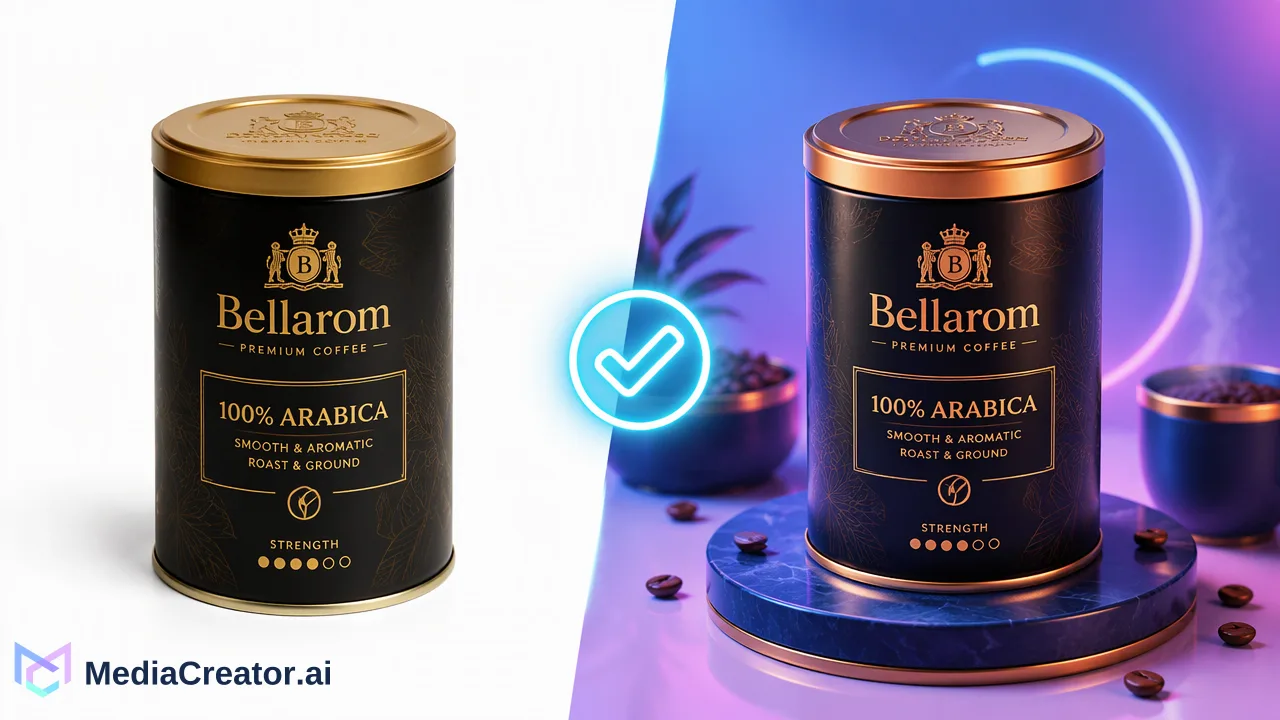
Use a reference photo when viewers must recognize a real SKU; use text alone for a generic concept. A reference guides generation, but the team still needs to check the output against the real product before publishing.
Use a reference photo when viewers must recognize a real SKU; use text alone for a generic concept. A reference guides generation, but the team still needs to check the output against the real product before publishing.
Decide whether the image is an idea or a product claim
A text prompt is a good starting point for a mood, backdrop or generic seasonal concept. If a brand is announcing an actual bottle, appliance or garment, the image also makes a claim about the item the buyer will receive. That changes the brief. The team should begin with an owned, approved photograph of that product and specify which visual details are fixed.
The MediaCreator Content Studio supports text and reference-image workflows where the live model interface enables them. A reference can guide the composition; it is not a guarantee of an exact replica. The useful question is not whether a generated image looks attractive in isolation, but whether it remains faithful to the item the business is selling. Start from the intended placement: a concept post can tolerate more invention than a product listing or a launch announcement.
Write an invariants sheet before generating
Take the approved source photograph and mark the details that must not change. These may include the package silhouette, number and position of components, brand mark, label wording, color variant and visible dimensions. Then list permissible changes, such as a neutral background, a lighting style, a crop for a feed format or a seasonal prop that does not hide the product. The exact list depends on the SKU and the claim the post makes.
For an illustrative coffee tin, a different kitchen background may be acceptable; a changed flavor name, altered lid shape or extra size label is not. The team should compare the generated output with the source photo at full size, not only as a small feed thumbnail. Read every visible word. Look at edges, handles, seams and the count of included pieces. If those cannot be verified from the available photograph, obtain a clearer reference rather than declaring a plausible-looking output accurate.
Use an image the business owns or has permission to use as input. A competitor photograph may create both rights and product-identity problems. When several references are used, assign each a role, for example product identity versus background mood, so a reviewer knows which source controls which part of the result.
The brief should also say what the photograph does not show. If the front label is visible but the rear connections are not, the generated image should not invent a rear view. If the reference shows one unit, the prompt should not turn it into a two-pack unless that is a real offer with an approved image. This makes the review more than an aesthetic vote. The product manager can approve the fixed details, while the designer can vary the scene around them. When a team disagrees about a feature, the source product record should settle the point before the asset moves to scheduling.
Review the image as a publishable claim
Run a simple pass, revise or reject review. Pass means the fixed details match the approved item and the image suits the channel. Revise means a permitted background, crop or lighting issue can be corrected without compromising identity. Reject means a label, shape, quantity or feature has changed, or the reviewer cannot tell what the image depicts accurately. Keep a real photograph when the buyer needs precise evidence of the product, such as packaging text or a technical feature.
A generated visual may be excellent for a campaign theme while still being unsuitable as a primary product image. The decision should be recorded at the asset level, because a later teammate may otherwise reuse an attractive rejected variant. Do not assign a numerical fidelity score unless the team has actually measured one with a defined method. A checklist tied to the actual SKU is more useful for a small marketing team than a generic promise that references preserve details.
Give the reviewer a side-by-side view of the source and candidate with enough resolution to read fine text. Ask for a short reason when rejecting a variant, such as “wrong cap shape” rather than “looks off.” This helps the next attempt target a permitted change without accumulating invented details. If a platform crop cuts off a required warning or differentiating feature, the post needs a different crop or a real photo. Acceptance applies to the final published frame, not just the full-size generation.
Fit the approved asset into the publishing workflow
After the visual passes, prepare the caption and platform crop, inspect it in the per-platform preview, and have a person review the final post before scheduling. MediaCreator can help create and coordinate that draft, but the creator remains responsible for product truth. Recheck after any new generation or crop, since a subsequent revision may change what the audience sees.
For the next real product post, open AI content generation with an approved product photo and an invariants sheet. If the result cannot preserve the sales-critical details, use the real photograph for the product claim and reserve generated imagery for a supporting concept post.
Learn More
Choose the product information that fits the next step in your workflow.
Get Started with MediaCreator.ai
Discover the power of AI-driven content creation
Related Articles
Continue learning with these related guides
How to Create Social Media Images with an AI Image Generator and Schedule Them
Generate social media images in Content Studio from a prompt or reference image, choose a resolution, save to the Media Library and schedule.
BlogChoosing a TikTok Scheduling Tool When You Also Post to Reels and Shorts
A TikTok scheduling tool for a creator who also publishes Reels and Shorts should connect the actual destination accounts, let an editor adapt each version
BlogHow to Fix AI Video Dubbing Pronunciation for Names and Product Terms
A practical review process for names, product terms, and translated lines in AI-dubbed social videos before scheduling.
Blog