
Create Holiday Opening Hours Social Media Posts Customers Can Use
Prepare an announcement, reminder and reopening post from one verified holiday-hours record so every caption and graphic agrees.
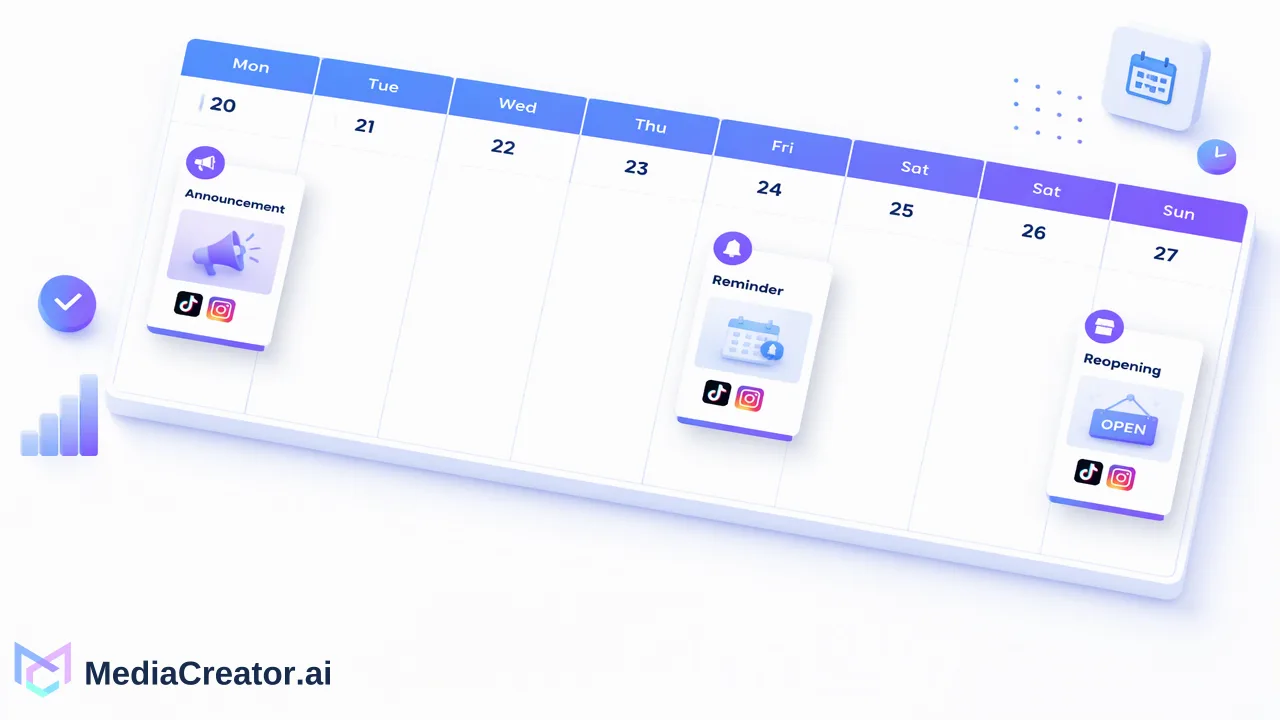
Useful holiday-hours posts start with one confirmed schedule and give customers a clear action for each stage of the closure.
For holiday opening hours social media posts, confirm the exact dates, locations, time zone, booking cutoff and reopening time first. Then make the announcement, reminder and reopening update from that same record, checking every graphic against its caption.
Write the actual hours before writing the post
A holiday greeting does not tell a customer whether they can visit, collect an order or book a service. Begin with one approved hours record for each affected location. Include the full calendar date and day of week, the ordinary hours that are changing, the last day or time to book, collect or place an order if relevant, the closure period, and the first day and time normal service resumes. If customers cross time zones, name the local time zone of the location. Give one contact or booking route for urgent questions. The business owner should check this record against staffing and booking systems before any post is scheduled.
Consider a hypothetical neighborhood studio. Its approved record says the Main Street location closes at 2 p.m. local time on December 24, stays closed December 25 and 26, and reopens at 9 a.m. on December 27. Bookings for December 24 end at noon that day. Those dates and times are examples, not actual business hours or MediaCreator settings. The important distinction is between the last booking time and the door-closing time: combining them into a single ‘open until 2’ message would mislead a customer who wants an appointment. A second location would need its own record if its hours differ.
Give the announcement and reminder different jobs
The first announcement helps people plan ahead. Lead with the change: ‘Main Street: closing at 2 p.m. on December 24; closed December 25–26; reopening December 27 at 9 a.m.’ Add the booking cutoff in the caption and point to the current booking page. Do not rely on a festive image to carry details that customers need to read. Holiday-hours examples often include dates and reopening reminders, but a useful notice also distinguishes the customer's last actionable moment from the closure itself. See the holiday-hours examples for the general announcement pattern.
A reminder shortly before the change should answer ‘Can I still come today?’ rather than repeat the whole greeting. For the example studio: ‘Today, December 24: bookings closed at noon; the Main Street studio closes at 2 p.m. We reopen December 27 at 9 a.m.’ If walk-ins are handled differently, the business must verify and add that fact. A reopening post can state that normal hours have resumed and give the next available booking action. Those three messages serve planning, immediate decision and return, respectively. They need not be copied verbatim across every channel; the hours must remain identical.
Check the graphic, caption and destination together
The graphic should contain the essential dates and hours in legible text. The caption can add the booking cutoff, location and link. Compare the two line by line before scheduling: a card saying ‘closed through December 26’ and a caption saying ‘reopen December 26’ cannot both be right. Use the complete date rather than ‘tomorrow’ on a scheduled post that may be shared later. For a multi-location business, put the location name near the hours on every asset, not only in the profile. A holiday-hours post guide also emphasizes legible hours and repeated notice; each business still needs to verify its own operating facts.
MediaCreator lets a team draft and preview platform-specific copy and media, then arrange posts in a month, week or list calendar. Use that scheduler to place the announcement, reminder and reopening update after the source record has been approved. Preview each destination so cropped art does not cut off a date or location. If AI helps draft the text, compare every time and cutoff with the approved record before publishing. Customers may also see older posts or other business listings, so update those channels separately as part of the business's own hours maintenance.
When hours change, revise the scheduled sequence
A late staffing change can make a previously accurate notice wrong. First revise the approved hours record and confirm who authorized the change. Then inspect every affected scheduled draft: opening graphic, caption, reminder, reopening post and linked booking route. Edit or remove each stale item before its time arrives. If a notice has already been published, issue a clearly dated correction and check the original post's visibility rather than assuming a new post reaches everyone who saw it. Do not let a future reminder repeat the superseded schedule.
Once the hours are settled, read the three posts in order as a customer planning a visit. The first should tell them what will change, the second whether they can act now, and the third when service resumes. Build that sequence from one verified record, preview it in MediaCreator, and keep the record available for anyone who has to answer customer questions during the holiday.
Learn More
Choose the product information that fits the next step in your workflow.
Get Started with MediaCreator.ai
Discover the power of AI-driven content creation
Related Articles
Continue learning with these related guides
How to Create Social Media Images with an AI Image Generator and Schedule Them
Generate social media images in Content Studio from a prompt or reference image, choose a resolution, save to the Media Library and schedule.
BlogTurn Customer Questions into Social Media Content People Can Use
Choose a repeatable customer question, verify the answer, and turn it into a clear caption, graphic or short video without exposing a customer.
BlogWhy Can’t I Schedule TikTok Posts? Common Causes and Fixes
Find the account, timing, draft and status issues behind missing TikTok scheduling, then verify the result in a calendar.
Blog