
AI Social Media Post Generator: Drafting a Post from Idea to Scheduled Draft
Use Nova, Quick Caption and Content Studio to draft one post from idea to reviewed, scheduled draft, with human review at each step.
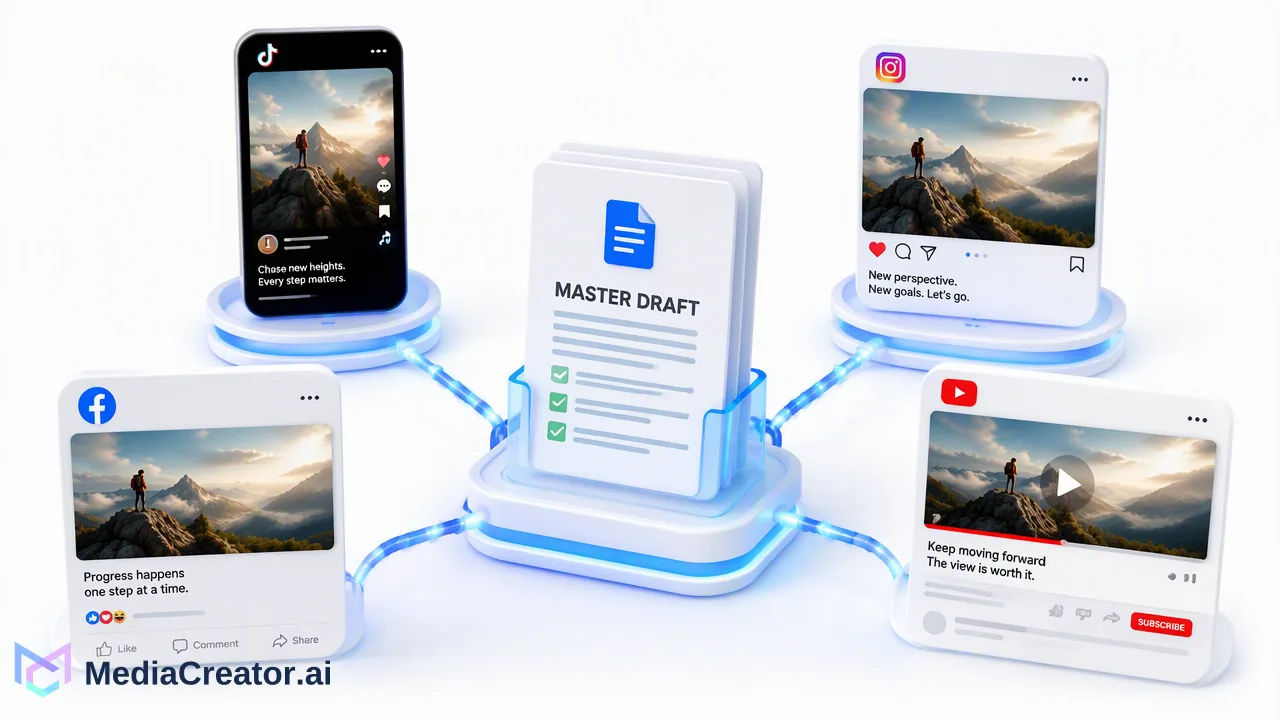
A step-by-step walk through drafting one social post with AI assistance, from idea and media to per-platform edits, human review and scheduling.
An AI social media post generator is most useful when it handles the slow parts of drafting, such as turning an idea into media and a first caption, while a person keeps control of what gets published. In MediaCreator.ai the workflow combines Nova, Quick Caption and Content Studio inside the same workspace as the composer and calendar, so a post moves from idea to scheduled draft without exporting files between tools. AI output is a draft: every post still needs your review, and credit-spending Nova actions ask for on-screen confirmation first.
What an AI post generator should and should not do
Most tools in this category take a short prompt and return captions. Teams get more value from a generator that sits next to the rest of the publishing workflow, because the draft still has to be adapted, previewed and scheduled.
A sensible expectation is that AI assists drafting and idea generation. It does not decide what your brand says, and it does not publish on its own. MediaCreator.ai is built around this boundary: AI-assisted writing requires user review before publishing, and Nova's write actions are confirm-first. Credit-spending or content-creating actions need an explicit on-screen confirmation, so a stray prompt does not quietly consume credits or create content.
The rest of this guide follows a single post through the AI content generation tools, from idea to scheduled draft.
Step 1: Start with a specific idea and an audience
Generators return generic text when they receive generic input. Before opening any AI tool, write down three things in a sentence each:
- The point of the post. One thing the viewer should understand or do.
- The audience. Who follows this account and what they already know.
- The format. A single image, a short video, or a text-led post with a cover.
Nova, the AI co-pilot, is a good place to refine this. Ask it for angles on the idea, compare two opening lines, or turn rough notes into an outline. Treat the answers as options. Choose the one that sounds like your account, and discard the rest without guilt.
Step 2: Generate or choose the media
Content Studio generates images and videos asynchronously, so you can submit a request and keep working while it completes. It supports text prompts and reference-image workflows, and for video, first-frame and last-frame modes where the live interface offers them. Users do not need to supply their own Google or OpenAI API keys.
Practical guidance for this step:
- Describe the subject, setting and style, not just the topic. A prompt that names the subject, where it is and how it should look gives the model something concrete to work with.
- Check the in-app cost estimate before submitting. The live model catalog and the credit cost displayed in the app govern each generation, so rely on that estimate rather than any fixed number from documentation.
- Review the result critically. Look for distorted details, unintended text and anything that misrepresents your product. Regenerate or switch to your own photography when the result is not right.
- Save what you keep. Approved assets can live in the Media Library with your images, videos and audio, ready to attach.
If you already have a clip, skip generation and upload it instead. AI media is optional.
Step 3: Draft the caption with Quick Caption
Quick Caption adapts copy from an uploaded image or video, so the first draft reflects what is actually in the media. This is the quickest way to get past a blank text box.
A good caption workflow has three passes:
- Generate a draft from the media.
- Edit for voice. Rewrite the opening line in your own words, remove claims you cannot support, and make sure product names and links are correct.
- Apply Brand Voice if you use it. Brand Voice is opt-in, selected per supported surface, and limited to 10 voices per user. It is not a hidden default, so confirm the voice you want is selected for this caption.
Avoid prompts that ask for guaranteed results. A caption can invite a reply or point to a product page, but no wording can promise engagement, so do not publish copy that implies it will.
Step 4: Adapt per platform and preview
Open the composer and select the TikTok, Instagram, Facebook or YouTube accounts the post is for. Each platform has different habits, so use the composer's per-platform controls to adapt the copy and settings rather than sending one identical caption everywhere.
| Question | Why it matters |
|---|---|
| Does the first line work if the platform shortens the text? | Many feeds cut captions early |
| Is the media format suitable for this target? | Vertical video and square images behave differently |
| Do settings match this platform? | Each target has its own options |
| Is the account the right one? | Wrong-profile mistakes are easy with several accounts |
Use the per-platform preview to check each target. The preview helps spot problems, but the platform controls final rendering, so check the post once it is live. If you manage several profiles, the routine in the social media scheduler workflow keeps target selection tidy.
Step 5: Human review, then schedule
Review is the step that makes AI-assisted posting safe. Before scheduling, read the final text and look at the media once more with fresh eyes, ideally a second person's.
Ask these questions:
- Is every factual statement something your team can stand behind?
- Does anything in the image or video suggest a product feature or result that does not exist?
- Is the tone consistent with recent posts?
- Are links, handles and tags correct?
Also consider platform disclosure rules. YouTube, for example, asks creators to use its "AI use" setting when content is altered or synthetic and appears realistic, as described in the YouTube Help page on disclosing altered or synthetic content. Disclosure rules differ by platform and change over time, so check each platform's current policy for the account you are posting to.
Once the post is approved, choose a date and time on the calendar and schedule it, or save it as a draft for someone else to approve. Published, queued, draft and failed states stay visible on the calendar, so a post that fails does not disappear.
Where AI drafting helps and where it does not
AI drafting helps most with repetitive production: first captions, alternative openings, visual concepts and variations of an approved idea. It helps less with strategy, community knowledge and judgment calls about what your audience cares about this week.
A balanced division of labor looks like this:
- Person: decides the message, approves every post, answers customers.
- AI tools: suggest angles, create draft media, propose caption options.
- Calendar: holds the schedule and shows what is draft, queued, published or failed.
Replies belong to the same split. Comments and messages that platforms make available to your connected accounts can be handled in the unified social inbox, where a human writes the answer.
FAQ
Does MediaCreator.ai publish AI-generated posts automatically?
No. AI-assisted writing requires user review before publishing, and credit-spending or content-creating Nova actions need on-screen confirmation. A person decides what is scheduled and published.
How can teams control AI credit use when generating media?
Check the in-app cost estimate before each generation, since the live model catalog and the displayed cost govern what a request uses. Nova asks for confirmation before credit-spending actions.
What is Quick Caption used for?
Quick Caption adapts copy from an uploaded image or video, giving teams a first draft that reflects the actual media. Teams then edit it for voice, accuracy and platform fit.
Is Brand Voice applied to every AI draft?
No. Brand Voice is opt-in and selected per supported surface, with up to 10 voices per user. Teams should confirm the intended voice is selected before generating copy.
Learn More
Choose the product information that fits the next step in your workflow.
Get Started with MediaCreator.ai
Discover the power of AI-driven content creation
Related Articles
Continue learning with these related guides
A Social Media Publishing Workflow: From Draft to Scheduled Post on Four Platforms
A repeatable six-step publishing routine for TikTok, Instagram, Facebook and YouTube, with per-platform adaptation checks and a post-publish status review.
BlogHow to Cross-Post Short Videos to TikTok, Reels and Shorts Without Looking Duplicated
Adapt one vertical video for TikTok, Instagram Reels and YouTube Shorts: clean exports, per-platform captions, previews and a staggered schedule.
BlogScheduled Publishing: Automate Your Social Posts
Learn how to optimize your content strategy through automated social media publishing, ensuring you reach your target audience at the perfect moment.
Blog