
A Social Media Publishing Workflow: From Draft to Scheduled Post on Four Platforms
A repeatable six-step publishing routine for TikTok, Instagram, Facebook and YouTube, with per-platform adaptation checks and a post-publish status review.
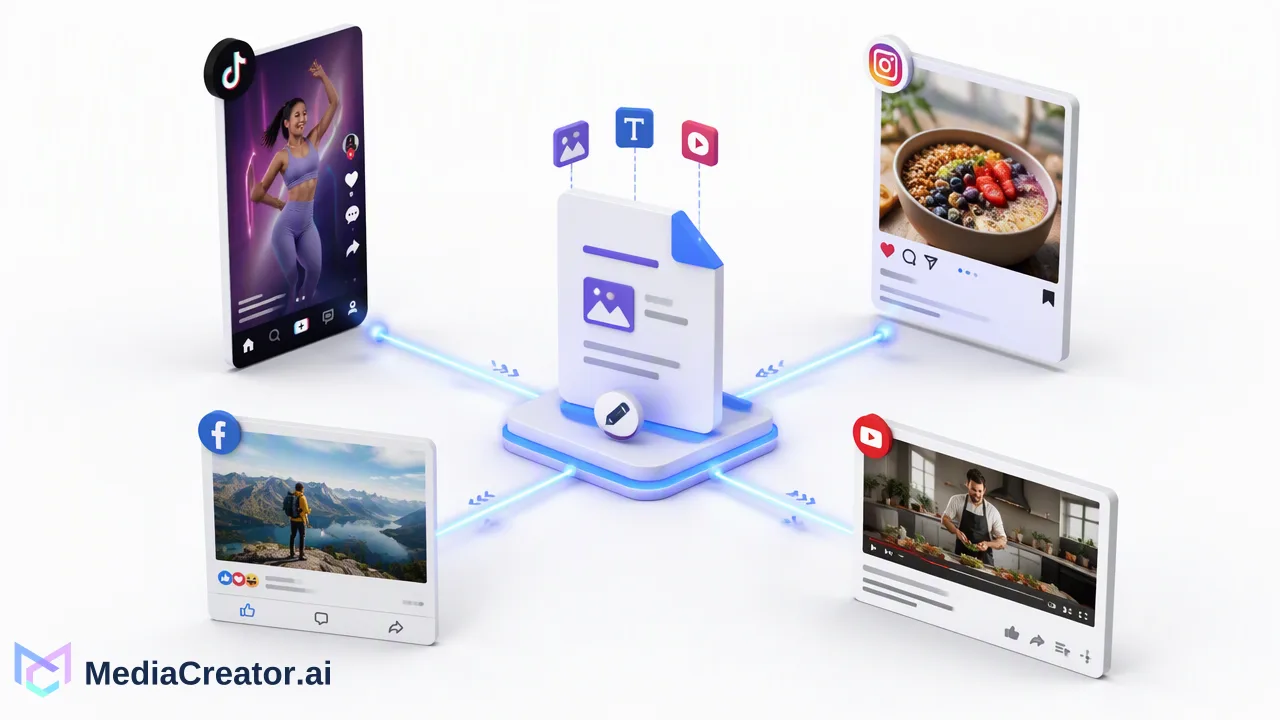
A repeatable social media publishing workflow that takes one draft through per-platform adaptation, preview, scheduling and a published-state check for TikTok, Instagram, Facebook and YouTube.
A social media publishing workflow is the fixed sequence every post follows from first draft to confirmed live post. A practical version has six steps: draft once, adapt for each platform, preview every target, schedule on a shared calendar, confirm the published state and log what needs follow-up. Running the same steps every time is what keeps four platforms manageable for a small team.
Why a publishing workflow is different from a content calendar
A content calendar answers what goes out, where and when. A publishing workflow answers how each post gets there: who drafts it, what gets checked, who schedules it and who confirms it went live. Many guides stop at planning and approval and treat scheduling as the last step. In practice, the steps after scheduling are where avoidable problems surface: a caption cut off on one platform, a video cropped badly, a post sent to the wrong account or a failed publish nobody noticed.
The workflow below focuses on the publishing half: from a finished idea to a confirmed live post on TikTok, Instagram, Facebook and YouTube.
Step 1: Draft once from a single source
Start with one master draft that holds the core message, the main media file and any link or call to comment. Store media in one place so every platform version uses the same approved asset; in MediaCreator.ai that is the Media Library, which holds images, videos and audio.
If AI helps at this stage, use it for a first version, not a final one. Quick Caption can draft copy from an uploaded image or video, and Content Studio can generate images and videos, as outlined on the AI content generation page. Treat the output as raw material for the master draft, and check facts, names and offers before moving on.
Checklist before step 2: the message is final, the media is the approved version, and anyone who must sign off has done so.
Step 2: Adapt the social media publishing workflow for each platform
Adaptation is where most of the publishing effort goes, and where copying the same text everywhere causes the most problems. The table shows what typically changes per platform.
| Platform | What to adapt | Watch for |
|---|---|---|
| TikTok | Short caption, privacy and interaction settings | TikTok expects the creator to choose privacy and interaction options for each direct post |
| Caption, cover, carousel order | API-published carousels crop to the first image's aspect ratio, and images must be JPEG | |
| Longer copy and link context | Text that worked as a short caption may need context for a Page audience | |
| YouTube | Title, description, visibility | Scheduled videos stay private until their publish time |
These platform conditions come from each platform's developer documentation: TikTok's content sharing guidelines, Meta's Instagram content publishing guide and the YouTube Data API's description of scheduled publishing. They apply to any publishing tool, so build them into the checklist rather than discovering them after a post goes out.
In MediaCreator.ai's composer, you select several connected accounts as targets and edit copy and settings per target platform, so the master draft stays intact while each version is adjusted.
Step 3: Preview every target before scheduling
Preview each version, not just the first. Three checks catch most issues:
- Account: the account name in the preview matches the intended brand or client. With several accounts per platform connected, this is the most common slip.
- Text: the opening line still makes sense where the platform truncates the caption.
- Media: the crop keeps faces, text overlays and product shots inside the frame.
MediaCreator.ai shows per-platform previews before final publishing. A preview is a strong check but not an exact copy of every app's rendering, which is why step 5 includes a look at the live post.
Step 4: Schedule on a shared calendar
Choose publish now, schedule for a set time or keep the post as a draft. Scheduling from the social media scheduler places the post on a calendar with month, week and list views, so the whole team sees the same plan.
Two habits keep the calendar useful:
- Leave space between related posts. When the same message goes to four platforms, decide whether they should land together or in sequence, and schedule them deliberately.
- Use drafts as a holding area. A post that is waiting for a final asset or approval stays a draft, so it cannot publish by accident.
For teams, name a single owner who schedules. Several people can draft, but one person confirming the schedule reduces duplicate posts.
Step 5: Confirm the published state
After the scheduled time, check the calendar status of each post. In MediaCreator.ai a post moves from draft to queued or publishing, then to published or failed.
- Published: open the live post once to confirm crop, caption and link appear as expected. TikTok notes that a new post can take a few minutes to process before it appears on the profile.
- Failed: open the post, fix the media, copy or settings that caused the problem, then publish it again or reschedule it.
Teams that connect their own systems on paid plans can also receive post.published and post.failed webhook events instead of watching the calendar.
Step 6: Log follow-ups and feed the next week
Close the loop with a short note for each post: anything that needed fixing, any comments that need replies and anything to try differently. Replies to available comments, DMs and mentions can be handled in the Social Inbox on paid plans, and Analytics shows how posts performed across connected accounts.
Bring those notes to the next weekly planning session. Over a few weeks, the notes show which adaptation steps keep causing problems, and the checklist in step 2 can be updated accordingly.
A one-page version for small teams
| Step | Owner | Done when |
|---|---|---|
| Draft | Writer | Message and media approved |
| Adapt | Writer or editor | Each platform version edited |
| Preview | Editor | Account, text and media checked per target |
| Schedule | Scheduler | Post is on the calendar at the agreed time |
| Confirm | Scheduler | Status is published, or the failure is fixed |
| Follow up | Community lead | Replies and notes logged |
One person can hold several roles. What matters is that every step has a name next to it.
FAQ
How can teams adapt one draft for TikTok, Instagram, Facebook and YouTube without rewriting it four times?
Keep one master draft, then edit only what each platform needs: caption length, title, cover and settings. In MediaCreator.ai the composer holds per-target versions of the same post.
What should be checked in a preview before scheduling?
Check the target account name, how the caption reads where it is truncated, and whether the crop keeps important parts of the image or video in frame.
How can teams tell whether a scheduled post went live?
Check the calendar status after the scheduled time. In MediaCreator.ai, posts show as published or failed; failed posts can be corrected and published again or rescheduled.
Where does approval fit in this workflow?
Approval belongs between drafting and adaptation. Keep the post as a draft until the person responsible has signed off, then adapt, preview and schedule it.
Learn More
Choose the product information that fits the next step in your workflow.
Get Started with MediaCreator.ai
Discover the power of AI-driven content creation
Related Articles
Continue learning with these related guides
AI Social Media Post Generator: Drafting a Post from Idea to Scheduled Draft
Use Nova, Quick Caption and Content Studio to draft one post from idea to reviewed, scheduled draft, with human review at each step.
BlogScheduled Publishing: Automate Your Social Posts
Learn how to optimize your content strategy through automated social media publishing, ensuring you reach your target audience at the perfect moment.
BlogHow to Build a Centralized Snippet Library for Faster Social Media Publishing
Learn how social media snippet management helps teams centralize text, links, and hashtags to speed up publishing and maintain brand consistency.
Blog