
How to Plan a YouTube Shorts Series on a Publishing Calendar
Map each Short to a viewer question, check episode dependencies, and build a release calendar with room for revisions and platform variants.
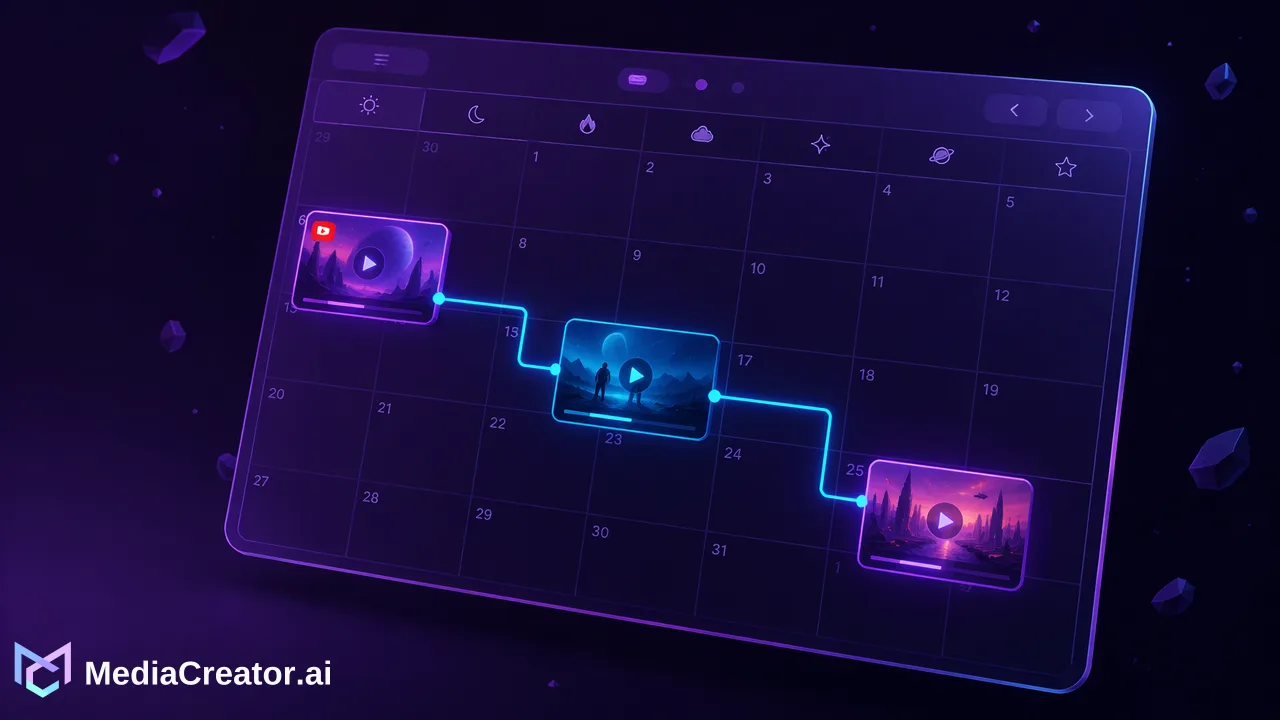
Map each Short to a viewer question, check episode dependencies, and build a release calendar with room for revisions and platform variants.
Build a YouTube Shorts series around distinct viewer questions, then place finished episodes on a calendar in an order that makes sense. Give every clip enough opening context to stand on its own, and leave time to revise later episodes before they are scheduled.
Give each episode a question worth opening
A three-part product demonstration can look complete in an editing folder and still feel confusing in a viewer's feed. The second clip may begin with “Now tighten this,” while the first clip explaining the object has not been published. A publishing calendar helps with timing, but the series needs an editorial map before you assign dates.
For a worked example, imagine a creator preparing three Shorts about a compact desk lamp. The viewer needs to choose where to put it, set it up, and adjust it for a video call. Those are connected questions, yet each gives a different reason to watch.
Write the question beside the working title before editing the final cut. If two episodes answer essentially the same question, change the demonstration or combine them. If one episode promises several unrelated answers, decide which answer earns the short format.
The map can be simple. Keep the viewer question, opening line, finished asset and intended release slot together in your own planning document. MediaCreator supplies drafts, previews and the publishing calendar; the series logic comes from these editorial choices.
Build a three-episode release plan
Here is an illustrative release plan for that desk-lamp series. The days describe a sequence, not a recommended posting frequency for every channel.
| Release slot | Viewer question | Working title | Opening context |
|---|---|---|---|
| Tuesday | Where should the lamp sit? | Where to Put a Lamp on a Small Desk | Show the whole desk and the lamp before the placement demonstration. |
| Thursday | How should the arm be adjusted? | Set Your Desk Lamp Without Screen Glare | Identify the lamp and show the screen before moving the arm. |
| Following Monday | How can it light a video call? | Adjust a Desk Lamp for Your Next Video Call | Show the call setup and the lighting problem immediately. |
Wednesday stays available for reviewing the second episode. Friday gives the creator time to revise the third after watching the finished cut again. Those are working slots for the team, not extra posts that must be invented to fill a calendar.
Each episode has a clear payoff. The first establishes placement; the second demonstrates adjustment; the third applies the lamp to a different task. A person who discovers the video-call clip first still understands what it is showing.
Check dependencies before assigning the final time
Watch each cut without playing the preceding episode. Listen for “as we explained earlier,” “use the same setting,” and other phrases that leave a new viewer without essential information. Replace them with the specific object or action when the added context is brief enough.
A later clip can refer to an earlier published demonstration, but its main answer should remain understandable. If a setup genuinely requires the preceding explanation, publish that explanation first and review the later introduction against what is actually available.
Titles need the same check. “Part 2” helps someone already following the series, while “Set Your Desk Lamp Without Screen Glare” tells a new viewer why to open it. An episode number can accompany the useful title rather than carry the whole meaning.
Now check the versions. The video, caption and opening promise must describe the same demonstration. A revised voiceover about a different adjustment can leave an older caption behind. Review the complete post, not just the export filename.
Move ready episodes into the calendar
In MediaCreator, connect the intended YouTube account, prepare a draft and review the platform preview before scheduling. Our social media scheduler brings drafts and scheduled posts into month, week and list views, with copy and settings adapted for each target platform.
Place the ready episodes in the intended sequence. Check the account, date, time and displayed time zone, then compare the calendar order with the episode map. The practical question is whether the audience will have the context the next clip assumes at its release time.
Keep unfinished work in drafts until its changes have been reviewed. If Thursday's clip needs another edit, revisit Monday's dependency rather than automatically preserving its original slot. A coherent sequence matters more than keeping an arbitrary gap between episodes.
The calendar supports this review by showing the posts together. It does not decide which episode depends on another, create a series for you, or establish the editorial order automatically. Your episode map remains the reference when a release changes.
Choose the scheduling workspace that fits the series
For a finished series that will appear only on YouTube, native YouTube scheduling may be sufficient. You still need the episode questions, context checks and release order; a separate cross-platform workspace becomes useful when the surrounding work extends beyond that one channel.
For example, the desk-lamp creator may want an Instagram version of the placement demonstration and a TikTok version of the video-call tip. Those variants can use different opening copy while supporting the same release plan. In MediaCreator, review each target's preview and settings rather than assuming that one caption suits every destination. Our publishing workflow supports YouTube, Instagram, TikTok and Facebook.
Keep the relationship between the original and its variants clear in your planning notes. When the main video changes, check the related drafts before leaving them on the calendar. This is especially helpful when a correction changes the advice, not merely a decorative frame.
Start with the next three connected ideas you already intend to film. Give each a viewer question and one sentence of opening context, then schedule only the finished versions. The resulting calendar should show a series a viewer can follow and a team can still revise.
Learn More
Choose the product information that fits the next step in your workflow.
Get Started with MediaCreator.ai
Discover the power of AI-driven content creation
Related Articles
Continue learning with these related guides
Why a YouTube Short Over One Minute May Be Blocked by a Music Claim
Check the claim, upload date, and current YouTube Studio restrictions before editing or rescheduling a longer Short.
BlogHow to Schedule YouTube Shorts in Advance
Prepare Shorts with strong titles and descriptions, schedule them on a calendar next to other platforms and preview before they go live.
BlogSocial Media Publishing API: What It Covers and When Teams Need One
Learn when a publishing API fits better than a web app, what MediaCreator Public API v1 covers, and how to handle terminal post results.
Blog