
Moving to an All-in-One Social Content Workflow: What to Test First
Use one real brief and two platform variants to test creation, localization, review and scheduling before changing your social content tools.
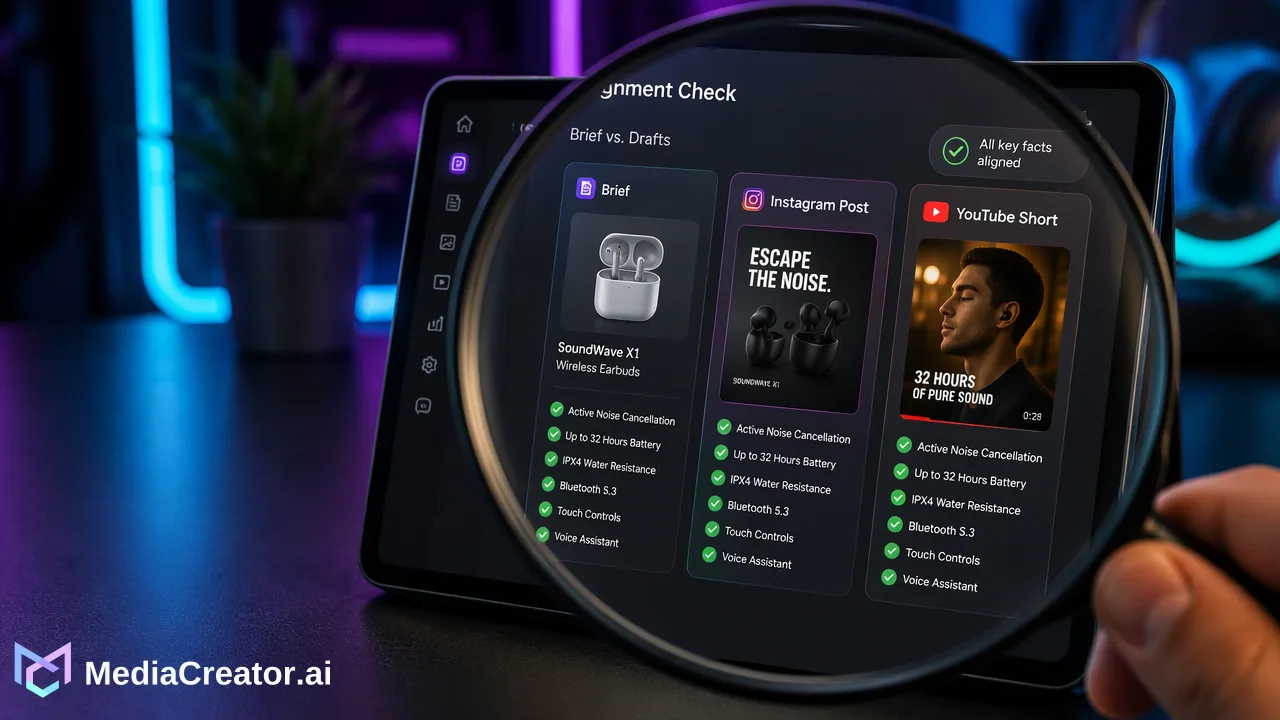
Use one real brief and two platform variants to test creation, localization, review and scheduling before changing your social content tools.
Before switching to an all-in-one social content workflow, take one real brief through creation, review and scheduling on two platforms. Compare the finished posts and the work between stages, then check that the channel, reporting and team requirements you already rely on are covered.
Begin with the handoff that keeps slowing a post down
A video is ready, but its translated narration sits in another tool. The caption still refers to an earlier offer. Someone exports the final file, sends it for review, and uploads a second version to the scheduler. By the time the post is ready, the hard part has been keeping its pieces together.
That is a useful reason to explore a different workflow. It also gives you a specific test: can the new workspace carry the same brief into finished posts with less repair between stages?
Start with a recent post whose preparation you remember. List what actually happened: where the image or video came from, who changed the words, how a second language was reviewed, and which file reached the scheduler. Include the final checks that protected the result. A faster draft is not useful if the editor loses the chance to correct a product claim before publication.
At MediaCreator, we bring content creation, platform adaptation, scheduling, analytics and supported engagement workflows into one web app. The most useful evaluation is to run your own work through those connected stages.
Choose one real brief and two meaningful variants
Use a brief already due on your calendar. A small brand might be preparing a demonstration of a new travel pouch: what fits inside, where it opens, and which product page the post should point to. The brief should include approved product facts, the intended audience, the available source media and the action the viewer should take.
Choose two destinations you actually publish to. For this example, use an Instagram post and a YouTube Short. Keep the product promise consistent while allowing the presentation to differ. The Instagram caption might explain the compartments; the Short can show the packing sequence in motion.
Decide what the finished pair must contain before trying the tools. This prevents a visually impressive generated asset from quietly replacing the job the post needed to do. If localization is a regular requirement, include a language you normally use and ask someone who can assess it to review the result.
Keep the existing publishing schedule in place while you build the candidate drafts. You can learn a great deal from the preview stage without duplicating a public post or moving a live queue.
Carry creation and localization through to usable assets
Our AI content tools include Quick Caption, opt-in Brand Voice and Content Studio. Quick Caption works from uploaded image or video. Content Studio supports image and video generation through the enabled model catalog. Start with the source material your brief needs and check the in-app estimate before spending generation credits.
Review the output as something you intend to publish. Does the caption describe the actual product? Does generated media preserve the details the demonstration depends on? Keep the real product footage when accurate representation matters more than creating a new scene.
If your normal process includes translated video, exercise that handoff too. Video Translation Pro supports uploaded-video translation and dubbing, with editable source and translated lines and subtitle or voice controls. Review pronunciation, product names and meaning in the language you intend to publish. Use the enabled workflow shown in the app; a visible feature card does not necessarily mean that action is available yet.
Make one realistic correction during the rehearsal, such as changing an accessory name. Then follow it into both platform variants. This shows where a change is easy to carry forward and where you still need a manual reminder. Do not judge the workflow only by its first successful output.
Review the complete post before testing the calendar
Build the two variants in the composer and inspect their platform previews. Match each caption to the right asset and confirm the intended account. Read the words alongside the media rather than treating writing and video approval as unrelated steps.
Ask the person who normally reviews the post to perform their usual review. If your process requires a particular approval role, client sign-off or restricted editing permission, verify that exact need in the current product experience before depending on it. A plan name or a general collaboration description is not enough to establish the permission arrangement your team needs.
Now place the drafts into the intended release sequence. Check dates, times, platform settings and the connection between the original post and its adapted version. MediaCreator offers a visual calendar with month, week and list views. The useful result is a pair of posts that can be found, reviewed and scheduled without uncertainty about which version is current.
If you choose to complete a live publishing test later, use an authorized post and check its actual result on the destination. A successful preview demonstrates preparation; a published result answers the separate delivery question.
Compare retained requirements, not just the editor
Before moving a recurring queue, check every channel you need. MediaCreator connects TikTok, Instagram, Facebook and YouTube through official OAuth. If other destinations remain part of your work, account for their separate workflow rather than assuming the new workspace will cover them.
Check reporting against a report your team actually uses. MediaCreator's paid plans include Analytics with Overview, Content, Audience, Timing and Lab tabs. Confirm the particular measures and connected accounts you require in the current interface. If you need automated reporting through an API, review that requirement separately: the public v1 API does not expose Analytics endpoints.
Do the same for engagement. Social Inbox is available on paid plans, while particular comments, direct messages and mentions depend on the platform, account type and OAuth permissions. Open the kinds of conversations your team needs to handle and confirm the usable coverage.
Finally, compare the plan's combined connected-account allowance, storage, publishing capacity and AI credits with your actual workload. Creation costs and scheduling needs can grow differently. The pricing page is the right place to match those requirements to the current plan.
Keep a short record of what the rehearsal proves
Use a compact scorecard while the work is fresh:
| Stage | Record from your own rehearsal |
|---|---|
| Creation | Usable asset, edits required, and credits spent |
| Localization | Meaning corrections and any remaining outside work |
| Review | Who could check the complete post and where corrections happened |
| Scheduling | Correct accounts, versions and release times |
| Reporting and engagement | Required views or interactions confirmed, plus gaps |
Record actual manual transfers and corrections rather than estimating a percentage saving. A missing step deserves a specific note, such as “client approval still happens by email.” That makes it possible to decide whether the remaining work is acceptable.
Start the switch with a manageable release that passed the rehearsal. Carry the brief, source assets and reviewer feedback forward together, and keep required history accessible. The goal is a repeatable path from an idea to the right published post, demonstrated with work your team already understands.
Learn More
Choose the product information that fits the next step in your workflow.
Get Started with MediaCreator.ai
Discover the power of AI-driven content creation
Related Articles
Continue learning with these related guides
Manage All Your Social Media in One Place
Learn how to simplify multi-platform content management through centralized social media management, saving time and amplifying your reach.
BlogCentralized Social Media Management: What Belongs in One Workspace
Decide which accounts, content, conversations and measurements to centralize, and which platform-specific tasks still belong in native tools.
BlogHow to Manage All Your Social Media Accounts in One Place
Consolidate TikTok, Instagram, Facebook, and YouTube into one dashboard. Schedule posts, track publishing, and handle community engagement.
Blog