
How to Manage Social Media for Multiple Clients Without Losing Track
A practical system for freelancers and agencies: client onboarding via OAuth, naming rules, previews, separate reply queues and per-client monthly reports.
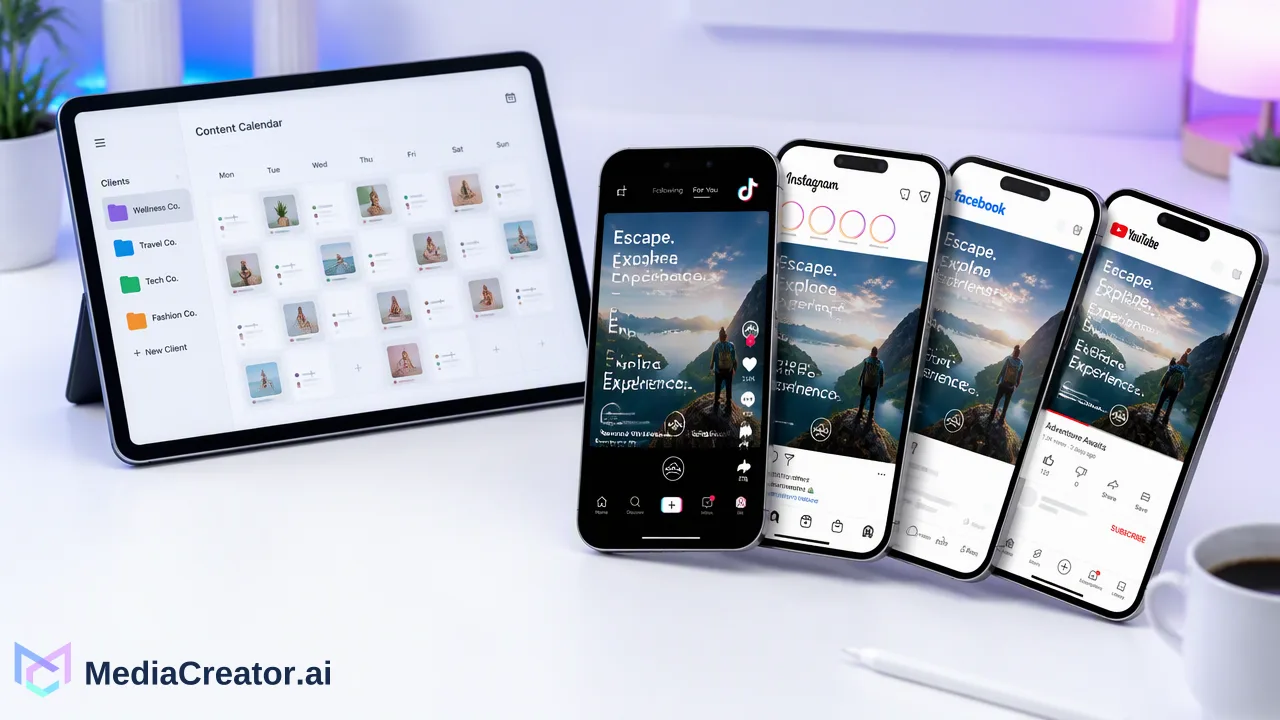
A repeatable operating system for freelancers and small agencies who manage social media for multiple clients across TikTok, Instagram, Facebook and YouTube.
To manage social media for multiple clients without losing track, give every client the same fixed structure: a documented onboarding, accounts connected through official OAuth instead of shared passwords, a naming rule that makes each profile obvious, a preview step before anything is scheduled, and a separate reply and reporting routine. Most mix-ups come from switching context, not from workload, so the goal is to make the right client and the right account visible at every step.
Why managing social media for multiple clients breaks down
Most guides on this topic list tools and tips, but the failure points are predictable and worth naming first:
- Wrong-account posts. A caption written for one brand goes out on another brand's profile because both accounts look similar in a list.
- Credential sprawl. Passwords live in chats and spreadsheets, so nobody knows who still has access after a contractor leaves.
- Missed replies. Comments and DMs are checked only when someone remembers to open each native app.
- Reports that take a day. Numbers are copied by hand from four platforms for every client.
Capacity is also easy to misjudge. Count accounts, not clients: a client with TikTok, Instagram, Facebook and YouTube creates four publishing targets, four comment streams and four sets of metrics. Three clients on four platforms is already twelve accounts to keep straight.
Onboard each client the same way
A fixed onboarding checklist removes most later confusion. Run it for every new client, even small ones.
- Confirm platforms and account types. Write down which TikTok, Instagram, Facebook and YouTube profiles are in scope, and whether Instagram is a professional account, because some interaction data is only available to certain account types.
- Connect through OAuth, not passwords. In MediaCreator.ai, accounts are connected through each platform's official OAuth 2.0 flow, so the client (or a person with the right platform role) signs in on the platform's own screen and approves access. No social password is handed over and no browser extension is installed. Record who approved each connection and when.
- Grant native platform roles separately. For work that happens outside the scheduler, use each platform's own permission tools, such as YouTube channel permissions, which let people manage a channel without access to the owner's Google Account.
- Collect brand inputs. Voice notes, banned words, approved hashtags, logo files and recurring disclaimers go into one client brief.
- Agree on review and reply rules. Decide who approves posts, how much notice the client needs, and which comments the client wants escalated.
The connected-account cap in MediaCreator.ai is one combined total across all platforms, so check how many client profiles the plan covers on the pricing page before adding a new client.
Make every client account impossible to confuse
Separation should be visible, not remembered. Practical habits that help:
| Habit | What it prevents |
|---|---|
Prefix drafts and media files with a client code (for example ACME- ) |
Attaching the wrong client's video to a post |
| One media folder or naming pattern per client in the Media Library | Reusing an asset the client never approved |
| Never compose for two clients in the same session | Copy and hashtags bleeding between brands |
| Read the target account name aloud in the final check | Wrong-profile publishing |
| Keep one written brief per client | Tone drift between similar brands |
A unified dashboard puts many accounts side by side, which is efficient but also where mistakes happen. Treat the account selector as the most important field in the composer and check it last, not first.
Plan, preview and schedule per client
Batch by client, not by platform. Open one client's month, fill it, then move to the next. Inside MediaCreator.ai the flow looks like this:
- Draft the post in the cross-platform composer and select only that client's connected accounts.
- Adapt the copy and settings for each target platform; a TikTok caption and a YouTube title rarely work as the same text.
- Open the per-platform previews to check truncation, crops and the account shown on each preview.
- Save as a draft for client review, or place it on the month, week or list calendar in the social media scheduler.
MediaCreator.ai does not include a separate client portal, so client approval usually happens outside the app. A simple pattern is to send the client a screenshot of each per-platform preview or the week's list view, collect written sign-off, and only then move drafts to a scheduled time. Leave at least one working day between sign-off and the first publish time so late edits do not force rushed changes.
After publishing, check the calendar for posts in a failed state each day. A failed post for one client is easy to miss when the calendar shows dozens of entries, so make this check part of the daily routine rather than something done when a client asks.
Keep replies separate for each client
Replying is where cross-client mistakes are most visible, because a reply posts instantly. The Social Inbox in MediaCreator.ai collects supported comments, direct messages and @mentions from eligible connected accounts, subject to each platform, account type and OAuth permissions. That removes the need to open every native app, but it also means several brands share one screen.
Useful rules:
- Work through the inbox one client at a time and confirm the account before every reply.
- Keep saved responses per client, written in that client's voice; never reuse another brand's template.
- Agree an escalation list with each client: refunds, complaints, press and legal questions go to the client, not into a public reply.
- Note what the inbox cannot show. Some interaction types depend on the platform and account type, so keep a short list of what still has to be checked in the native app.
The unified social inbox is available on Creator, Team and Business plans. Comment and DM history is 30 days on Creator and Team and unlimited on Business, which matters if a client asks about a conversation from several months ago.
Report per client on a fixed rhythm
Reports are where clients judge the work, so keep them consistent. On paid plans, MediaCreator.ai Analytics provides Overview, Content, Audience, Timing and Lab tabs for connected accounts. A monthly client report can follow the same order every time:
- Overview: headline numbers for the client's accounts this month versus last month.
- Content: the posts that performed best and worst, with a short note on why the team thinks so.
- Audience: changes worth mentioning, where the platform provides audience data.
- Timing: whether the posting schedule should move, framed as a test rather than a promise.
- Next month: two or three concrete changes to try.
Available metrics differ by platform, so label each figure with its platform instead of adding numbers that mean different things.
Offboarding and access reviews
Few guides cover the end of a client relationship, yet it is where access risk builds up. When a client leaves or a contractor rolls off:
- Remove the client's connected accounts from the workspace so no one can schedule to them by accident.
- Remove native platform roles that were granted for the engagement.
- Hand over the final report and any approved media the client owns.
- Archive the client brief and saved responses so they are not reused for another brand.
Repeat a lighter access review every quarter: list every connected account, who approved it and whether the engagement is still active.
FAQ
How many clients can one social media manager handle?
There is no fixed number. Estimate load by connected accounts and weekly posts rather than client count, and include time for replies and reporting. A client on four platforms needs roughly four times the checking of a client on one.
How can teams avoid asking clients for social media passwords?
Connect accounts through each platform's official OAuth flow, where the account owner signs in on the platform's own screen and approves access. For work in native tools, use the platform's own role systems, such as YouTube channel permissions or Facebook Page access.
How can agencies get client approval before posts go live?
Keep posts as drafts, share the per-platform previews or the week's calendar view with the client, collect written sign-off and only then schedule. Build at least one working day of buffer before the publish time.
Which platforms can be managed together in MediaCreator.ai?
TikTok, Instagram, Facebook and YouTube accounts can be connected, including several accounts on the same platform, within the plan's combined connected-account cap.
Learn More
Choose the product information that fits the next step in your workflow.
Get Started with MediaCreator.ai
Discover the power of AI-driven content creation
Related Articles
Continue learning with these related guides
How to Schedule Instagram Reels Without Posting Manually
Connect an eligible Instagram account, write Reels captions, schedule on a calendar and preview per platform. Includes account-type notes.
BlogHow to Cross-Post Short Videos to TikTok, Reels and Shorts Without Looking Duplicated
Adapt one vertical video for TikTok, Instagram Reels and YouTube Shorts: clean exports, per-platform captions, previews and a staggered schedule.
BlogHow to Build an Automated Social Media Publishing Workflow
Learn how to build an automated content publishing workflow using centralized dashboards, AI drafting tools, and visual scheduling for social media teams.
Blog