
How to Manage Multiple Social Media Accounts Safely Without Sharing Passwords
A practical access, account-mapping and publishing routine for teams managing several social accounts through official connections.
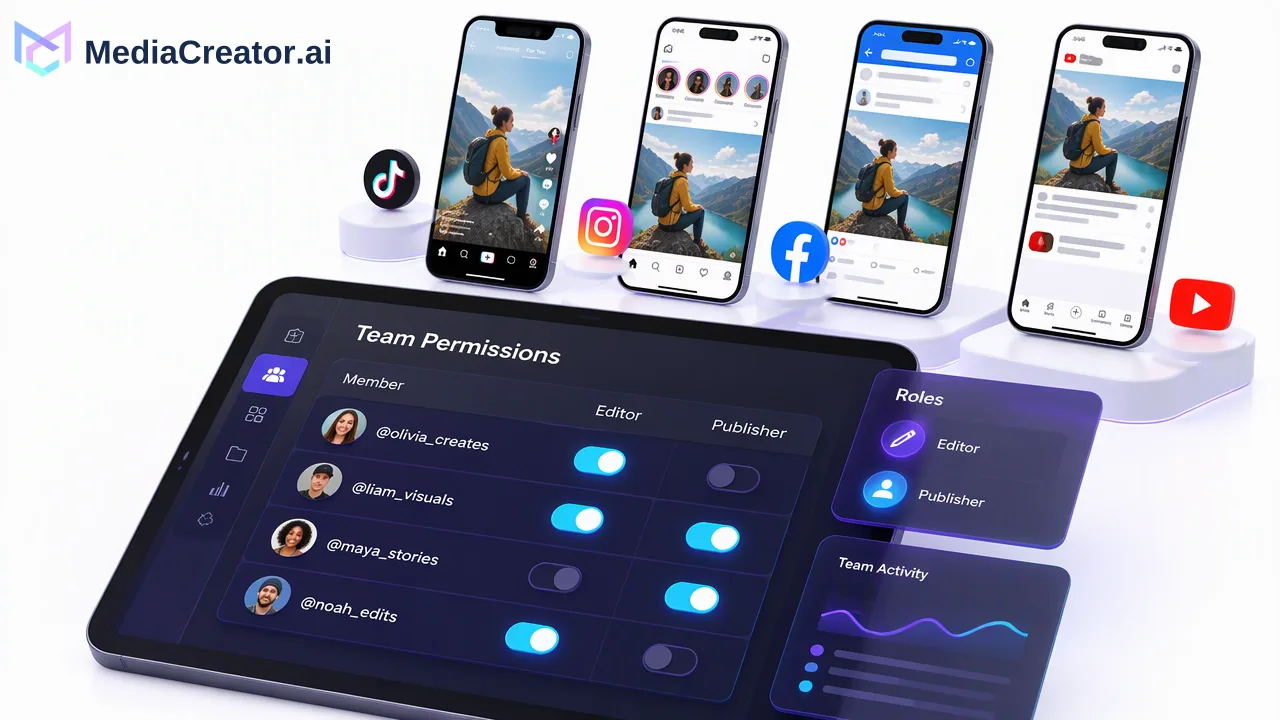
A practical access, account-mapping and publishing routine for teams managing several social accounts through official connections.
To manage multiple social media accounts safely, connect each account through the platform’s official authorization flow, give people only the access their job requires, and verify the destination before every post. A shared password or a browser profile copied among teammates makes ownership and offboarding harder to control. A clear account inventory and review routine are as important as the connection method.
Why account access is a workflow problem
Teams often start with one person holding every login. That may work for a single creator, but it gets fragile when a contractor edits a video, a manager approves copy and another operator publishes. A password in a chat or shared spreadsheet gives the recipient a login credential rather than a narrowly described publishing task. It is also difficult to tell which person changed an account setting or to revoke one collaborator without changing what everyone else uses.
Official authorization is a more appropriate starting point for a connected publishing tool. Google's OAuth guidance explains the general principle: an application can receive authorized access while the user's username and password remain private. Each social platform controls its own consent and available permissions, so do not assume that one connection opens every feature. Review the authorization screen, the account being selected and the permissions offered before accepting.
MediaCreator.ai connects customer-facing TikTok, Instagram, Facebook and YouTube accounts through official OAuth 2.0. The account owner does not need to share a social-account password with the workspace or install a browser extension. That connection is a sound way to avoid password passing, though it is still important to protect the owner account and review its authorized applications.
Build a precise account inventory
Before inviting collaborators, list every channel with its platform, public handle, owner, brand or client, intended region and the person responsible for final approval. Include a link to the native account settings and record whether the channel is active, seasonal or retired. Do not store passwords in this inventory. The goal is to remove ambiguity when two handles have similar names or avatars.
A team with several brands should name internal projects consistently: brand, region, platform and handle. If a campaign is intended for a local audience, note that in the brief rather than relying on an operator to remember it. Review the inventory when an account changes owner or a brand launches another channel. This simple document helps a reviewer catch a wrong-destination post before scheduling.
A combined connected-account cap can also influence organization. MediaCreator.ai counts connected accounts across supported platforms as one total, rather than a separate allowance per platform. Check the current plan and connected account list before building a workflow around additional channels. The public social media scheduler page describes the workspace, but the team should use its live account view for its own setup.
Connect accounts one owner at a time
Ask the legitimate account owner or administrator to start the connection while signed in to the correct native platform account. Confirm the handle in the authorization flow and read the requested access. A browser with several active platform sessions can make it easy to approve the wrong identity. Complete one connection, then verify that the expected handle appears in the publishing workspace before starting the next.
Do not use a fingerprint browser as a substitute for an access policy. A collection of simulated browser identities can obscure who owns a channel and where a scheduled post should go. The safer operational rule is to use official account access and authorization, keep the owner relationship documented and disconnect accounts that are no longer needed. If a platform asks for a fresh authorization, route it to the legitimate account owner instead of seeking a stored password.
Review native platform security settings separately. The team should know who can recover the account and who receives security notices. Multi-factor authentication and a recovery method belong with the platform owner; a connected publishing workspace does not replace them. When a collaborator leaves, review both workspace access and native platform roles or app authorizations.
Separate creation, approval and publishing decisions
A small team can use a simple three-stage flow. The creator prepares media and draft copy; the reviewer checks facts, brand fit and rights; the publishing operator verifies the target account, platform variation and time. One person can hold multiple roles, but the stages should remain visible. That way “drafted” does not silently mean “approved.”
MediaCreator.ai's cross-platform composer lets an operator adapt copy and settings for each supported platform and preview the result. Use that preview to check the exact handle and media-caption combination. A shared visual calendar then makes scheduled work easier to inspect by date. The system supports draft, queued or publishing, published and failed states. A published state should still lead to a quick inspection of the live post when the content matters; a failed state calls for diagnosis before rescheduling.
| Check | Owner | Evidence to inspect |
|---|---|---|
| Correct account | Publishing operator | Platform and handle shown in composer |
| Correct asset | Creator and reviewer | Approved file version and visible preview |
| Correct wording | Reviewer | Destination-specific caption and factual claims |
| Correct timing | Publishing operator | Calendar date and local time zone |
| Confirmed result | Publishing operator | Status and live post after scheduled time |
A unified social inbox may help eligible connected accounts handle available interactions after posting. Its coverage depends on platform, account type and OAuth permissions, so check the native account when an expected interaction is absent.
Audit access and connections on a schedule
Once a month, compare the inventory with the connected account list and current team. Identify abandoned channels, former contractors, duplicate connections and channels owned by an individual who has changed roles. Confirm the recovery owner and remove access that is no longer justified. This is a human governance routine, not a claim that a tool can prevent a platform from restricting an account.
Keep a short change log: date, account, reason for reconnecting or removing access, and person who approved it. When an account is disconnected, inspect any queued posts that targeted it before assuming they can still publish. When a new person joins, grant access for their work and explain the review process rather than handing over a shared credential.
Finally, rehearse one mistake scenario. If the wrong account is selected in a draft, who catches it? If a connected account expires, who reconnects it? If a scheduled post fails, who reviews its status and communicates the delay? Answers to these questions make safe multi-account management concrete.
FAQ
How can teams connect several social accounts without passing around passwords?
Have each legitimate account owner authorize the connection through the platform’s official flow. Record the handle and owner, then verify that the intended account appears in the workspace.
What should teams check before scheduling a post to multiple accounts?
Review the exact handle, destination-specific caption, media version and scheduled time in each platform preview. Treat each target as a separate approval decision.
How should access change when a collaborator leaves?
Review workspace membership, native platform roles and authorized app connections. Remove access that is no longer needed and confirm who owns recovery and security notices.
Learn More
Choose the product information that fits the next step in your workflow.
Get Started with MediaCreator.ai
Discover the power of AI-driven content creation
Related Articles
Continue learning with these related guides
How to Manage Social Media for Multiple Clients Without Losing Track
A practical system for freelancers and agencies: client onboarding via OAuth, naming rules, previews, separate reply queues and per-client monthly reports.
BlogSecure Social Media Management: Eliminating Password Sharing with OAuth 2.0
Discover how secure social media management tools use OAuth 2.0 to connect TikTok, Instagram, Facebook, and YouTube without password sharing.
BlogHow to Manage All Your Social Media Accounts in One Place
Consolidate TikTok, Instagram, Facebook, and YouTube into one dashboard. Schedule posts, track publishing, and handle community engagement.
Blog