
AI Social Media Content Creator: Turning One Idea into Platform-Ready Posts
How a solo creator can use an AI social media content creator to turn one idea into TikTok, Instagram, Facebook and YouTube drafts, then review and schedule.
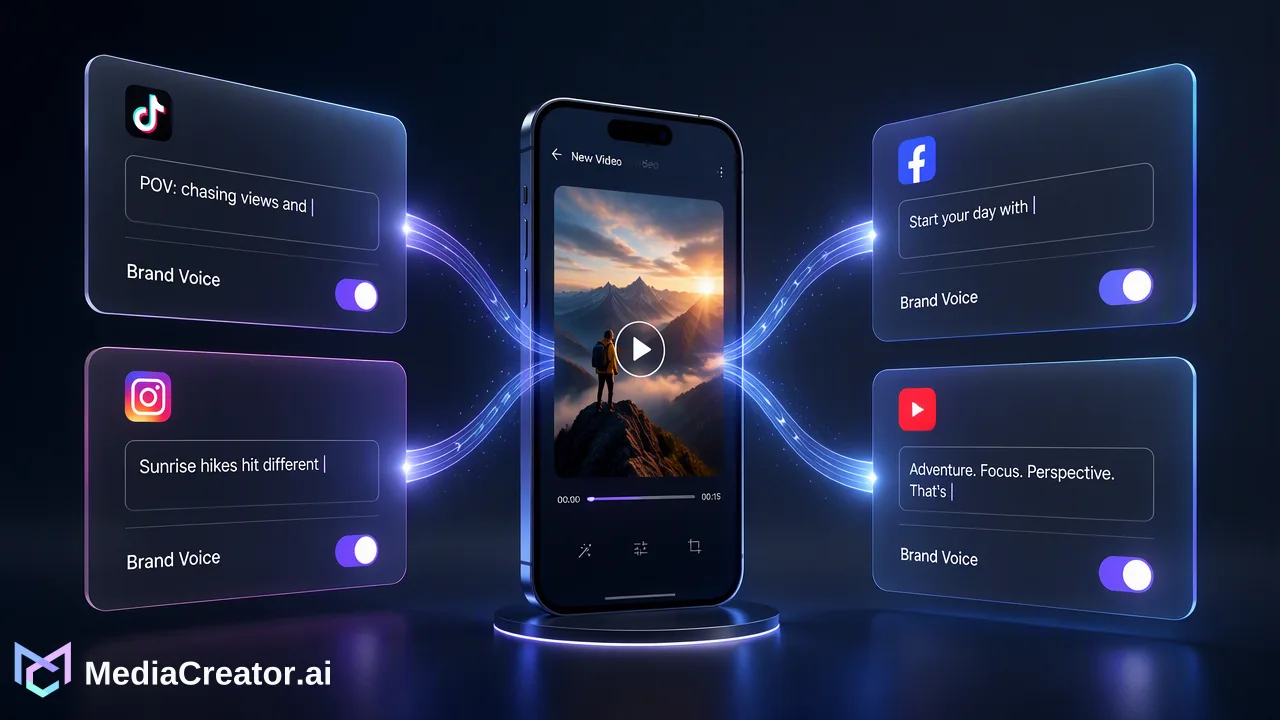
A practical workflow for turning a single idea into reviewed, platform-adapted drafts for TikTok, Instagram, Facebook and YouTube.
An AI social media content creator helps you turn one idea into several platform-specific drafts, but it works best as a drafting assistant rather than an autopilot. Start with a clear idea and one piece of media, generate a first caption or description for each destination, then edit every draft yourself before it is scheduled. MediaCreator.ai keeps that sequence in one workspace for TikTok, Instagram, Facebook and YouTube.
What an AI social media content creator actually does
The useful part of an AI social media content creator is not producing a post from nothing. It is removing the repetitive rewriting that happens after you already have an idea: a short TikTok caption, a longer Instagram caption, a Facebook update with context, and a YouTube title and description.
Search results for this topic mostly list tools that generate text from a prompt. What they rarely cover is the part that decides quality: what you feed in, what you change afterwards, and where the draft is reviewed before publishing. The workflow below is built around those three points.
In MediaCreator.ai, AI content generation covers Quick Caption, opt-in Brand Voice and the Nova AI co-pilot. These assist drafting. Nothing is published until you confirm it, and credit-spending or content-creating Nova actions ask for on-screen confirmation first.
Step 1: Define the idea in two sentences
Before opening any AI tool, write the idea so that a stranger could understand it.
- The point: what the viewer should learn or feel.
- The proof: one concrete detail, such as a step, a before/after, or a behind-the-scenes fact.
An idea such as "how I batch-film a week of videos on Sunday" is specific enough to adapt. "Productivity tips" is not. The more concrete the input, the less generic the four drafts will be.
Step 2: Start from the media, then draft per platform
Upload the video or image to the Media Library first. Quick Caption can adapt copy from an uploaded image or video, so the draft reflects what is actually on screen rather than only your prompt.
Then draft one version per destination. The platforms read differently:
| Destination | What the draft should do |
|---|---|
| TikTok | Short, conversational caption that supports the first seconds of the video |
| Caption with context and a clear opening line, since the first lines are what people see before expanding | |
| A fuller update that works for readers who did not see the video | |
| YouTube | A descriptive title and a description that explains what the video covers |
These are drafting guidelines, not platform rules. Check each platform's current limits in the composer preview.
Step 3: Review and adapt every draft
AI drafts need an editor. Read each one for four things:
- Accuracy. Remove any claim, number or promise you cannot support.
- Voice. If you use Brand Voice, remember it is opt-in and selected per supported surface; confirm it was applied where you expected.
- Repetition. If all four drafts open the same way, rewrite at least two openings.
- Platform fit. Use the per-platform previews in the composer to see how each caption and setting will render.
This review step is what keeps AI assistance from becoming generic output. It also keeps responsibility for what goes live with you.
Step 4: Schedule the four posts as one set
Once reviewed, place the posts on the calendar in the social media scheduler. Staggering them across a day or two, rather than publishing all four at the same minute, keeps each platform's post from feeling like a copy. Draft, queued, published and failed states are visible on the calendar, so a failed post is easy to spot and fix.
When the media itself needs work, Content Studio can generate images and video using the live enabled model catalog. The in-app cost shown at the time of generation is what applies, so check it before you run a job.
Common mistakes to avoid
- Pasting the same caption into all four platforms and calling it adapted.
- Publishing an AI draft without reading it.
- Treating AI copy as a finished result. It speeds drafting; the quality still depends on your idea and your edits.
- Letting Brand Voice or tone settings change without noticing which one was active.
FAQ
How can creators use AI to turn one idea into several posts?
Write the idea in two concrete sentences, upload the media, generate a draft per platform, then edit and preview each one before scheduling.
Does AI-assisted content publish automatically?
No. AI assists drafting. Posts are reviewed and scheduled or published by the user, and credit-spending Nova actions ask for confirmation.
Which platforms can drafts be prepared for?
MediaCreator.ai supports TikTok, Instagram, Facebook and YouTube.
How can teams keep AI drafts on-brand?
Use the opt-in Brand Voice setting where it is offered, then review each draft against your own approved examples.
Learn More
Choose the product information that fits the next step in your workflow.
Get Started with MediaCreator.ai
Discover the power of AI-driven content creation
Related Articles
Continue learning with these related guides
Building a Proactive AI Social Listening Workflow: Turning Insights into Strategic Action
Learn how to build a proactive AI social listening workflow to centralize conversations, analyze post performance, and guide your social media strategy.
BlogManage All Your Social Media in One Place
Learn how to simplify multi-platform content management through centralized social media management, saving time and amplifying your reach.
BlogHow to Manage All Your Social Media Accounts in One Place
Consolidate TikTok, Instagram, Facebook, and YouTube into one dashboard. Schedule posts, track publishing, and handle community engagement.
Blog