
How Automated Content Scheduling Works for Social Media (and What Still Needs a Human)
What scheduling automation handles, what a person still has to check, and how to schedule and track a post through draft, queued, published and failed states.
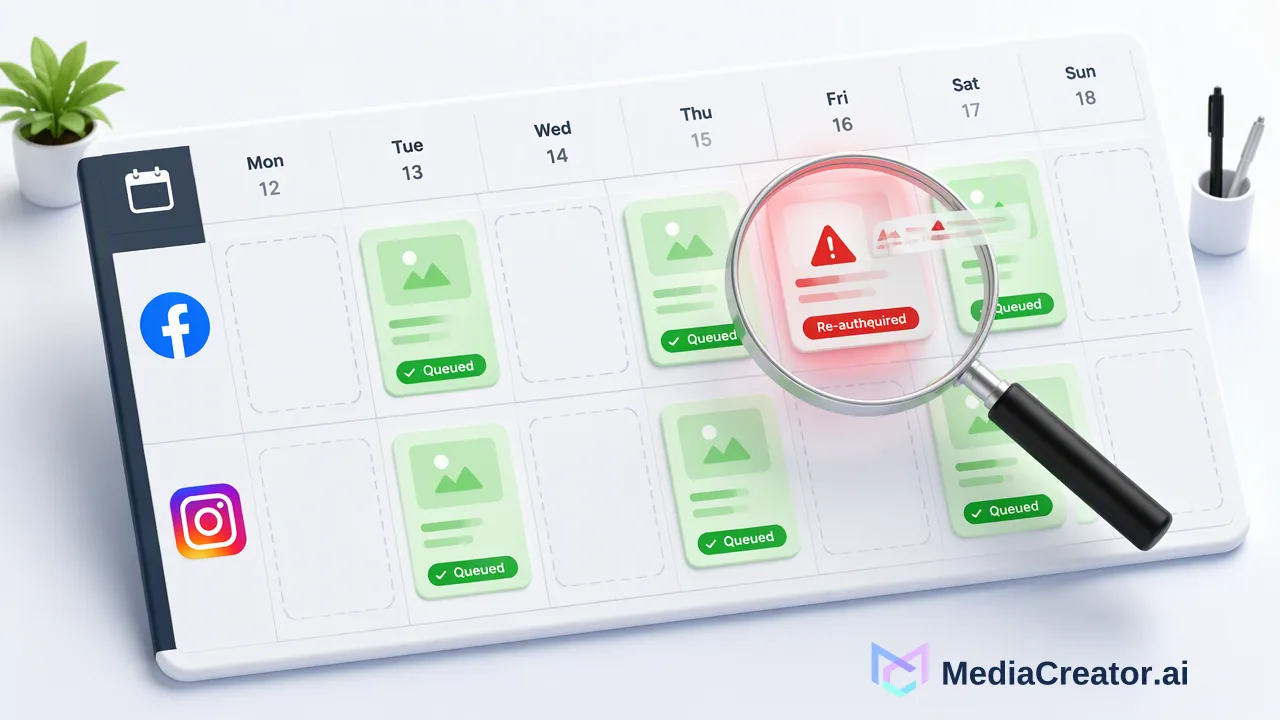
An explanation of what automated content scheduling actually automates for social media, which steps stay manual, and how to schedule and monitor a post in MediaCreator.ai.
Automated content scheduling stores a finished post with a target account and a publish time, then sends it to the social platform at that time without anyone pressing publish. The automation covers the queue, the calendar and the hand-off to the platform. Deciding what to post, adapting it for each platform, previewing it and checking the result after the scheduled time still need a person.
What automated content scheduling actually automates
Behind the label, scheduling automation does four concrete things:
- Holds the post in a queue. The caption, media, target accounts and per-platform settings are saved together as one scheduled item.
- Shows it on a calendar. Everyone on the team can see what is going out, where and when, and spot gaps or clashes.
- Publishes at the set time. At the scheduled moment, the tool sends the post to each platform through the account connection that was authorized earlier.
- Reports the outcome. The post's status changes to published or failed so someone can follow up.
Some tools add recurring time slots or content categories that refill a queue automatically. Those are conveniences on top of the same four steps; they do not change who is responsible for what goes out.
What still needs a human before and after the scheduled time
The parts that stay manual are the parts where judgment or platform context matters.
| Step | Automated | Manual |
|---|---|---|
| Choosing the topic and timing | Calendar view of existing posts | Deciding what is worth posting and when |
| Writing the caption | Optional AI drafts | Editing for accuracy, tone and platform fit |
| Adapting per platform | Separate fields per target | Choosing what changes for each platform |
| Preview | Per-platform rendering | Spotting truncation, crops and the wrong account |
| Publishing | Sent at the set time | Final confirmation when the post is scheduled |
| After publishing | Published or failed status | Checking the live post, fixing failures, replying |
Platforms also build human steps into their own rules. TikTok's content sharing guidelines for apps that post directly ask that the creator sees which account will receive the post, picks the privacy level with no default, sets interaction options and consents before publishing. Any scheduling tool that posts to TikTok works inside those expectations, so plan for a few TikTok-specific choices per post rather than a fully hands-off queue.
Scheduling a post step by step in MediaCreator.ai
The social media scheduler in MediaCreator.ai follows the same automated and manual split.
- Connect accounts. TikTok, Instagram, Facebook and YouTube accounts connect through official OAuth 2.0, without sharing passwords or installing a browser extension.
- Create the post. Write the caption, attach media from the Media Library or upload it, and select one or more connected accounts as targets.
- Adapt per platform. Edit the copy and settings for each target. A YouTube title, a TikTok caption and a Facebook post rarely need identical text.
- Preview each target. Use the per-platform previews to catch truncated captions, crops that cut off text and posts aimed at the wrong account.
- Choose publish now, schedule or save as draft. Scheduled posts appear on the calendar in month, week or list view.
- Review the status afterward. Each post moves through draft, queued or publishing, and then published or failed.
If AI helped with the copy, the review step is the same. Nova actions that create content or spend credits ask for on-screen confirmation, and AI-assisted captions are drafts that need review before publishing, as described on the AI content generation page.
Reading calendar states: draft, queued, published and failed
The status on the calendar is the main signal that the automation did its part. A simple reading guide:
- Draft: saved but not scheduled. It will not publish until someone schedules or publishes it.
- Queued or publishing: scheduled and waiting for its time, or in the process of being sent.
- Published: the platform accepted the post. Open the live post once to confirm it looks right.
- Failed: the post did not go out. Open it, correct what needs fixing, then publish it again or reschedule it.
Teams on paid plans that connect MediaCreator.ai to their own systems can also receive post.published and post.failed webhook events, which is useful when someone outside the calendar needs to know a post's outcome. Either way, make one person responsible for checking failed posts each day; a failure noticed hours later can matter more than the failure itself.
Platform rules that shape what can be scheduled
Automation sits on top of each platform's publishing rules, and those rules explain many surprises.
- Instagram documents publishing through its API for professional accounts, with JPEG as the only supported image format, no filters or shopping tags in API-published posts, and a cap on API-published posts per account in a rolling 24-hour window, according to Meta's content publishing guide.
- YouTube schedules a video by keeping it private with a
publishAttime, and the scheduled time only applies to videos that have never been published. - TikTok asks direct-posting apps to collect privacy and interaction choices from the creator for each post, and notes that a post can take a few minutes to process before it shows on the profile.
When a scheduled post fails or looks different from the preview, these platform conditions are the first place to look, before assuming the schedule itself is wrong.
Common mistakes with automated scheduling
- Scheduling identical copy everywhere. It saves a minute and usually produces a caption that is too long on one platform and too thin on another.
- Skipping the preview for routine posts. Routine posts are where the wrong target account slips through, especially when several accounts per platform are connected.
- Treating published as finished. The calendar status confirms the hand-off, not how the post looks in the app. A quick look at the live post catches crop and link issues.
- Nobody owns failed posts. Without a named owner, a failed status can sit unnoticed on a busy calendar.
- Filling a queue far ahead without review. Long queues are fine, but news, product changes and holidays can make an older post wrong. Review the next week's queue at a fixed time each week.
A practical rhythm for small teams is a weekly scheduling session, a daily two-minute calendar check for failed posts and a weekly look at analytics to decide what goes into the next queue.
FAQ
How can teams schedule posts without losing control of what goes out?
Keep AI output and queued posts as drafts until someone has adapted and previewed them, then schedule. Review the upcoming week's queue at a fixed time so older posts can be updated or removed.
What happens when a scheduled post fails in MediaCreator.ai?
The post shows a failed state on the calendar. Open it, correct the media, copy or settings, and publish it again or reschedule it. Paid plans can also receive post.failed webhook events.
How can teams fit AI drafts into an automated scheduling queue?
Generate the caption or media as a draft, edit it in the composer, check each platform preview and only then schedule it. In MediaCreator.ai, Nova actions that create content or spend credits need on-screen confirmation.
Which platforms can MediaCreator.ai schedule posts to?
TikTok, Instagram, Facebook and YouTube accounts connected through official OAuth. Each platform's own publishing rules still apply to what can be posted and when it appears.
Learn More
Choose the product information that fits the next step in your workflow.
Get Started with MediaCreator.ai
Discover the power of AI-driven content creation
Related Articles
Continue learning with these related guides
Scheduled Publishing: Automate Your Social Posts
Learn how to optimize your content strategy through automated social media publishing, ensuring you reach your target audience at the perfect moment.
BlogMastering LinkedIn Consistency: A Workflow Guide to Automated Scheduling
Streamline your scheduling workflow by shifting from manual daily posts to batch planning, visual calendars, and multi-platform management.
BlogMaximizing Social Media ROI: A Team-Based Approach to AI-Assisted Workflows
Improve social media ROI with AI-powered scheduling tools. Learn how teams use unified dashboards and AI assistants to streamline content workflows.
Blog